[ad_1]
Here’s a support ticket every store owner has seen at least once: “I placed an order 20 minutes ago and haven’t received anything. Did it go through?”
The order went through. The confirmation email might not have.
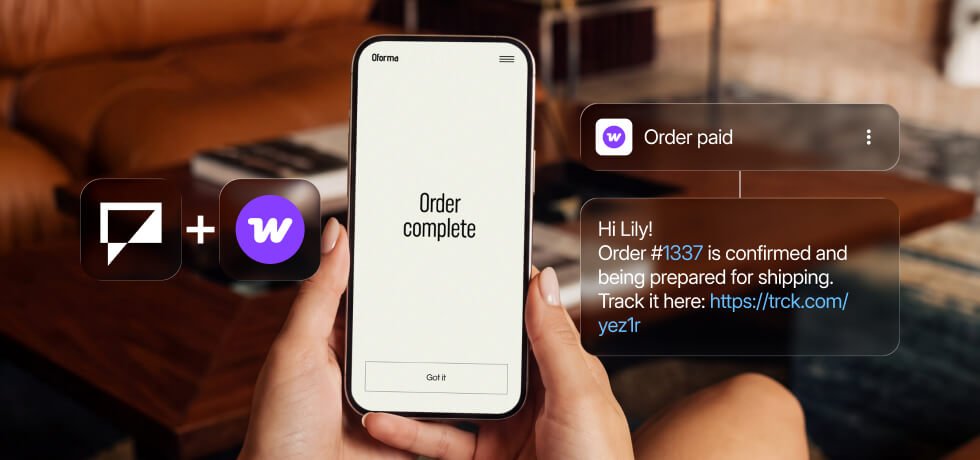
For the order updates customers look forward to, SMS is the channel that gets seen, usually within minutes.
WooCommerce has no built-in SMS, so it requires an integration. This guide shows you how to set up automated SMS order notifications with Textmagic, the most useful order flows, plus the two automations that protect your revenue: failed payment recovery and single-use coupons.
How WooCommerce order notifications work
Email order notifications:
WooCommerce notifies customers through one channel: transactional email. By default, all order notifications go through WordPress wp_mail(), so whether they arrive relies on how your web host handles it. On a default configuration, these emails lack the authentication inbox providers expect now, so they get spam-filtered or dropped.
The worst part is that you won’t know when this happens. WordPress keeps no record of sent emails or delivery statuses. Many stores fix this with an SMTP plugin, but even a perfectly delivered email can get lost in a crowded inbox.
SMS order notifications:
There are no native SMS for confirmations, payment updates, or delivery notifications. There is also no way for a customer to reply to anything your store sends.
SMS notification plugins are available, but most offer one-way text messaging. They generally also require a separate SMS gateway provider, don’t handle replies, cannot act on your store actions, and leave you to handle SMS compliance.
How Textmagic helps
Textmagic connects to your WooCommerce order events, making the following possible:
- Trigger messages from one of seven order events, including cancellations, refunds, or failed payments.
- Pull order data into texts like order number, total, payment method, or shipping details.
- Let customers reply and handle these conversations in a shared inbox.
- Add order notes, update order status, or update order fields
- See the delivery status of every sent message
⚠️ Before you start, we recommend creating a Textmagic account to register a verified sender number. Your store should also collect SMS to send messages legally. If you do not have proper SMS consent mechanisms in place, you can configure them through Textmagic. Learn more about consent from our support guide.
1. Connect WooCommerce to Textmagic
You can connect your WooCommerce store to Textmagic in a few steps, by providing your store URL and approving access. If your setup requires it, you can connect via REST API.
The setup wizard walks you through matching Woocommerce fields to Textmagic contact fields. All existing customers import once and new ones sync automatically from then on.
Note: Data flows one way, from WooCommerce into Textmagic.
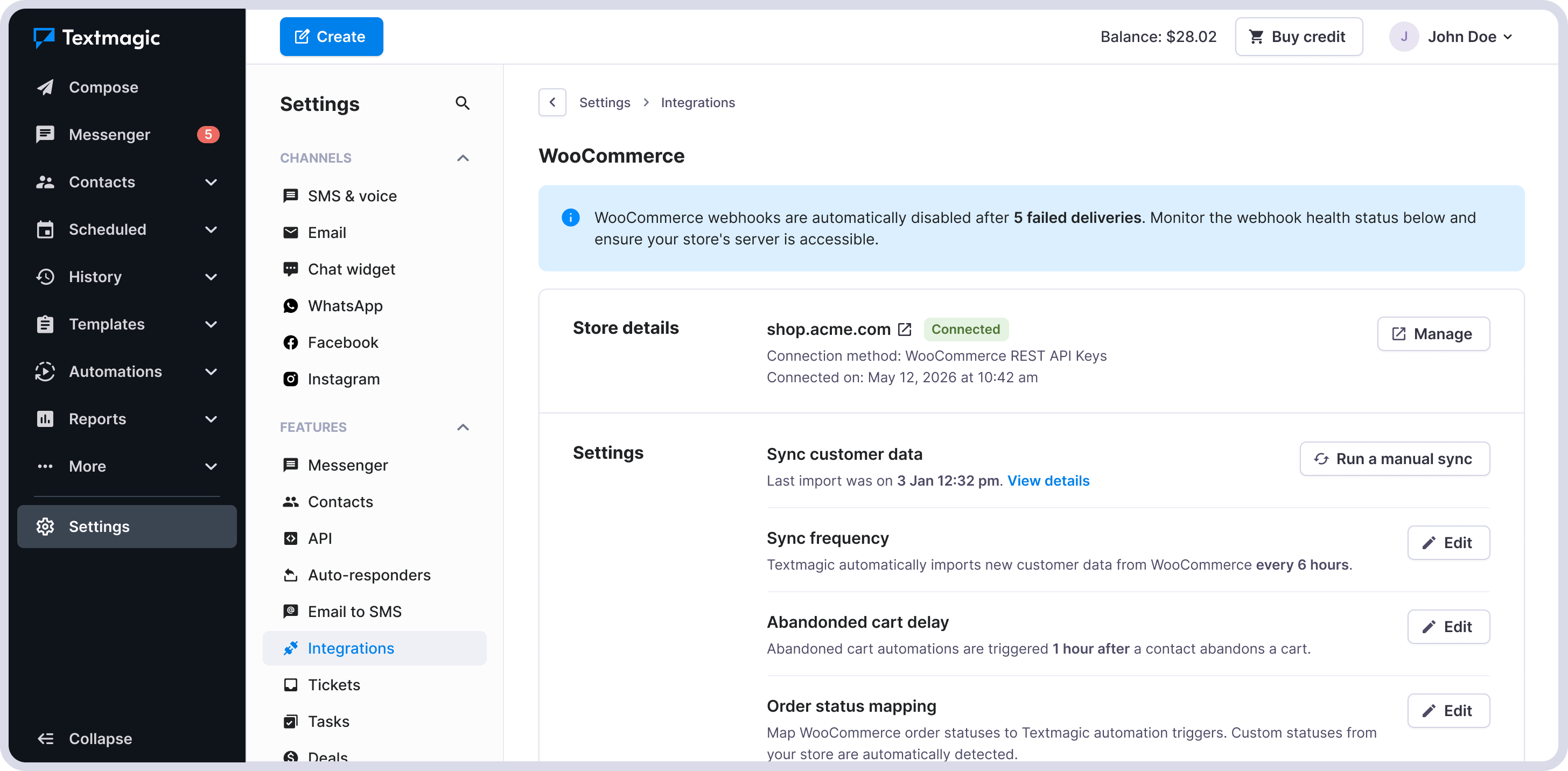
💡Already a Textmagic user? Check your existing contact lists before syncing. If some WooCommerce customers already exist in Textmagic, their records will be updated.
2. Build your most important SMS flows
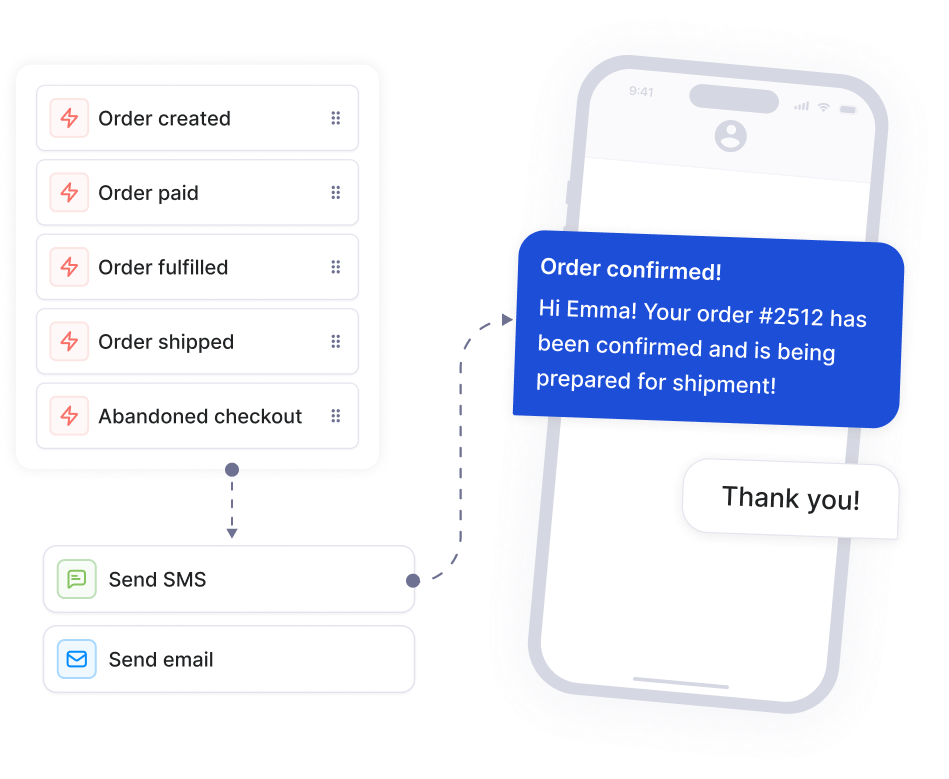
Go to Automations → New flow, and pick a WooCommerce trigger. There are seven:
- Order created
- Order paid
- Order completed
- Order cancelled
- Order refunded
- Order failed
- Abandoned cart
Each trigger can be filtered by product, category, order value, contact data, and more. This means a $500 order can get a different text than a $15 one. For your first setup, two flows cover the moments customers care about.
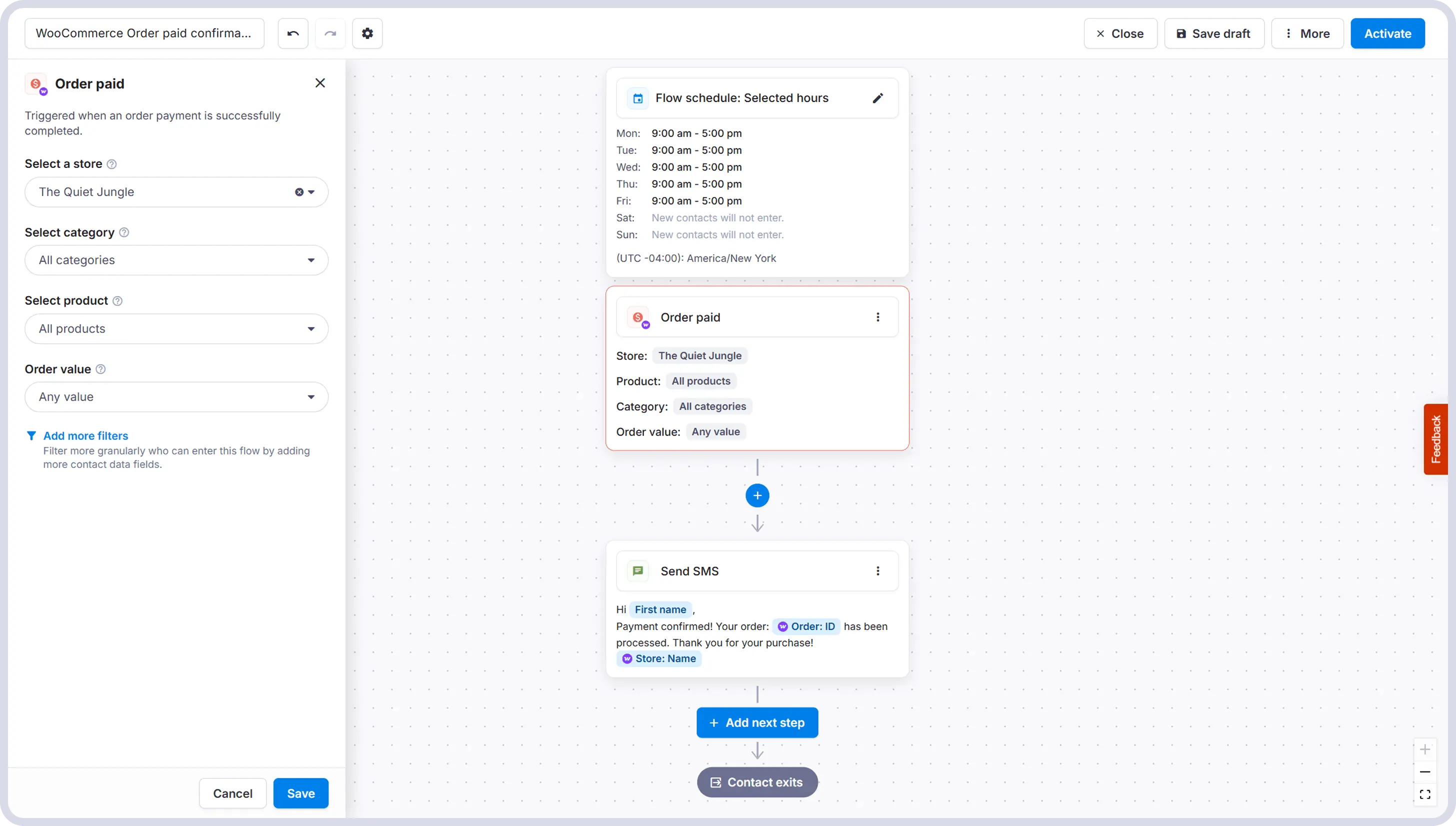
Order paid → Confirmation text
This message answers the “did it go through?” question.
Quiet Jungle: Hi Emma, good news! We got your order #2832 for $90. We’ll text you as soon as it’s on its way. Questions? Just reply.
Another option would be to send a simple confirmation text:
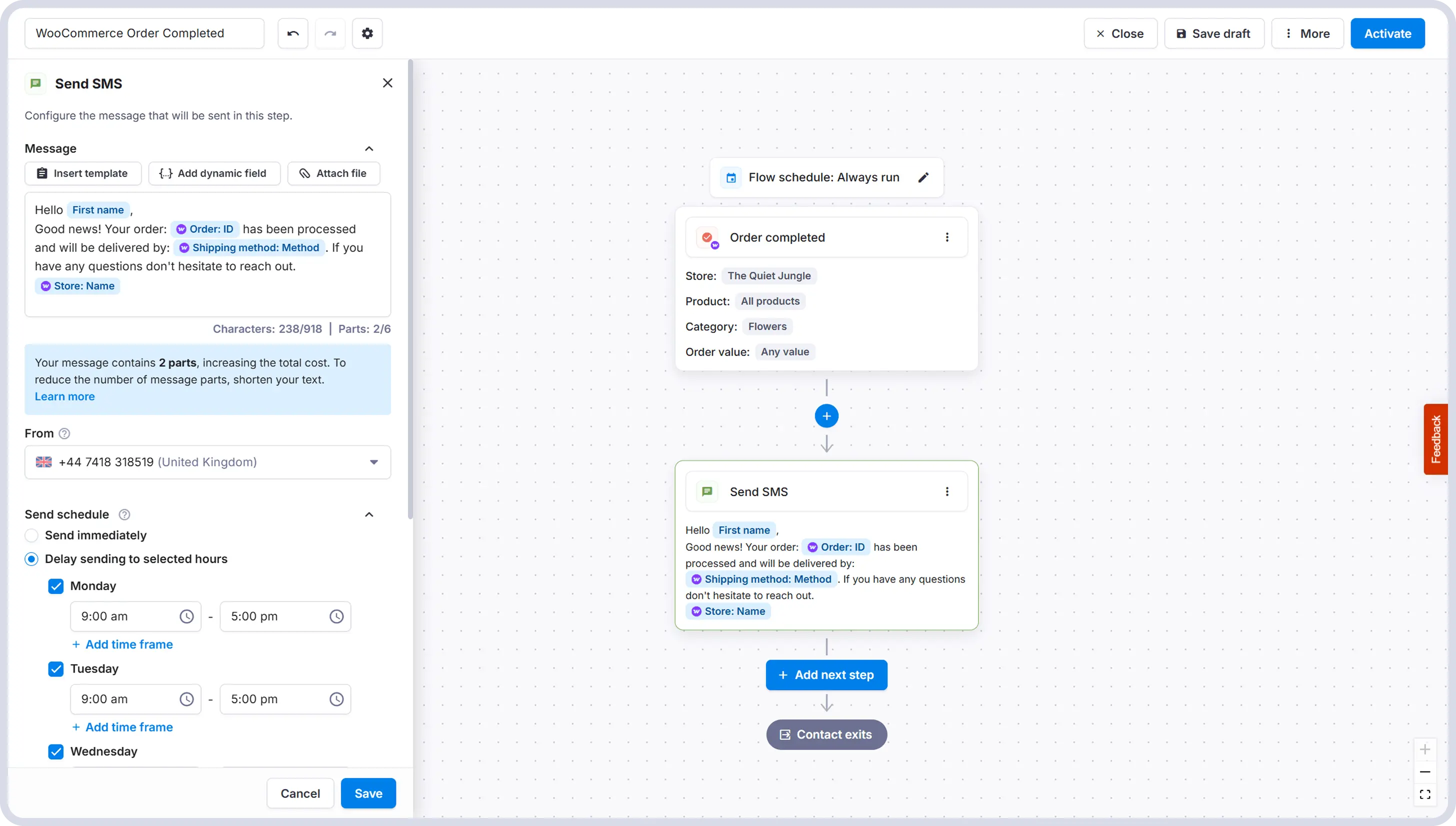
Order completed → Delivery update
A note on Woocommerce orders: on the default configuration, order statuses are updated manually. If you mark orders as Completed when they ship, send a shipping notification. If Completed means delivered, send a delivery follow-up.
All messages can be personalized with dynamic fields: customer name, order number, order value and currency, billing and shipping details, any coupon code created earlier, and many more.
Start with the essentials that tell the customer what’s happening. You can create as many dynamic fields as you want and map them later.
3. Recover failed payments automatically
Payments fail on WooCommerce often due to expired cards, soft declines, gateway hiccups, or security frictions. Each one is a customer who wanted to buy, but couldn’t. Without a follow-up up, most give up.
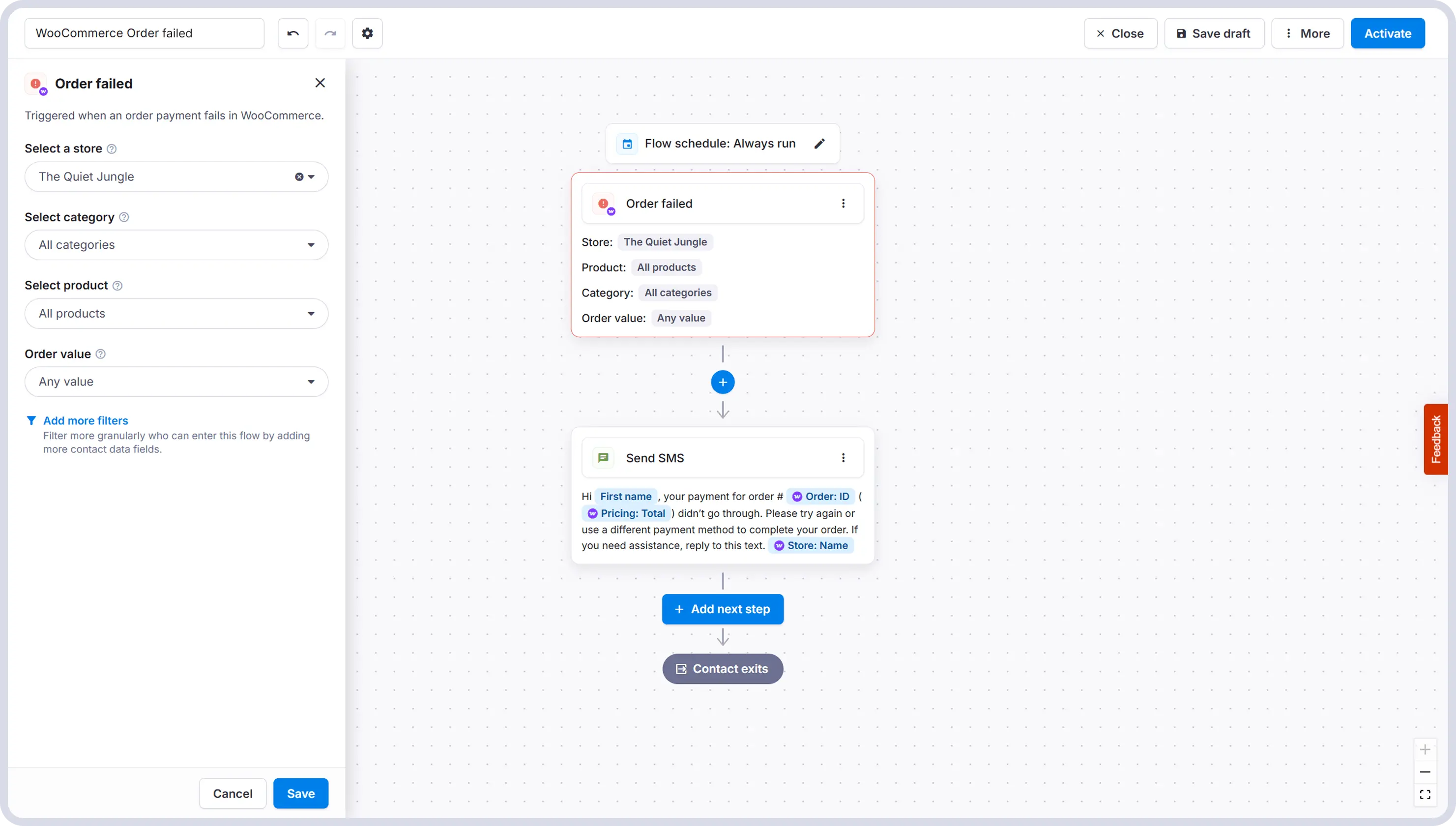
The Order failed trigger, allows you to send a short, helpful SMS with next steps. You can combine it with a wait condition to send a follow-up after 24 hours as well. If the contact completes the payment in the meanwhile, you can use the “Stop another automation” action to end the recovery flow and have another take over. How this looks in practice:
- Flow 1: Payment recovery. Order failed, send SMS with instructions, wait 24 hours, follow-up with an email or SMS offering support.
- Flow 2: Payment success. Order completed, Stop Flow 1 as an additional step, send SMS with review request or offer.
Because the customer can reply, a failed payment turns into an opportunity to support them. If they text back: “my card expired, can I pay another way?” it lands in the Textmagic inbox, with the full order context attached.
4. Send coupons that can’t leak
Have you ever created a discount code for a handful of customers, only for a browser extension to scrape it, and by the weekend, half the internet is checking out 30% off?
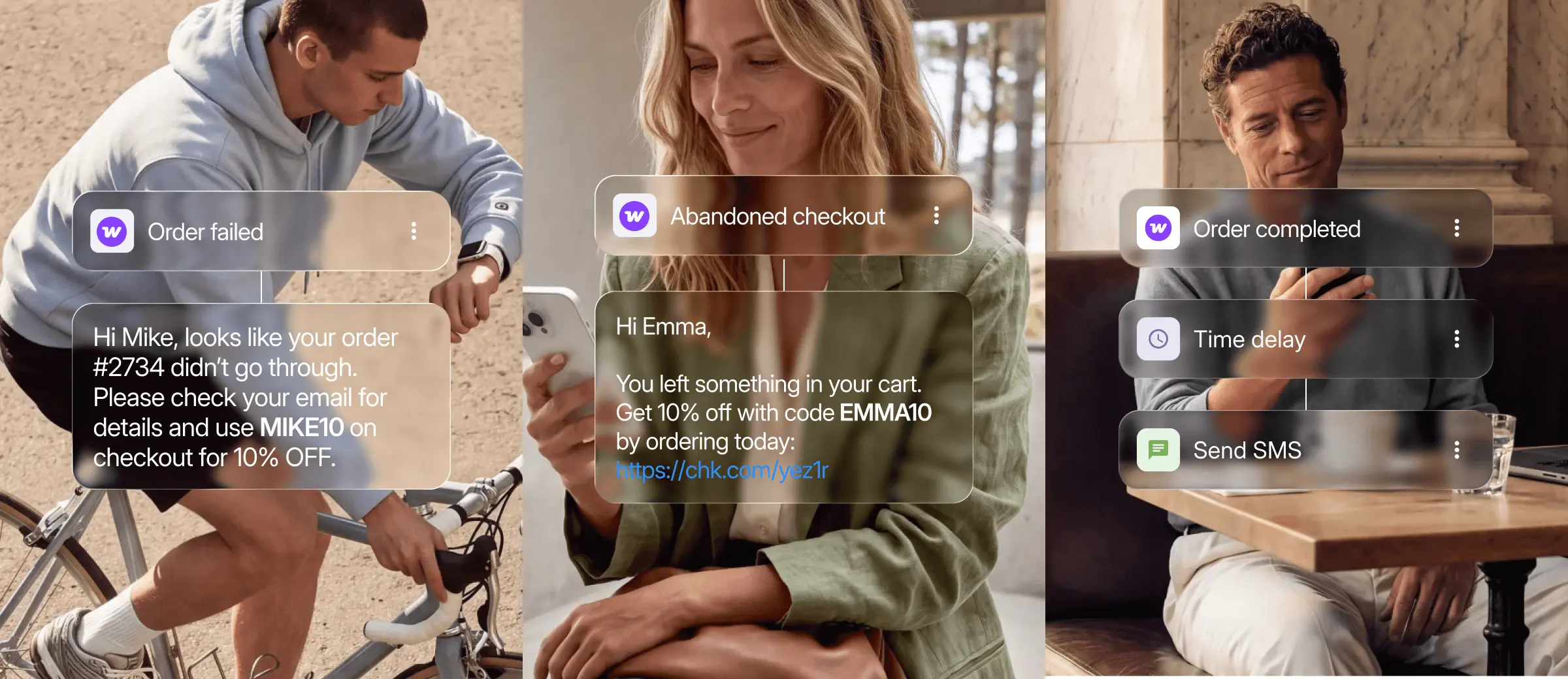
Textmagic flows can generate single-use WooCommerce coupons as a step inside the automation. Each customer gets a unique coupon, created at send time, with the discount type, amount, expiry, and usage limit you define. Coupons can be used in several flows:
- Abandoned cart recovery: when a customer abandons their cart, you can create an automation that waits a set time, generates a unique code, and includes it in the next SMS.
- Win-back offers: after an order completes, wait a set number of days or weeks, and send a personal discount code.
- Failed payment sweetener: if a payment fails and there are no status changes to the order, a small discount can convince them to try again.
A few notes on abandoned cart texts:
- WooCommerce doesn’t track cart abandonment natively, so this trigger requires installing a plugin on your WordPress site.
- Cart reminders and coupon offers are marketing messages. They can only go to customers who explicitly opted in to SMS at checkout. If you don’t collect that consent yet, launch transactional order flows first, and add these later.
5. Decide which system sends SMS and emails
Your store will already have order emails configured through WooCommerce or another plugin. Before going live with Textmagic SMS or automation flows, decide which system handles what, so customers don’t hear the same thing twice.
Here’s a split that works for most stores:
- Textmagic for SMS: send time-sensitive messages like order confirmations, delivery updates, or failed payment follow-ups.
- WooCommerce for operational emails: receipts, invoices, password resets, etc. Ideally from a proper SMTP setup.
- Textmagic for marketing emails: review requests, win-back offers, restock notes, etc.
You can disable individual WooCommerce emails under your WordPress dashboard: WooCommerce → Settings → Emails. Then place a test order and check that each event sends exactly what you expect.
6. Choose your sending windows
In the US, commercial SMS is limited to 8AM to 9PM in the customer’s local time zone (TCPA). Other countries have their own rules. In Textmagic, triggers that fire outside the sending window are queued and sent later.
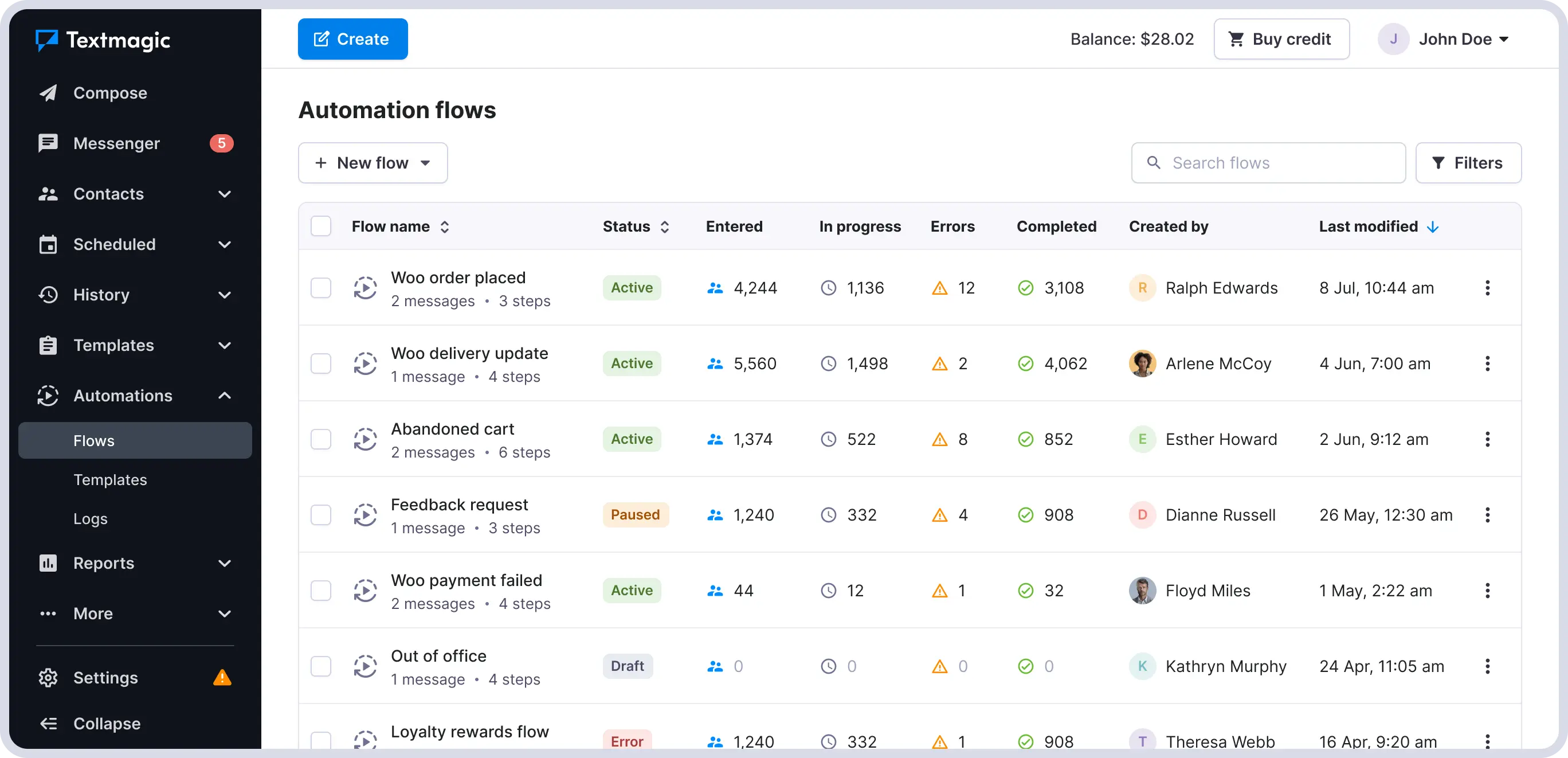
Once live, every qualifying WooCommerce event triggers its message automatically. Automations also show delivery statuses (in progress, errors, completed) and you can zoom in on individual messages to see what’s wrong.
As your automation flows mature, you can use them to update information in your store. Here are a few examples:
- Add internal order notes when someone replies with delivery instructions,
- Move orders to Processing once a customer confirms details,
- Update custom fields to flag VIP orders, or
- Alert your team when high-value orders land
Get SMS running for your store, the right way
The best time to reach a customer is right after they buy. SMS makes sure you do.
What it looks like once it’s running
A customer places an order and gets a confirmation SMS within seconds. When the order is completed, a fulfillment update follows. If the payment fails, a friendly SMS nudge reaches them while they’re still interested. If they abandon their cart, a reminder arrives carrying a coupon code.
Whenever customers reply, the conversation shows up in your Textamgic inbox with their order history right there, with all their questions are answered by someone in minutes.
[ad_2]
Source_link