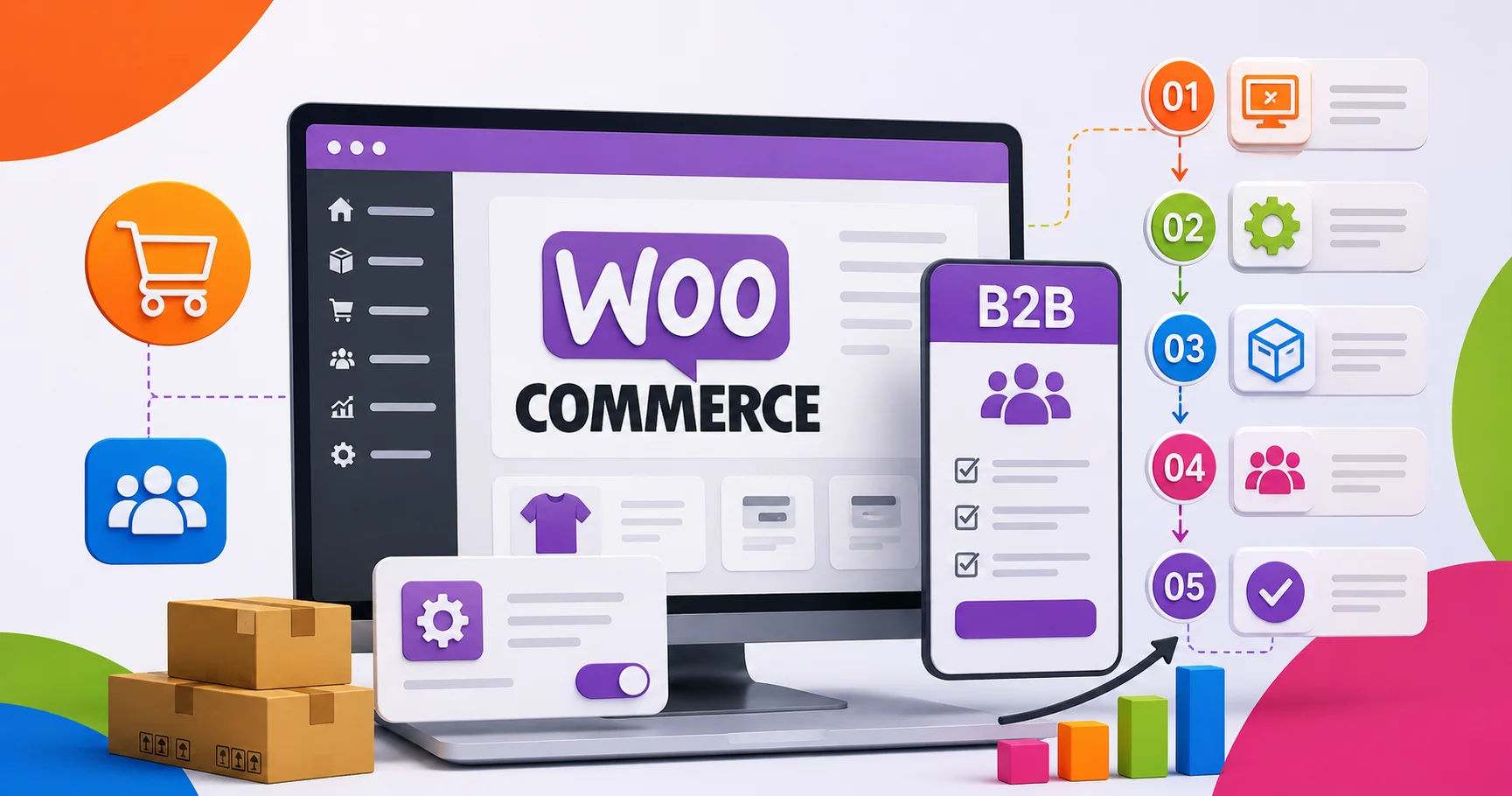
So you’ve got a WooCommerce store and you sell to both regular customers and businesses. You probably already know the pain: business buyers want better prices, bulk discounts, and sometimes they shouldn’t even see what’s in your normal store. Doing all this by hand is a lot of work. Luckily, WooCommerce can take care of it for you once it’s set up right.
Let’s see how to do that, step by step.
What Is WooCommerce B2B and Why Does It Matter
B2B simply means you’re selling to other businesses, not just individual shoppers. These buyers usually order more, want lower prices, and like a checkout process that’s fast and simple.
A regular WooCommerce store shows the same thing to everyone. But business customers need something different. Maybe a wholesaler gets 20% off everything while a regular shopper pays full price. Or maybe some products are only meant for approved businesses, not the general public.
Get this set up properly, and you can run a retail store and a wholesale business side by side on the same site, without any mix-ups.
How to Set Up Customer Groups in WooCommerce

Customer groups are just a way to sort your buyers- things like Retail, Wholesale, VIP, or Distributor- so you can treat each group differently.
Step 1: Install a B2B plugin
WooCommerce doesn’t have this built in, so you’ll need a plugin. B2B King and Wholesale Suite are both popular picks. Choose whichever fits your budget and needs.
Step 2: Create your groups
Once your plugin is active, set up your customer groups. Most stores go with something like:
- Retail customers (regular pricing)
- Wholesale buyers (discounted pricing)
- VIP or distributor accounts (best pricing, extra perks)
Step 3: Sort customers into groups
You can do this manually yourself, or let businesses apply through a sign-up form and approve them before giving them access. This stops random visitors from grabbing wholesale pricing.
Step 4: Test it out
Before going live, log in as a test account under each group and check that pricing and visibility actually work the way they should.
Setting Up Pricing Rules for Different Customer Groups

This is really the whole point of B2B selling. Instead of sending quotes back and forth manually, you let WooCommerce show the right price automatically based on who’s logged in.
Percentage discounts
The simplest way to go. Give wholesale buyers something like 15% off everything, applied automatically.
Pricing based on quantity
Reward bigger orders. For example: 10-49 units gets 10% off, 50-99 gets 15% off, 100+ gets 20% off. You can set this per product or store-wide.
Fixed pricing for specific groups
Sometimes you’ve already agreed on a set price with a particular business. In that case, just show them that exact price instead of a percentage.
Minimum order amounts
Since most B2B buyers order in bulk anyway, you can set a minimum quantity. This protects your margins on smaller orders too.
Quick tip: test your pricing rules carefully. It’s easy for discounts to overlap or clash if you’re not careful.
Controlling Catalogue Access for B2B Customers

Not every visitor needs to see everything. Catalogue access settings let you control that.
Hide prices from guests
Lots of B2B stores hide pricing from people who aren’t logged in. Instead of a price, they see “Login to view price” or “Request a quote.” This pushes real buyers to register and keeps your prices ahead of competitors.
Hide entire categories
Maybe you’ve got a wholesale-only line that retail shoppers shouldn’t see at all. You can completely hide specific categories from certain groups.
Make the whole site private
Some stores lock the entire site so only approved business accounts can browse. Makes sense if you mostly sell to businesses anyway.
Show different catalogs per group
More advanced setups let a distributor see one set of products while a small retailer sees something else entirely.
Other Useful B2B Features Worth Adding

Once groups, pricing, and catalog access are all working, a few extras can make life easier:
Request a quote
Let buyers ask for a custom quote on big or unusual orders instead of forcing a fixed price.
Pay-later options
Business buyers often expect terms like Net 30 or Net 60 instead of paying upfront. Some plugins support this.
Bulk order forms
A quick-order table lets people add a bunch of products at once instead of clicking through every page.
Tax exemptions
Many businesses don’t pay tax. Let them upload an exemption certificate so it’s not charged at checkout.
Common Mistakes to Avoid

Skipping testing
Always test with dummy accounts before going live. A pricing mistake can cost you money fast.
Overcomplicating pricing
Too many overlapping discounts just confuse everyone, including your own team. Keep it simple.
Forgetting mobile users
A lot of business buyers shop from their phones too. Check that everything works fine there.
Not training your team
If your support staff don’t understand the pricing and groups, they can’t help customers when questions come up.
Conclusion
Setting up WooCommerce for B2B selling sounds like a lot, but it really comes down to a few simple steps. Start with customer groups so you can tell retail and wholesale buyers apart. Add pricing rules that reward bulk orders. Then control catalog access so the right people see the right products and prices.
Take it one step at a time, test everything before launch, and you’ll end up with a store that works smoothly for everyone. If it all feels like too much to handle alone, an experienced ecommerce website development company in Bangalore can take this off your plate. Skilled ecommerce web developers in Bangalore know how to set up customer groups, pricing, and catalog access correctly the first time. And if you’re building specifically on WooCommerce, getting help from a team that focuses on WooCommerce website development bangalore means your B2B store gets built right from the start.