I evaluated 10+ tools using G2 Data to finalize the 6 best terminal emulators. These are PuTTY, MobaXTerm, SecureCRT, iTerm2, Alacritty, Mintty.
I’ll admit it: I’m not a hardcore command-line junkie. I’m not out here writing complex scripts to automate my entire life or running advanced server commands to take down some imaginary firewall. But as a tech enthusiast (and a marketer who enjoys exploring new tools), I spent considerable time evaluating terminal emulators that go beyond plain text-based functionality.
When most people think about computers, they think about clicking icons, opening apps, and dragging files. But behind every smooth click is a more direct way to “talk” to your computer: the command line interface. And to access it, you need a terminal emulator — basically a translator between you and your operating system.
That said, the choice is rarely simple. More than 20 new terminal emulators have been added to G2’s category since 2021, so the options have multiplied for anyone trying to pick the right tool. Developers want fast, scriptable terminals that don’t slow them down. IT pros and sysadmins need reliable SSH access, session management, and security features for remote infrastructure. DevOps and infrastructure teams need scripting and automation built in. And then there are casual learners and curious users who just want something approachable that won’t make them feel locked out of their own computer.
Terminal emulators are a lot like coffee orders — there’s something for everyone, but finding the right blend takes a little tasting. With that in mind, here are my picks for the best terminal emulators worth trying in 2026, no matter your operating system, skill level, or use case.
6 best terminal emulators: my picks for 2026
- PuTTY: Best for simplicity and lightweight, no-cost access
For developers, IT pros, and students needing reliable, free SSH access without enterprise licensing. (free) - MobaXTerm: Best for comprehensive remote computing
For Windows IT teams managing many remote sessions across SSH, RDP, VNC, FTP, and X11 in one tabbed interface. (Starts at $69/user for 1-10 users) - SecureCRT: Best for advanced session management and secure data tunneling
For enterprise sysadmins, network engineers, and DevOps teams needing scripted automation, deep session management, and FIPS-compliant security. (pricing available on request) - iTerm2: Best for macOS developers seeking a Terminal upgrade
For macOS developers and software engineers who’ve outgrown the built-in Terminal app and want deep customization with shell integration. (free) - Alacritty: Best for GPU-accelerated speed and cross-platform use
For developers and power users who value raw rendering speed and prefer config-as-code across BSD, Linux, macOS, and Windows. (free) - Mintty: Best for Windows integration and multiple backends
For Windows developers running Cygwin, MSYS2, or WSL who want a lightweight terminal that fits Unix-style workflows. (free)
* These terminal emulators are top-rated in their category, according to the G2 Summer 2026 Grid Report for Terminal Emulator.
My top 6 terminal emulator recommendations for 2026
The best terminal emulator software gives you direct, scriptable access to your operating system, replacing point-and-click workflows with the speed of typed commands. As I evaluated these tools through G2 reviews and reports, I understood how they shape day-to-day work for developers, sysadmins, and anyone who lives in a command-line environment.
How did I find and evaluate the best terminal emulator?
By analyzing G2 reviews and G2’s Grid Reports, I gained a comprehensive understanding of each terminal emulator’s features, ease of use, and overall value. I relied on verified reviews from industry professionals with hands-on experience to validate my findings.
Additionally, I used AI to analyze patterns in user feedback, ensuring I captured diverse perspectives on the software’s effectiveness in providing reliable SSH access, supporting cross-platform workflows, and enabling session management and automation. The screenshots featured in this article are sourced from G2 product profile pages and publicly available materials.
By combining G2 insights with expert feedback, I’ve compiled a list of the best terminal emulators to help you choose the right tool for your workflow.
What I looked for in the best terminal emulator software: My opinion
Terminal emulators may look similar at a glance, but the experience of using them varies a lot once you go deeper. Here’s what I focused on while evaluating each option.
- Ease of use and setup. A good terminal emulator should be approachable, whether you’re a seasoned sysadmin or someone running their first SSH session. I looked at how quickly users could get up and running, how intuitive the interface felt, and how much friction was involved in basic tasks like connecting to a server or opening a new session.
- Customization and themes. Personalization matters, especially for people who spend hours in the terminal each day. I evaluated how flexibly each tool could be customized, from fonts and colors to keyboard shortcuts, profiles, and window layouts. Some users want a configuration file they can tune to perfection. Others want a settings dialog they can navigate with a few clicks.
- Performance and speed. Responsiveness is critical. Nobody wants their computer terminal to lag, slow down with multiple sessions open, or take seconds to render large output blocks. I looked at startup times, resource use, and how each tool handled heavy workloads like large file transfers or many simultaneous connections.
- Feature set and productivity boosters. Beyond the basics, the best terminal emulators bring extras that genuinely speed up work: tabbed sessions, split panes, scripting support, session logging, saved credentials, multi-protocol support, and integrations with shells like ZSH, Fish, or tmux. I weighed which features made the biggest practical difference based on how often reviewers brought them up.
- Cross-platform compatibility. Not every developer or admin works on a single operating system. Some teams need a terminal that works the same on Windows, Linux, and macOS. Others need something Mac-only that takes full advantage of the host OS. I noted where each tool genuinely supports multiple platforms and where it’s purpose-built for one.
The list below contains genuine user reviews from our best Terminal Emulator Software category. To qualify for inclusion in the category, a product must:
- Emulate a traditional computer terminal and provide remote access capabilities
- Create a functional terminal window that mimics the look and feel of a physical terminal
- Provide a command-line interface or text-based user interface for interacting with the host system or remote servers
*This data was pulled from G2 in 2026. Some reviews have been edited for clarity.
1. PuTTY: Best for simplicity and lightweight, no-cost access
PuTTY is widely recognized as the default starting point for SSH access on Windows, with one of the longest tenures in G2’s Terminal Emulator category. Maintained by Simon Tatham since the late 1990s, PuTTY is a free, open-source client that supports SSH, Telnet, Rlogin, Serial, and SUPDUP across Windows and Unix platforms. Despite the no-frills look, PuTTY is still actively maintained, with recent updates adding post-quantum key exchange support to keep its security current.
Based on 350+ G2 reviews, PuTTY has the highest satisfaction score in G2’s Terminal Emulator category, with 89% of users willing to recommend it to others. Its concentration in larger organizations (46% Enterprise) reflects how deeply embedded it is in IT shops that have used it for over a decade.
One feature that I see getting a lot of praise is PuTTY’s simplicity and immediate onboarding. G2 reviewers consistently call out the plain-by-design interface as a strength rather than a limitation, with many noting that there’s almost nothing standing between them and the connection they’re trying to make. A frequent theme in feedback is how PuTTY ships as a single executable that requires no installation, which lets new users get to an SSH session within seconds of downloading.
Another aspect frequently appreciated by G2 reviewers is PuTTY’s lightweight footprint. Users mention that PuTTY starts almost instantly, uses minimal system resources, and runs comfortably even on older or low-spec machines. Reviewers point out that it doesn’t bog down a workstation with background processes, which keeps it useful as a fallback tool even on machines where heavier emulators would be impractical.
I’ve noticed reliable SSH and Telnet connectivity is another consistent theme G2 users continue to highlight. On G2, PuTTY scores 92% on Windows Support and 91% on Linux Support, both at or above the category averages. Whether reviewers are connecting to a Linux box from a Windows desktop or running diagnostics on networking equipment, they describe the connection process as straightforward and consistent across years of use. Built-in port forwarding also comes up in reviews as a convenient way to securely access remote services without needing third-party tools.
Looking at G2 feedback, PuTTY’s free and open-source licensing is consistently called out as a meaningful differentiator. Multiple reviewers, particularly those in education, contracting, and budget-constrained IT environments, mention how the absence of licensing fees and vendor lock-in makes PuTTY the default choice when setting up SSH access on a new machine. Long-term users also note that the open codebase contributes to its longevity.
I’ve noticed that multi-protocol support receives positive feedback from G2 users working with mixed equipment. Beyond SSH, the same client handles Telnet, Rlogin, Serial, SCP, and SFTP via companion utilities like PSCP and PSFTP. Network engineers working with older equipment that still relies on serial or Telnet connections describe this breadth as a productivity gain, since they don’t need to install or learn separate tools for each protocol.
Finally, saved sessions are mentioned as one of the small features that makes PuTTY feel fast in daily use. G2 reviewers managing dozens of servers describe saving connection details (hostname, port, authentication keys, terminal type) and reconnecting with a single double-click. Several long-term reviewers describe saved sessions as the feature that turned PuTTY from a basic SSH client into a daily-driver tool.
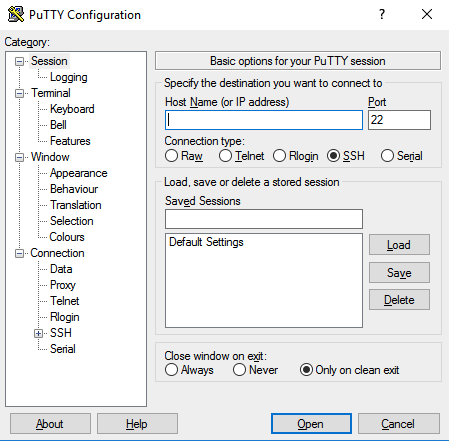 PuTTY Configuration
According to G2 user reviews, PuTTY is widely valued for its reliability, though some users mention the single-window design as a limitation. Several reviewers note that each connection lives in its own window rather than in a unified tabbed interface, which becomes unwieldy when managing five or six sessions at once. Power users who need a tabbed experience often pair PuTTY with a session-management wrapper like SuperPuTTY, which restores the multi-tab workflow without giving up PuTTY’s underlying reliability.
Another recurring theme in G2 feedback is around file transfer. PuTTY itself doesn’t include a built-in graphical SFTP or file-transfer interface, so moving files between local and remote machines requires switching to a companion utility like WinSCP or FileZilla. For users whose workflow stays primarily inside terminal sessions, this is a minor switch. For teams that move files frequently, the companion-tool pattern remains a common and stable workflow that many IT environments already use.
If you’re a developer, IT professional, or student who needs reliable, free SSH access without enterprise licensing or complicated setup, PuTTY is one of the terminal emulators I’d recommend evaluating. From the G2 reviews I analyzed, the simplicity and lightweight footprint remain core strengths, while the recent post-quantum cryptography updates show that PuTTY is still being actively maintained for modern security needs.
- I’ve noticed that many G2 reviewers appreciate PuTTY’s instant startup and small footprint, which makes it the easiest fallback when they need an SSH session on a new computer.
- From the feedback I’ve reviewed, the multi-protocol support stands out, with the same client handling SSH, Telnet, Serial, and Rlogin so users don’t need separate tools for legacy and modern connections.
What G2 users like about PuTTY:
“PuTTY is its simplicity and reliability. It’s lightweight and works really well for securely connecting to remote servers via SSH. The interface is straightforward, which makes it easy to use without unnecessary complications.”
– PuTTY review, Subhashree S.
What I dislike about PuTTY:
- I’ve come across feedback where users mention the lack of a tabbed interface as a limitation when managing many concurrent sessions, though power users typically pair PuTTY with SuperPuTTY or similar wrappers to restore the tabbed experience without losing PuTTY’s reliability underneath.
- I’ve seen several G2 reviewers note that the absence of a built-in graphical SFTP browser means file transfers require companion tools like WinSCP or FileZilla, which is a minor switch for users whose workflow stays primarily inside terminal sessions and remains a common pattern across IT environments.
What G2 users dislike about PuTTY:
“PuTTY does not have many advanced features that are common in modern terminal applications. For example, it lacks a built-in file transfer interface for SFTP, requiring users to rely on companion tools like WinSCP. Additionally, the absence of a tabbed interface can be inconvenient when working with multiple sessions.”
– PuTTY review, Manuel Ángel G.
2. MobaXTerm: Best for comprehensive remote computing
MobaXTerm is best known as the all-in-one remote computing toolbox for Windows users who want SSH, RDP, VNC, FTP, SFTP, X11, and serial sessions in a single application. Developed by Mobatek, it’s listed in both G2’s Terminal Emulator and Remote Desktop categories, which reflects its dual identity as a multi-protocol client and a full remote-work environment.
On G2 MobaXTerm has a 4.6 out of 5 star rating, with 99% of reviews rated 4 or 5 stars. It leads the category on Ease of Use (95%, four points above the 91% category average) and Meets Requirements (96%, three points above). Users skew toward mid-market organizations (44% Mid-Market) where IT teams handle a wide mix of remote-access needs across many machines.
One feature that stands out to me consistently in G2 reviews is MobaXTerm’s all-in-one multi-protocol bundling. Users consistently call out the convenience of having SSH, RDP, VNC, FTP, SFTP, XDMCP, X11, and Telnet bundled in the same interface. A recurring theme in feedback is how a sysadmin troubleshooting a Linux server in the morning and connecting to a Windows machine over RDP in the afternoon doesn’t have to switch between separate tools.
A feature that I saw got high satisfaction across G2 reviews is tabbed session management. Each connection opens in a tab inside a single window, which lets users flip between five SSH sessions, two RDP connections, and an SFTP browser without cluttering the taskbar. Reviewers who manage many remote machines per day cite this as the specific feature that pulled them away from PuTTY-style single-window clients.
I’ve noted how the built-in graphical SFTP browser is a definite standout in G2 reviews. When users SSH into a remote server, a file browser opens automatically alongside the terminal, letting them drag and drop files between local and remote without leaving the session. Reviewers who previously kept WinSCP open in a separate window just to move files describe this single-pane workflow as a noticeable productivity gain.
Scouring through G2 feedback, saved sessions with credential vault is called out as a feature that goes beyond simple hostname storage. MobaXTerm remembers credentials, port-forwarding rules, custom shell startup commands, and per-session settings, which means reconnecting to a familiar environment takes one click. IT teams managing dozens of machines describe the built-in credential manager as removing the friction of looking up passwords or keys for each connection.
Ease of use remains a recurring theme in reviews, and G2 quantifies this directly: MobaXTerm holds the “2nd Easiest to Use” position in G2’s category rankings. The UI is described as approachable for newcomers without sacrificing depth for experienced users. Logging is also strong (92% rating, one point above category average), which matters for teams that need to audit session activity.
Also, the multi-execution mode is mentioned by reviewers as one of MobaXTerm’s standout productivity features. Users can run the same command across many SSH sessions simultaneously, which makes pushing configuration updates or running diagnostics across a fleet of servers far faster than connecting to each one individually. Reviewers who manage server fleets describe this as transformative for their workflow.
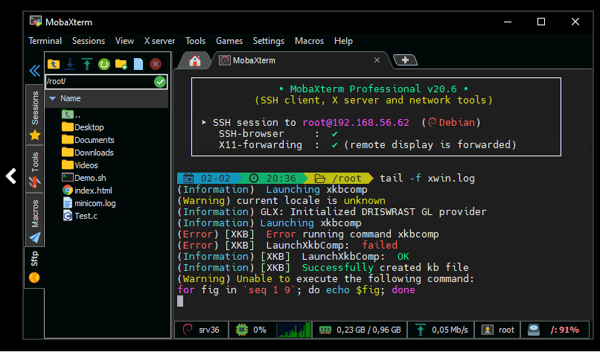 MobaXTerm SSH Session
G2 reviews reflect strong satisfaction with MobaXTerm’s all-in-one value, though some users mention some constraints around the free version. The free version caps saved sessions at around 10 to 12 and limits advanced features like X11 server tools and macro automation, which becomes a barrier for IT teams managing larger fleets. For solo users or small teams, the free tier covers a lot of ground, and the Professional Edition pays for itself quickly for anyone hitting the cap.
Another theme that surfaced in reviews is the platform scope. MobaXTerm is Windows-only, with no native Linux or macOS client, which means cross-platform teams need a different tool for non-Windows machines. For Windows-centric IT environments, the depth on a single platform is what makes MobaXTerm worth choosing in the first place, and Mac or Linux users typically pair PuTTY-style tools or platform-specific emulators alongside it.
If you’re an IT pro or sysadmin managing many Windows remote sessions and want every protocol in one tabbed interface, MobaXTerm is one of the terminal emulators I’d recommend evaluating. From the G2 reviews I analyzed, the all-in-one multi-protocol bundling and built-in SFTP browser remain core strengths, while the multi-execution mode expands what’s possible for batch operations across server fleets.
- I’ve seen considerable G2 reviewers appreciate MobaXTerm’s tabbed multi-protocol interface, which lets them flip between SSH, RDP, VNC, and SFTP without leaving a single window.
- From my analysis of G2 Data, the built-in graphical SFTP browser stands out, with the file browser opening automatically alongside every SSH session so file transfers happen without switching tools.
What G2 users like about MobaXTerm:
“What I appreciate most about MobaXterm is the way it organizes all my RDP connections in one clean, easily accessible location. The interface is intuitive and makes managing multiple remote sessions effortless. I also love the tab-based interface, which allows me to switch between sessions without any unnecessary clutter.”
– MobaXTerm review, Ljupcho T.
What I dislike about MobaXTerm:
- G2 users mention the free-tier session cap of around 10 to 12 saved sessions, which becomes a constraint for IT teams managing larger fleets — though the Professional Edition pays for itself quickly for anyone hitting the cap.
- I’ve noted that reviews mention how MobaXTerm is Windows-only, which limits cross-platform teams to pairing it with platform-specific emulators for Mac or Linux, though for Windows-centric IT environments, the depth on a single platform is what makes the tool worth choosing.
What G2 users dislike about MobaXTerm:
“MobaXTerm’s free edition is limited to 10 saved sessions. If you need to save more than 10 sessions, you must get a premium license.”
– MobaXTerm review, Santhosh K.
3. SecureCRT: Best for advanced session management and secure data tunneling
SecureCRT is widely recognized as the professional terminal emulator for teams that need scripting, security compliance, and large-scale session management.
It supports SSH1, SSH2, Telnet, Telnet/TLS, Rlogin, Serial, and TAPI, and emulates a wide range of legacy terminals, including VT100, VT102, VT220, ANSI, SCO ANSI, Wyse 50/60, Xterm, and Linux console — which makes it one of the few modern tools still suited for mainframe and legacy infrastructure work. It also meets FIPS 140-2 compliance standards, a meaningful detail for government and regulated industries.
Based on 50+ G2 reviews, SecureCRT has the highest rating in the Terminal Emulator category at 4.8 out of 5 stars, the highest likelihood-to-recommend rate at 96%, and the highest NPS score among all named products in the category. When I looked at enterprise concentration across all six tools in this article, SecureCRT stood out — 62% of its user base is enterprise, the highest of the group.
The scripting and automation engine is where most reviewers start, and after going through the feedback, I can see why. Support for Python, VBScript, and JScript lets network engineers and DevOps teams wrap repetitive tasks — log retrieval, configuration pushes, batch device updates — into reusable scripts. Reviewer after reviewer calls this the feature that justifies the license cost on its own.
Multi-session management holds up just as well at scale, and this is one I found genuinely impressive. SecureCRT handles hundreds of saved sessions organized into tab groups, with quick reconnect, cloned sessions for parallel work, and per-session credentials. Reviewers managing large device fleets consistently point to session organization as the primary reason they’ve stuck with the tool for years.
Keymaps, macros, and hotkeys round out the efficiency story. The Send String feature, dockable Command Manager, and global hotkey support let users collapse repetitive command sequences into single keystrokes. What I noticed across reviews is that teams don’t just use these features individually — they combine them into reusable workflows that carry across machines, which reviewers describe as a lasting productivity gain.
Reliability is where the long-term reviews get interesting. Multiple reviewers describe running SecureCRT for seven, ten, or more years without issue, stable across OS upgrades and large session counts. When I checked the Summer 2026 Grid data, it backed this up — Resource Usage and Latency both score 92%, above category averages.
Multi-protocol support is something I’d highlight for anyone evaluating SecureCRT for a mixed environment. Beyond SSH and Telnet, it covers Telnet/TLS, TAPI for dial-up, and legacy terminal emulation, including Wyse 50/60 and VT220. Reviewers working across modern Linux infrastructure and older mainframe or networking gear describe this breadth as non-negotiable.
Session logging rounds out the picture, and it’s an area where the data surprised me. G2 reviewers in regulated industries flag it as disproportionately valuable, and Summer 2026 Grid data puts it at 98% — seven points above the category average. Administrators get granular control: log rotation, sensitive data filtering, and per-session output storage, all built for audit and compliance workflows.
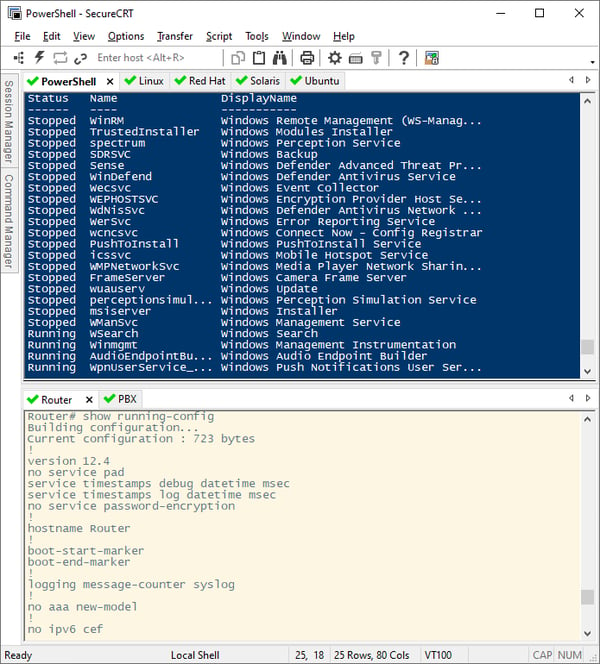 SecureCRT Tabbed Sessions
G2 reviews reflect professional-grade satisfaction with SecureCRT’s depth, though pricing comes up as a recurring theme. Several reviewers mention that the license cost is a hurdle for individual users, small teams, or students, particularly when free alternatives like PuTTY cover the basic SSH use case. For professional environments where scripting, logging, and session management add up to meaningful time savings, reviewers consistently note that the cost is justified, and VanDyke offers volume pricing and trial licenses that make it easier to evaluate before committing.
G2 users also mention licensing terms, noting that licenses are per-user and tied to specific upgrade tiers, which means moving the tool between machines or upgrading to a new major version requires checking the terms. For teams that buy in bulk through procurement, this is part of the standard process, and once licensing is set up, the workflow runs cleanly across years of use.
For sysadmins, network engineers, and DevOps practitioners who need scripted automation and FIPS-compliant security, SecureCRT is one I’d recommend evaluating. The scripting engine and session management are the core draw and if your environment still runs mainframe or legacy gear alongside modern infrastructure, the protocol breadth makes it a rare fit.
- G2 reviewers consistently highlight SecureCRT’s Python and VBScript engine, which lets them wrap repetitive admin tasks into scripts they can reuse across hundreds of saved sessions.
- Users also single out the Send String hotkeys and dockable Command Manager, describing them as a productivity gain for turning complex command sequences into single keystrokes.
What G2 users like about SecureCRT:
“Their ability to manage SSH, telnet connections and logs make this the best tool for remote device connection. I’ve using this tools across different OS like Windows, MAC and Linux and I can’t find any better tool.”
– SecureCRT review, Omar Lopez C.
What I dislike about SecureCRT:
- I’ve come across feedback where users mention the license cost as a hurdle for individual users, small teams, or students, though for professional environments, the scripting, logging, and session management capabilities consistently justify the investment.
- I’ve seen several G2 reviewers note that per-user licensing tied to upgrade tiers requires checking terms when moving the tool between machines — friction is more visible for individual buyers than for teams buying through procurement, where this is part of the standard process.
What G2 users dislike about SecureCRT:
“What I dislike about secureCRT is the cost; the cost is high for a single user or small companies.”
– SecureCRT review, Claudio R.
4. iTerm2: Best for macOS developers seeking a Terminal upgrade
iTerm2 is G2’s “Top Trending” product in the Terminal Emulator category, and it’s widely recognized as the default upgrade path for macOS developers who’ve outgrown the built-in Terminal app. It’s free, open-source, and purpose-built for macOS, with deep integration into the shell environments developers actually use: ZSH, Fish, and tmux.
On G2, iTerm2 holds a 4.7 out of 5 star rating, with 100% of reviews rated 4 or 5 stars. Mac Support sits at 99% — fifteen points above the category average. The user base splits between mid-market (41%) and small business (31%), reflecting the developer and software-engineering audience the tool serves.
iTerm2’s extensive customization through profiles is a feature that I saw get acclaim. G2 reviewers return to this point again and again, describing how they create unlimited profiles, each with its own color scheme, font, transparency settings, keyboard shortcuts, and shell configuration. Developers who switch between staging, production, and local environments describe using distinct profiles for each, with visual cues like background tinting that make it harder to run the wrong command in the wrong place.
Split panes and tabs are another standout, and this is one I found genuinely useful to understand in practice. A single window holds multiple tabs, each split into vertical or horizontal panes running independent shells. Reviewers describe building live dashboards inside iTerm2 – logs in one pane, a watched service in another, active work in the main pane – all without leaving the window.
I’ve noticed iTerm2’s upgrade over the default macOS Terminal is another consistent theme G2 users continue to highlight. The default Terminal handles basic shell work, but it lacks features like instant replay, paste history, advanced search with regex, and 24-bit color support — all of which iTerm2 brings out of the box. For developers spending hours in the terminal each day, reviewers describe the upgrade as hard to overstate.
Shell integration is what I’d point to as the feature that moves iTerm2 from a terminal into a workflow tool. It recognizes shell prompts, commands, and directories, enabling features like jumping to a previous prompt, autocompleting from past commands, and getting visual marks on command outputs. Combined with tmux integration, reviewers describe it as something qualitatively different from a standard terminal window.
Automatic profile switching by environment is something I’d highlight for anyone working across multiple servers. iTerm2 changes colors and settings based on the hostname: staging gets yellow, production gets red, and local development gets the default. Reviewers who switch frequently between environments describe it as a meaningful reduction in costly context-switch mistakes.
The global hotkey window is a smaller feature, but one that adds up across a workday. Users can summon a terminal from any application with a single keystroke, run a command, and dismiss it without leaving their current context. What I noticed in the reviews is that this feature comes up most often from developers who context-switch heavily — and they describe it as a genuine daily-driver gain.
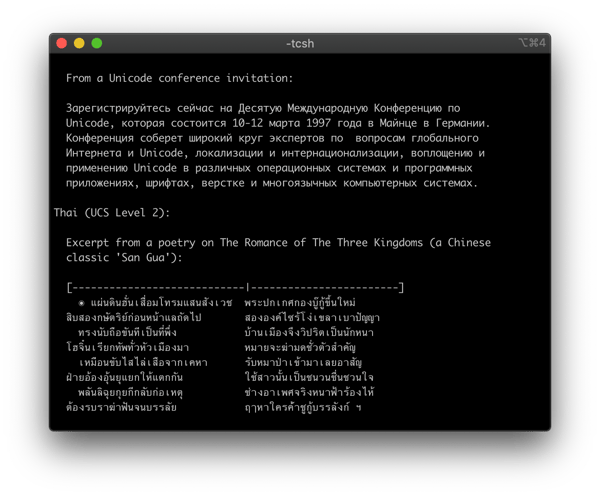 iTerm2 multi-Lingual support
As per my G2 Data analysis, iTerm2 is widely praised for its capability, though some users mention the configuration surface area as something new users have to navigate. Several reviewers note that the settings menus are extensive, with profile editors, key bindings, triggers, and shell integration options spread across multiple panels. The defaults work fine out of the box, and most users only dive into the configuration once they want to unlock a specific capability, which keeps the entry path approachable.
The minimal default install is another theme I noticed in the reviews. Themes, color schemes, and shell integration extras ship separately, which can feel like extra setup compared to a tool that arrives fully loaded. The flip side is that iTerm2 stays lightweight by default and only grows heavier as users opt into what they actually want.
For macOS developers and software engineers who’ve outgrown the built-in Terminal app, iTerm2 is one I’d recommend evaluating. The deep profile customization and split-pane layout are the core draw, and shell integration with ZSH, Fish, and tmux is what makes it feel less like a terminal and more like a development environment.
- I’ve noticed that G2 users show high satisfaction with iTerm2’s profile customization, which lets them color-code every environment so staging and production never look the same.
- The tmux-style split panes inside the window stands out, with reviewers describing how they monitor logs, run a service, and code in the same view.
What G2 users like about iTerm2:
“The visor mode and the tmux style window splitting are essential to my workflow. I really like how iterm2 integrates seamlessly into macos and feels like a native tool. I also like the endless customization and different profiles where I can configure portability.”
– iTerm2 review, Eric K.
What I dislike about iTerm2:
- I’ve come across feedback where users mention the extensive configuration surface area, with settings menus spread across profile editors, key bindings, and triggers, though the defaults work fine out of the box and users only dive into configuration when they want to unlock specific capabilities.
- G2 reviewers note that the deliberately minimal default install requires downloading themes and shell integration extras separately, which keeps iTerm2 lightweight by default and lets experienced developers opt into the features they actually want.
What G2 users dislike about iTerm2:
“iTerm2 can be customized with superpowers, but I don’t like those features everyone uses are not just default on a fresh install. So you have to manually configure everything just to make it usable. It feels powerful but not built for the average user.”
– iTerm2 review, Mario T.
iTerm2 is purpose-built for macOS. To see what other tools fit your platform, take a look at the best operating systems on G2.
5. Alacritty: Best for GPU-accelerated speed and cross-platform use
Alacritty is a modern terminal emulator that’s free, open-source, and community-maintained, built around a clear design philosophy: by integrating with other applications rather than reimplementing their functionality, it manages to deliver a flexible feature set with high performance. That means features like tab management and split panes are intentionally deferred to other tools (typically tmux), keeping the binary lean and fast.
On G2, Alacritty holds a 4.3 out of 5 star rating, with 100% of reviewers saying the product is headed in the right direction. The user base skews toward small business (50%), where indie developers and power users tend to gravitate toward configurable, lean tools. When I looked at cross-platform coverage, Alacritty stood out — it supports BSD, Linux, macOS, and Windows, making it the most cross-platform terminal in this list.
GPU acceleration is what G2 reviewers lead with, and the pattern is consistent across the board. Reviewers describe the terminal as feeling faster than the defaults on Linux and macOS, particularly when handling large log outputs or fast-scrolling command results. The absence of lag during heavy workloads comes up again and again and reviewers consistently describe it as a productivity gain that’s hard to give up once experienced.
Config-file customization is another theme I kept running into across G2 reviews. Alacritty uses a YAML or TOML configuration file that controls every aspect of the terminal: fonts, colors, key bindings, window padding, cursor style, and shell behavior. Developers who treat their tools like code — versioning configs, sharing them across machines, swapping them per project — describe this as the specific reason they picked Alacritty over GUI-driven alternatives.
The open-source foundation earns consistent praise in G2 reviews. No licensing fees and full source visibility are expected at this point, but reviewers also note that Alacritty’s active community maintenance and consistent release cadence add a layer of stability that smaller open-source projects sometimes lack — which matters for teams that need predictable upgrade paths.
Cross-platform consistency is something I’d highlight for anyone evaluating Alacritty for a mixed-OS environment. It runs natively on BSD, Linux, macOS, and Windows with identical configuration files across all four. Reviewers who switch between operating systems regularly, or teams running mixed environments, describe this consistency as the reason they standardized on Alacritty across the board.
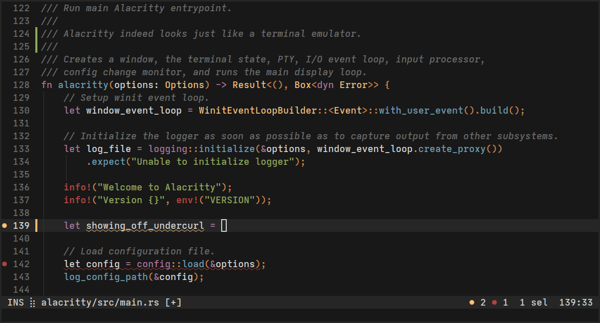 Alacritty Terminal Window
It is undeniable by all that Alacritty tops for its performance, however some users do mention the absence of built-in tabs and split panes as a design-intentional limit. Several reviewers note that Alacritty expects users to pair it with tmux or screen for session multiplexing, which keeps the terminal lean and fast for users who already work in tmux but means picking up a multiplexer alongside Alacritty for users coming from feature-rich emulators like iTerm2 or MobaXTerm.
Another theme in reviews is the text-file-only configuration approach. Some users want the immediacy of a settings panel they can click through. The flip side is that the config file is straightforward to read, easy to version-control, and trivial to share with teammates, which power users tend to prefer once they get used to the workflow.
For developers and power users who value raw rendering speed and treat their tools like code – versioned, shareable, configurable – Alacritty is one I’d recommend evaluating. The GPU acceleration and cross-platform consistency are the core draw, and the YAML or TOML config approach makes maintaining the same setup across BSD, Linux, macOS, and Windows genuinely low-effort.
- I’ve noticed that many G2 reviewers appreciate Alacritty’s GPU rendering, which makes scrolling through huge log files feel instant compared to the lag on default terminals.
- From the feedback I’ve reviewed, the cross-platform config consistency stands out, with the same TOML config file working across BSD, Linux, macOS, and Windows so a user’s setup travels with them.
What G2 users like about Alacritty:
“Alacritty’s speed is unmatched. Compared to the macOS terminal, which I use daily, Alacritty is at least five times as fast. And thanks to the extensive customization, you can make it feel like the stock terminal.”
– Alacritty review, Dusan D.
What I dislike about Alacritty:
- G2 users mention the absence of built-in tabs and split panes, which keeps the terminal lean and fast for users who already work in tmux, but means picking up a multiplexer alongside Alacritty for users coming from feature-rich emulators.
- Some note that configuration happens entirely through a text file rather than a graphical settings dialog, which suits power users who like version-controlled configs, while users wanting an immediate settings panel may find the workflow takes some adjustment.
What G2 users dislike about Alacritty:
“I like most of the features of Alacritty, but there are times while changing the configuration of Alacritty for any typo, it breaks the whole terminal, and it will crash, and it doesn’t support the feature of split and tabs.”
– Alacritty review, Yash U.
6. Mintty: Best for Windows integration and multiple backends
Mintty is the default terminal emulator for Cygwin, MSYS2, and the Windows Subsystem for Linux (WSL), built specifically for users running Unix-like environments on Windows. It’s free, open-source, and narrower in scope than the broad multi-protocol clients on this list and that focus is precisely what makes it worth considering for developers who need a fast, lightweight terminal for shell work on Windows without the overhead of larger emulators.
G2 Data shows several quiet strengths: Linux Support at 97% satisfaction rating (seven points above the category average), Quality of Support at 93% (six points above), and SAML Service Provider Integration at 92% (nine points above). Users skew toward small business (44%), with technical roles like software engineers, security professionals, and IT specialists making up the core audience.
One feature that I saw always mentioned is Mintty’s lightweight footprint. G2 reviewers consistently call out the instant launch time, minimal memory use, and comfortable performance on older hardware or low-spec laptops. For developers who keep many tools open at once, reviewers describe having a terminal that doesn’t add to the load as more valuable than having every feature available.
The Cygwin and Unix-like experience on Windows is where Mintty earns its reputation. It pairs cleanly with Cygwin and MSYS2 to give Windows users a genuine bash or zsh environment—complete with grep, awk, ssh, and vim running through its POSIX emulation layer. While modern Windows Terminal has become the default for native WSL, Mintty remains a go-to lightweight frontend for developers running Cygwin, MSYS2, or specialized WSL wrappers like wsltty who want a Unix-style workflow without heavy resource overhead.
Customization gets a lighter touch than some tools on this list, and that’s not a criticism. Fonts, color schemes, cursor styles, transparency, window size, and tab behavior are all configurable through the terminal window itself or a config file. What I noticed in the reviews is that this depth hits a useful middle ground — enough to make the terminal feel personal, not so much that setup becomes a project.
Ease of use rounds out the picture in a way that’s easy to overlook. Mintty doesn’t introduce new concepts or unique workflows — if a user has worked in any terminal before, the behavior feels familiar from the first session. For developers picking up Cygwin or WSL for the first time, that low barrier matters more than it might seem.
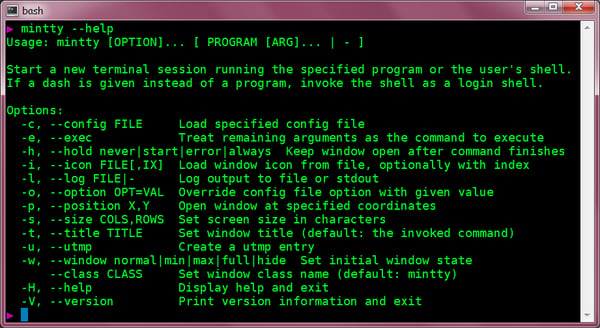 Mintty showing help text in terminal
The narrow scope is the most common trade-off reviewers flag, and it’s worth understanding clearly. Mintty is purpose-built for Unix-like environments on Windows, which means it doesn’t run native Windows applications like PowerShell or cmd.exe inside its terminal window. For users whose workflow stays inside Unix-like shells, that’s exactly the scope they want. Those who move between Unix tools and native Windows commands typically pair Mintty with Windows Terminal to cover both sides.
Users recommend improvements around tab management. Mintty is intentionally single-window by design, with each terminal session opening in a separate window, which keeps the tool simple and lightweight. Users who want tabbed terminals on Windows typically pair Mintty with a session manager or use the tab features built into Windows Terminal alongside it.
If you’re a Windows developer running Cygwin, MSYS2, or WSL and want a lightweight terminal that fits Unix-style workflows, Mintty is one of the terminal emulators I’d recommend evaluating. The lightweight footprint and clean integration with Unix-like environments on Windows remain core strengths, while approachable customization makes it easy to settle in without long configuration sessions.
- Mintty’s instant launch and clean pairing with Cygwin and WSL give users a Unix-style shell environment on Windows without extra setup.
- Customization stands out in the reviews, with fonts, colors, transparency, and key bindings all easy to adjust without diving into a config file.
What G2 users like about Mintty:
“Mintty also has excellent performance, and it is known for being fast and responsive, even when running on older hardware or slower systems. Additionally, since it is based on the Cygwin library, it provides a Linux-like environment on Windows, which can be very useful for users who are familiar with Unix-based operating systems.”
– Mintty review, Suraj K.
What I dislike about Mintty:
- I’ve come across feedback where users mention that Mintty’s Cygwin/MSYS2/WSL scope means it doesn’t run native Windows applications directly, which suits users whose workflow stays inside Unix-like shells while users mixing Unix and Windows-native tools typically pair Mintty with Windows Terminal to cover both sides.
- I’ve noted how it’s mentioned that tab management isn’t built in, with each session opening in a separate window, which keeps the tool lightweight by design while users wanting a tabbed experience typically pair Mintty with a session manager or use Windows Terminal’s tab features alongside it.
What G2 users dislike about Mintty:
“Mintty does have some limited compatibility with Windows applications since it aims to provide a Unix-like experience.”
– Mintty review, Sudheer V.
Comparison of the best terminal emulators
You can find a quick view of the G2 ratings, free plan availability and ideal use case of the leading terminal emulators.
|
Software |
G2 Rating |
Free plan |
Ideal for |
|
PuTTY |
4.5/5 |
Yes |
Lightweight, free SSH access and Windows-native application. |
|
MobaXTerm |
4.6/5 |
Freemium (free and paid) |
Windows IT teams needing an all-in-one remote toolbox |
|
SecureCRT |
4.8/5 |
No (paid) |
Enterprise security, scripting, and large-scale session management |
|
iTerm2 |
4.7/5 |
Yes (open source) |
macOS developers wanting a Terminal upgrade |
|
Alacritty |
4.3/5 |
Yes (open source) |
Power users wanting GPU-accelerated speed across BSD, Linux, macOS, and Windows |
|
Mintty |
4.4/5 |
Yes (open source) |
Cygwin, MSYS2, and WSL environments on Windows |
G2 ratings are based on user reviews and are subject to change over time.
Best Terminal Emulator Software: Frequently Asked Questions (FAQs)
Got more questions? Here are the answers.
Q1. What is the highest-rated terminal emulator for mainframe system administration?
SecureCRT is the highest-rated terminal emulator in G2’s Summer 2026 Grid Report. It combines broad legacy terminal emulation, secure remote access, and enterprise-grade features, making it a strong choice for mainframe administration.
Q2. Which terminal emulator software is best for legacy mainframe system access?
SecureCRT is the best choice for legacy mainframe access thanks to its extensive terminal emulation and security features. For teams that need a free option, PuTTY provides reliable SSH, Telnet, Serial, and Rlogin support.
Q3. How do terminal emulators improve efficiency for mainframe administration teams?
Terminal emulators improve efficiency through session automation, multi-session management, logging, and scripting. Tools like SecureCRT help administrators automate repetitive tasks while simplifying large-scale system management.
Q4. What SSH connectivity features should I look for in a terminal emulator for secure remote system administration?
Look for SSH support, key-based authentication, session logging, encrypted credential storage, port forwarding, and multi-protocol connectivity. SecureCRT offers the most comprehensive feature set, while PuTTY provides a capable free alternative.
Q5. Which terminal emulator is most trusted by systems administrators based on G2 user reviews?
SecureCRT earns the highest recommendation rate in G2’s Terminal Emulator category. PuTTY is also widely trusted, with one of the largest user bases thanks to its reliability and free, open-source licensing.
Q6. What cross-platform protocol support should I look for to administer legacy IT systems?
Choose a terminal emulator that supports SSH, Telnet, Serial, and Rlogin, along with legacy terminal emulation such as VT100 and VT220. SecureCRT offers the broadest protocol coverage across Windows, macOS, and Linux.
Q7. How do terminal emulators compare across Windows, Linux, and cross-platform deployments?
SecureCRT supports Windows, macOS, and Linux with enterprise-focused features. PuTTY is the strongest free cross-platform option, while Alacritty offers broad native platform support. MobaXTerm is Windows-only, and iTerm2 is designed exclusively for macOS.
Q8. Which terminal emulator has the best session scripting capabilities for batch system operations?
SecureCRT provides the strongest scripting capabilities, supporting Python, VBScript, and JScript to automate repetitive administration tasks. iTerm2 is also a good option for shell-based automation on macOS.
Q9. Which terminal emulators do infrastructure operations and DevOps teams use for automation?
SecureCRT is popular for enterprise infrastructure automation, MobaXTerm is favored for managing multiple SSH sessions simultaneously, and iTerm2 is widely used for automation within macOS-based developer workflows.
Q10. What are the performance benchmarks for enterprise terminal emulation and large file handling?
SecureCRT delivers strong enterprise performance with efficient resource usage and low latency. For large file transfers, MobaXTerm’s integrated SFTP client stands out, while Alacritty is known for its fast GPU-accelerated terminal rendering.
Commanding a better workflow starts now
The best terminal emulator is the one that fits the way you actually work. If you need fast, free SSH access on any platform, PuTTY remains the default. If you’re an IT pro managing many remote machines on Windows, MobaXTerm packs the most into a single window. If you need professional-grade scripting, logging, and legacy emulation, SecureCRT pays back the license fee in saved hours. If you’re a macOS developer, iTerm2 is the upgrade your default Terminal has been waiting for. If raw rendering speed and cross-platform consistency matter most, Alacritty wins on performance. And if you live in Cygwin, MSYS2, or WSL, Mintty is built for exactly that experience.
The choice has never been broader, with more than 40 terminal emulators in G2’s category today. Whichever direction you pick, the right tool will fade into the background of your workflow, letting you focus on the commands you’re running rather than the graphical user interface (GUI) you’re running them through.