Microsoft Lens user? Switch to Zoho Scanner and streamline scanning, OCR, and document workflows without the complexity of Copilot.
Microsoft has just discontinued their “Lens” scanning product. You’re not alone if this caught you off guard. Microsoft’s pushing everyone toward Copilot, but Copilot doesn’t handle the straightforward scanning tasks that kept your business organized. You need something that works right now, not a learning curve that eats up your week.
Why This Document Crisis Costs You Real Money
Losing your scanning system isn’t about convenience. It’s about money. Every receipt you lose costs you tax deductions. Every business card that disappears represents a missed connection. Every contract buried in email attachments slows down your sales cycle.
Small businesses lose an average of 12 hours per month hunting for documents. That’s 144 hours per year you’re not spending on revenue-generating activities. The math hurts.
Meet Zoho Scanner: Your Microsoft Lens Replacement
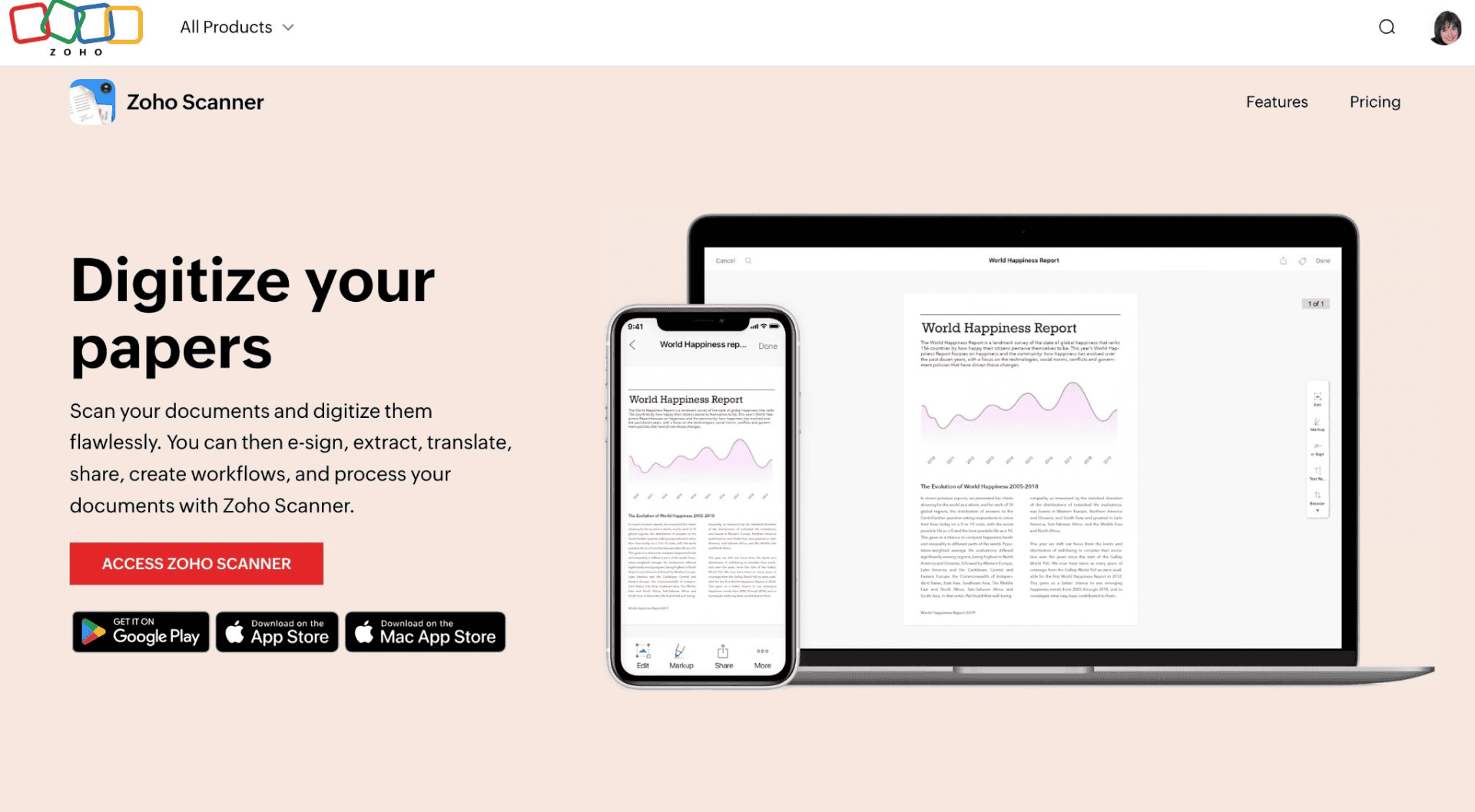
Zoho Scanner fills the Microsoft Lens gap without forcing you into an AI assistant you don’t want. This document scanning app focuses on what you need: turning your phone into a professional scanner that integrates with your existing business systems.
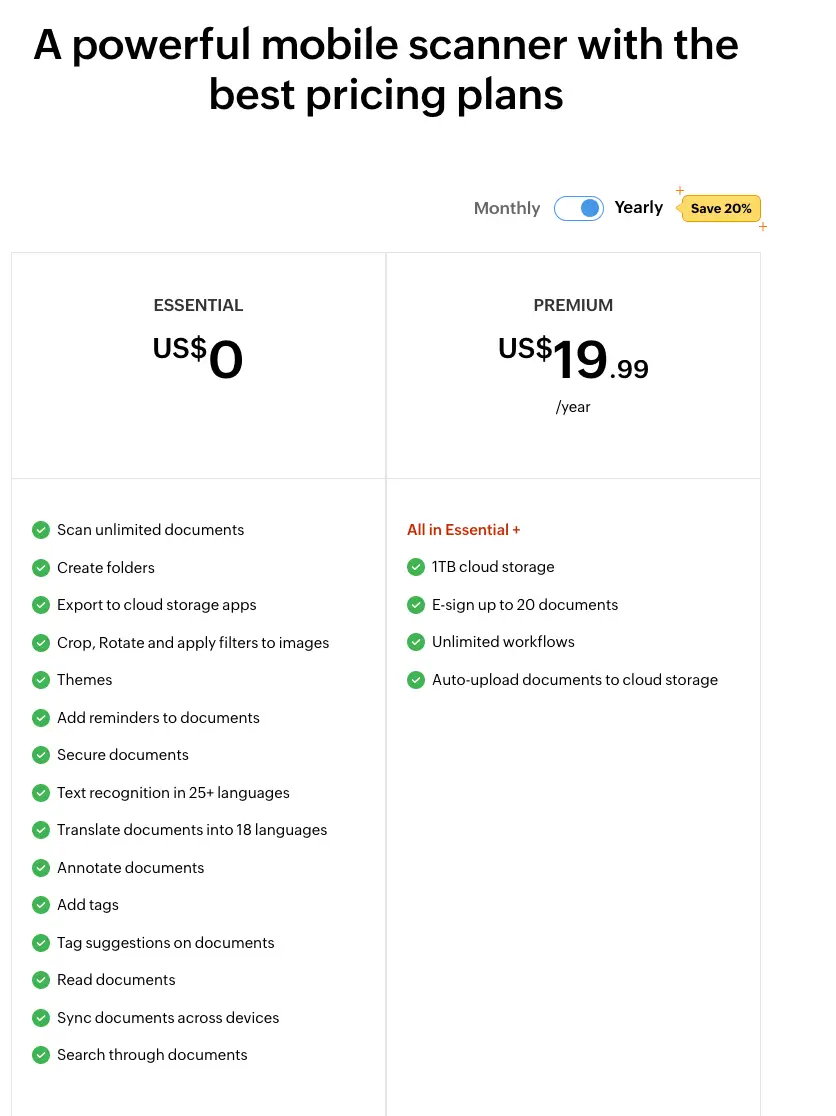
The AI handles edge detection, perspective correction, and text enhancement automatically. Zoho Scanner delivers OCR in over 25 languages, translation into 18 languages, and workflows that connect to your cloud storage and business apps. Digital signatures work for up to 20 documents on the premium plan.
Zoho Scanner Features That Transform Your Document Workflow
Smart Text Recognition That Works
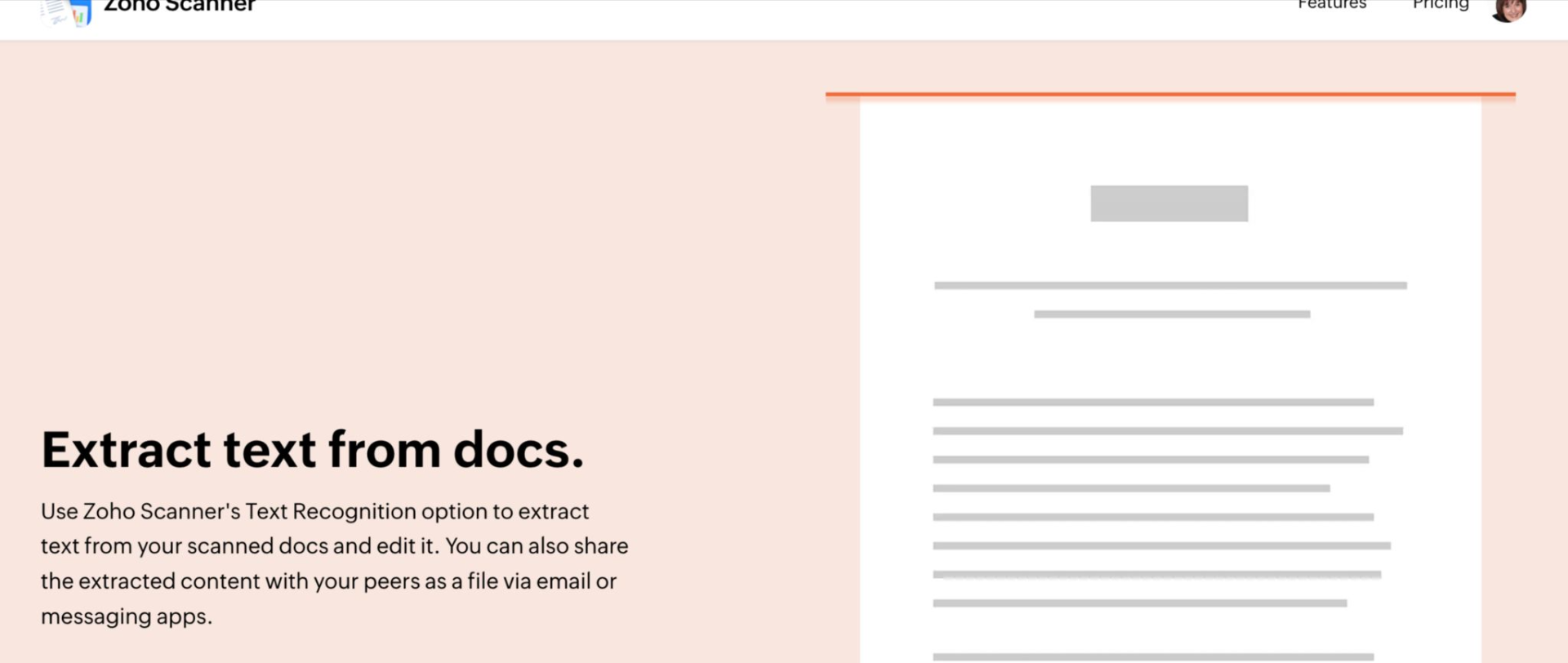
Zoho Scanner’s OCR technology extracts text from your scanned documents and makes everything searchable. The system recognizes text in over 25 languages, including English, French, Chinese Traditional, Japanese, German, and Hindi. Once extracted, you edit the text directly within the app, copy it to other applications, or export it as a separate TXT file.
This means handwritten notes become editable text. Old printed invoices become searchable PDFs. Meeting notes scribbled on napkins become organized, professional documents. The OCR accuracy rivals expensive desktop software but works right from your phone.
Translation That Breaks Language Barriers
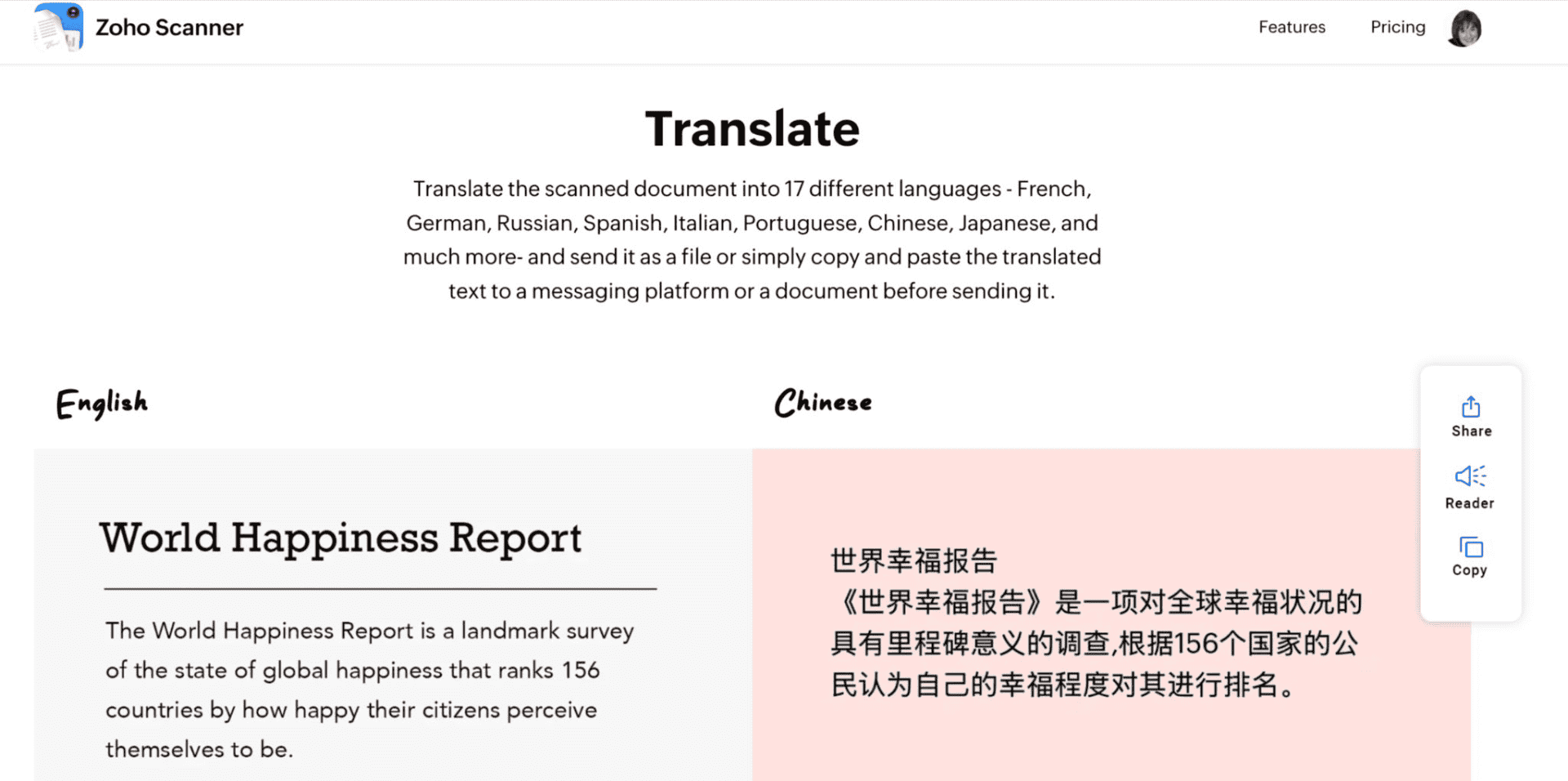
Scan a document in one language, get it translated into 17 others instantly. Zoho Scanner converts your scanned content into French, German, Russian, Spanish, Italian, Portuguese, Chinese, Japanese, and more. The side-by-side view shows original and translated text clearly, making it easy to verify accuracy and context.
This feature saves you from hiring translators for every international document. Scan a supplier invoice in Spanish, translate to English, and send both versions to your team. Review contracts from overseas partners without waiting for translation services.
Digital Signatures That Speed Up Business
Add your signature, initials, name, email address, and date directly onto scanned documents. The e-signature feature works with contracts, agreements, forms, and any document requiring your signature. Your signature looks professional and carries legal weight, eliminating the print-sign-scan cycle that wastes time.
Store multiple signature styles and switch between formal signatures for contracts and quick initials for internal documents. The Premium plan handles up to 20 document signatures monthly, covering most small business needs without additional per-signature fees.
Workflows That Run Your Filing System
Set up automated workflows that execute multiple actions with one tap. Scan a receipt, and Zoho Scanner automatically saves it to your Accounting folder, emails a copy to your bookkeeper, adds the date and vendor tags, and uploads it to Dropbox. The workflow handles the busy work while you focus on running your business.
Create different workflows for different document types. Business cards go to your CRM with event tags. Signed contracts get filed by client name and trigger follow-up reminders. Invoices route to accounting with payment due date alerts. One scan, multiple actions, zero manual filing.
Organization That Actually Works
Create folders that mirror your business structure: Accounting, HR, Legal, Projects, or whatever makes sense for your workflow. Zoho Scanner auto-suggests tags based on document content, helping you categorize everything consistently without thinking about it.
Add reminders to documents so important deadlines don’t slip through the cracks. Tag documents with project names, client information, or document types. The search function finds documents by folder, tag, or text content, making retrieval fast and reliable. Everything stays organized without becoming a second job.
Document Reading for Accessibility and Multitasking
The accessibility features let Zoho Scanner read documents aloud to you. This helps when you’re driving, walking, or need to review documents hands-free. The text-to-speech works with the extracted OCR content, so you hear clean, properly formatted text instead of garbled attempts at reading images.
Use this feature during commutes to review contracts, listen to meeting notes while exercising, or help team members with visual impairments access document content easily.
Share and Sync Across Everything
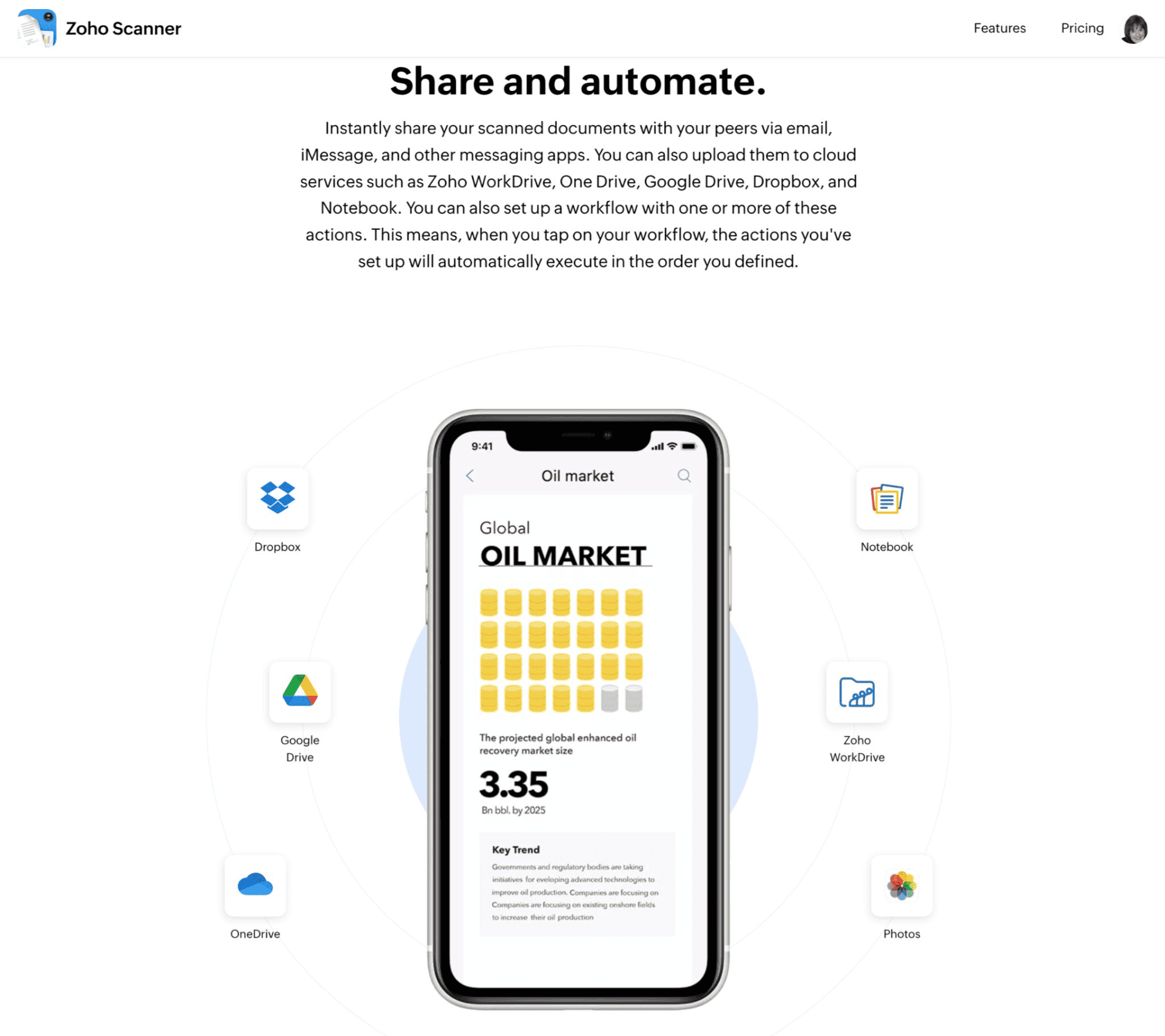
Zoho Scanner connects to major cloud services including Zoho WorkDrive, OneDrive, Google Drive, Dropbox, and Notebook. You also share documents instantly via email, iMessage, and other messaging apps. The integrations work seamlessly across iPhone, Android, and desktop platforms.
Scan on your phone, access on your laptop. Your team member scans a document on Android, and it appears instantly on your iPhone. No more emailing files back and forth or losing documents in message threads.
How Zoho Scanner Compares to Other Document Scanning Apps
Zoho Scanner vs Adobe Scan
Adobe Scan offers excellent OCR and tight integration with Adobe products. Choose Adobe if you live in the Adobe ecosystem and don’t mind paying Adobe prices. Zoho Scanner wins on automation and third-party integrations without the subscription complexity.
Zoho Scanner vs Apple Notes Scanner
Apple’s built-in scanner works fast and free, perfect for quick captures but limited to Apple devices. Zoho Scanner provides cross-platform compatibility with advanced organization features and export options that Apple Notes Scanner lacks.
Zoho Scanner vs Google Drive Scanner
Google’s Android scanning saves directly to Drive and works great for basic needs. Zoho Scanner adds translation features, digital signatures, and custom workflows that Google Drive Scanner doesn’t offer.
Zoho Scanner vs Microsoft Copilot Scanner
Microsoft’s new scanning lives inside their AI assistant. Fine for casual use but lacks the focused functionality and export options that made Lens valuable. Zoho Scanner keeps the simple “point, scan, send” flow without the AI complexity.
Zoho Scanner hits the sweet spot: professional features without enterprise complexity, automation without overwhelming options.
Real Business Applications Where Zoho Scanner Pays Off
Manufacturing Operations: Scan quality control reports, safety documentation, and vendor certifications with Zoho Scanner. Set up workflows to automatically file documents by project number and send copies to relevant team members. When audits happen, everything’s searchable and organized.
Service Companies: Capture signed work orders, before/after photos, and customer agreements using Zoho Scanner. Create workflows that email copies to clients automatically while filing originals in project folders. Your clients get professional documentation, and you eliminate follow-up calls about paperwork.
Professional Services: Digitize client intake forms, reference documents, and signed agreements with Zoho Scanner. Build workflows that route documents to specific team members based on document type or client tags.
Retail Operations: Scan vendor invoices for accounts payable, receipts for expense tracking, and inventory sheets for record-keeping. Connect Zoho Scanner workflows to accounting software to eliminate double data entry.
Trade Show Follow-Up: Use Zoho Scanner to capture business cards on-site, tag with event and booth information, then trigger automated follow-up sequences. Turn networking into revenue instead of letting cards pile up on your desk.
Business Card to CRM Integration: Zoho Scanner Step-by-Step
One thing that’s been missing in my life is a great business card scanner. There’s nothing more frustrating than going to an event, collecting business cards and then losing them. Scanning them is the answer, and dropping them into your CRM where they can receive a series of welcome messages is critical to creating and building new relationships.
For Zoho CRM Users:
- Open Zoho Scanner and select Business Card mode
- Scan the card and review the extracted contact information
- Add source tags like “TechConf2024” or “ReferralJohnSmith”
- Tap Export and select Zoho CRM from the integration options
- Set up a workflow in Zoho CRM to assign ownership, create follow-up tasks, and trigger welcome emails
For HubSpot, Salesforce, or Other CRMs:
- Scan the business card in Zoho Scanner
- Export as vCard or CSV to a designated folder in Google Drive or OneDrive
- Create an automation using Zapier or Make that triggers when new files appear in that folder
- Configure the automation to parse contact information and create new leads or contacts
- Add steps for duplicate checking, owner assignment, and follow-up task creation
- Include the original card image as an attachment to the contact record
Pro Tips for Better Zoho Scanner Results
Place cards on a dark, non-reflective surface before scanning. Use the document filter and edge detection features for cleaner captures. Create consistent tagging systems that flow through to your CRM – tags like “Q1Trade” or “WebinarLead” help with campaign tracking.
Set up naming conventions for scans: Company_Contact_Event_Date. This makes automation rules easier to build and helps with manual searching later.
Use auto-upload folders for different document types. Your team drops receipts in one folder, contracts in another, and your Zoho Scanner workflows handle the rest automatically.
Zoho Scanner Pricing and Getting Started
The Essential plan handles unlimited scanning, basic organization, and cloud exports for free. Perfect for solopreneurs or businesses just starting to digitize their workflows.
Start with high-impact documents: business cards, receipts, and signed agreements. Build simple workflows for these first, then expand as you get comfortable with the system.
I’m using the free plan and this is more than enough for me.
Frequently Asked Questions About Zoho Scanner
Setting up workflows sounds complicated. Do I need to be tech-savvy to make this work?
Not at all. Think of workflows like email rules: “When I scan a receipt, send it to my accounting folder and email my bookkeeper.” Zoho Scanner’s interface walks you through it step by step. Start with one simple workflow, test it with a few documents, then build from there.
What’s the fastest way to migrate my Microsoft Lens folders without losing everything?
Export your critical Lens files to OneDrive or local storage before the shutdown. Create matching folder names in Zoho WorkDrive or your preferred cloud service. Set up auto-upload destinations in Zoho Scanner for each document type, then scan ten test documents to confirm everything routes correctly.
My team uses different phones and computers. Will Zoho Scanner really sync across all our devices?
Yes, that’s one of its biggest advantages over Lens. Scan on your Android, and the document appears instantly on your teammate’s iPhone and your desktop. Everyone stays in sync without emailing files back and forth.
How do I keep my team from creating chaos with random folder names and tags?
Create a one-page cheat sheet with approved folders, tag vocabulary, and naming rules. Example: “Receipts go in Accounting folder, tag with vendor name and month.” Pin it in your team chat and include screenshots from Zoho Scanner showing the right buttons to tap.
Can I get business cards into my CRM automatically, or do I have to type everything?
Zoho Scanner reads the card and extracts name, company, phone, and email automatically. For Zoho CRM, it exports directly. For HubSpot, Salesforce, or others, export as vCard to a watched folder, then use Zapier to create the contact and check for duplicates.
What happens if I’m scanning documents in the field without internet?
Zoho Scanner works offline. Scan everything you need, and it syncs automatically when your phone reconnects. You’ll see a queue showing what’s pending upload, so nothing gets lost.
How secure is this for sensitive client documents and financial records?
Files stay encrypted when moving and when stored. Add Face ID or fingerprint locks to the app itself. Share documents through secure links with expiration dates instead of email attachments. Your data stays private and protected.
What file formats come out of Zoho Scanner, and will they work with my existing systems?
PDF for documents, JPG or PNG for images, TXT for extracted text, and vCard or CSV for business cards. These standard formats work with virtually every business system you’re already using.
Which workflows should I set up first to see immediate results?
Start with these three: receipts to your accounting folder, business cards to CRM, and signed documents to client project folders. Each one eliminates manual filing and creates consistent naming across your team.
What naming convention keeps everything searchable and automation-friendly?
Use Company_Contact_DocType_Date with no spaces. Example: “Acme_JaneDoe_Quote_2024-12-15.” This format sorts cleanly, works with automation rules, and makes documents easy to find months later.
How do I measure if Zoho Scanner is actually saving time and money?
Track three numbers for 30 days: time to file a document, number of lost documents, and time to retrieve a specific document. Add invoice processing time if you handle accounts payable. Shorter times equal money saved and fewer headaches.
Your Next Move
Download Zoho Scanner and scan five business cards sitting on your desk right now. Set up one workflow to export them to your CRM or a shared folder. Time how long it takes to find those contacts next week compared to digging through your card collection.
The difference between organized and chaotic isn’t intelligence or resources. It’s systems. Your phone already lives in your pocket – turn it into the document management system that stops costing you money.