The registration form is the most important page in your entire event marketing funnel. Every email you send, every social post you publish, every speaker you announce drives toward one moment: a visitor landing on your event registration form and deciding whether to complete it.
Most event teams spend more time on the event itself than on the form they create to collect attendee registrations. That is a mistake. A poorly designed form with too many fields, unclear ticket options, or a confusing layout will lose registrants who were ready to commit. A well-designed form makes the process feel effortless.
This guide covers what an event registration form is, what it should include, what to leave out, how to use templates effectively, and how to build a high-converting form.
What Is an Event Registration Form?
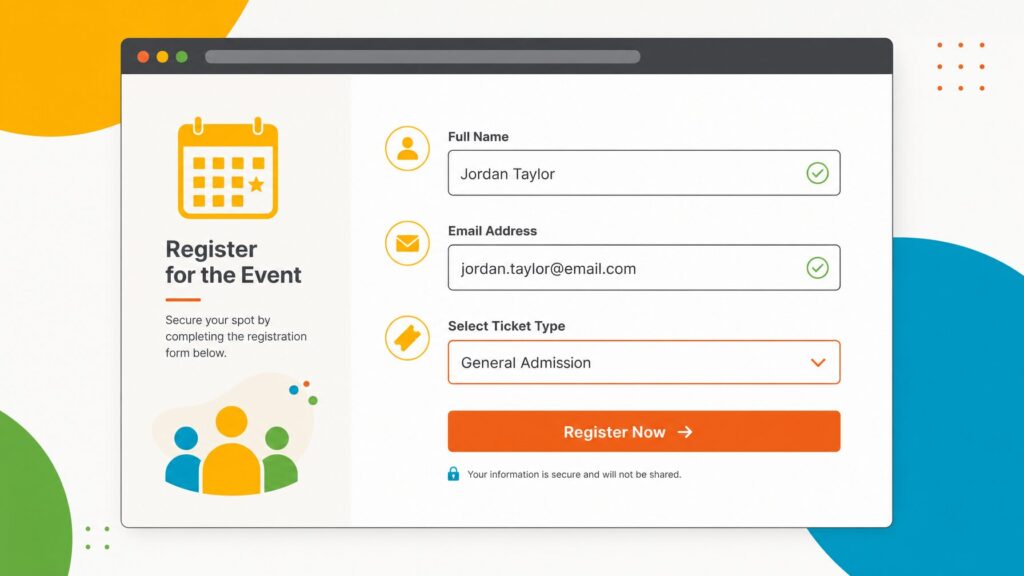
An event registration form is an online form that collects attendee information and confirms their intent to attend an event. It serves as the central data collection point for everything from basic contact details to ticket purchases, session preferences, and accessibility requirements.
At its most basic, it captures a name and email address. At its most complete, it collects ticket selections, payment details, session preferences, dietary requirements, accessibility needs, and any other data the event organizer needs to plan and run the event.
Online event registration forms typically live on a dedicated event website or landing page, embedded directly on an organization’s existing website, or both. They can be publicly accessible to anyone or restricted to invited guests via a private link or RSVP flow.
The form is not just an administrative tool. It is the first direct interaction an attendee has with your event as a participant, not just as a visitor. The experience of completing the form sets the tone for everything that follows.
What Should an Event Registration Form Include?
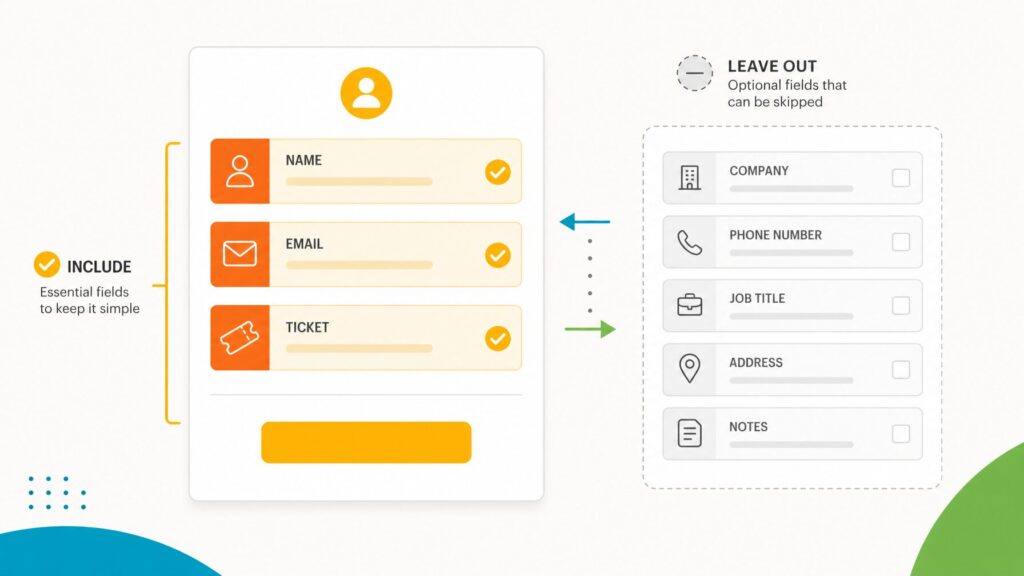
Every event registration form should include, at minimum, first and last name, email address, and ticket type selection. Beyond these essentials, include only fields whose data you will actually use for event logistics, badge printing, communications, or reporting.
The right fields depend on your event type, attendee audience, and what data you actually need. Here are the core elements that most event registration forms should include, along with optional elements worth considering.
Required Fields for Almost Every Event
First and last name: The minimum you need to address attendees personally, print badges, and build a check-in list.
Email address: The primary communication channel for confirmation emails, reminders, and logistics updates. Collect this carefully: an incorrect email address means a registrant who never receives their confirmation.
Ticket type selection: If your event has multiple ticket types (general admission, VIP, early bird, or member rate), the registrant needs to select the appropriate one. Make the options and their differences clear. Ambiguous ticket names are a common cause of abandonment.
Common Optional Fields
Job title and organization: Useful for events where attendee demographics matter for sponsors, networking, or content planning. Adds friction for attendees who see it as irrelevant.
Phone number: Useful for high-touch events or situations where last-minute phone communication is realistic. This adds friction, but is necessary in some instances, such as events with tradeshows where exhibitors will need to follow up with leads.
Session or track preferences: For multi-track events where you need to anticipate session capacity or personalize the agenda. Note that true session selection during registration, where attendees are locked into specific sessions, is an advanced capability not available in all registration platforms.
Dietary requirements: Essential for events with catered meals. Use a combination of standard options and a free-text field to capture specific needs.
Accessibility requirements: Include for any event with an in-person component. Use a free-text field to capture specific needs rather than a predefined list.
Membership or credential number: For member-only events or events with continuing education tracking, where you need to verify eligibility or record credit hours. If you run association or member-based events, EventMobi’s registration platform supports member pricing and access controls.
How did you hear about this event?: Useful for marketing attribution, but adds friction. Consider whether you will actually use the data before including it.
Fields to Leave Out
Every field you add reduces your form completion rate. Before adding any field, ask one question: Will you actually use this data for event logistics, badge printing, communications, sponsors and exhibitors, or post-event reporting? If the answer is no, remove it.
Avoid collecting data just because it might be useful someday. Collect what you need now, and collect the rest through post-registration surveys or onsite check-in if necessary.
Q: How many fields should I include on my registration form?
A: Aim for 5 to 8 fields for most events. Forms with more than 10 to 12 fields see significantly higher abandonment rates. Only include fields whose data you will actively use for event logistics, communications, or reporting.
How to Use Form Conditions to Reduce Friction
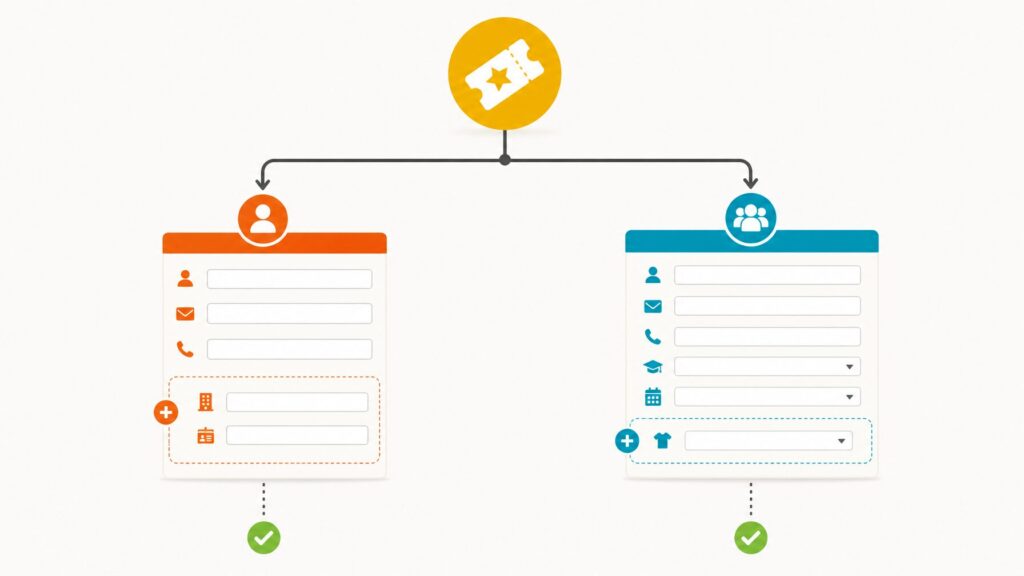
Form conditions allow your registration form to show or hide fields based on what a registrant has already selected. This is one of the most powerful tools available for improving form completion rates without sacrificing data collection.
Form conditions, sometimes called conditional logic or if/then logic, eliminate the need to show every field to every registrant or build separate forms for each attendee type.
A simple example: if a registrant selects a VIP ticket, the form shows a field asking for their preferred session track and a field confirming their dietary requirements. General admission registrants don’t see these fields because they aren’t relevant to them.
A more complex example: if a registrant selects the “Member” ticket type, the form shows a membership number field. Non-members do not see this field.
Without form conditions, you have two options: show every field to every registrant (which overwhelms people with irrelevant questions) or build separate forms for each attendee type (which fragments your data and doubles your administrative work). Form conditions eliminate both problems.
Q: What is conditional logic in event registration?
A: Conditional logic, also called form conditions or if/then logic, is a feature that shows or hides form fields based on a registrant’s previous answers. For example, selecting a “VIP” ticket can reveal additional fields for session preferences, while general admission registrants skip those questions entirely.
Event Registration Form Templates: What They Are and How to Use Them
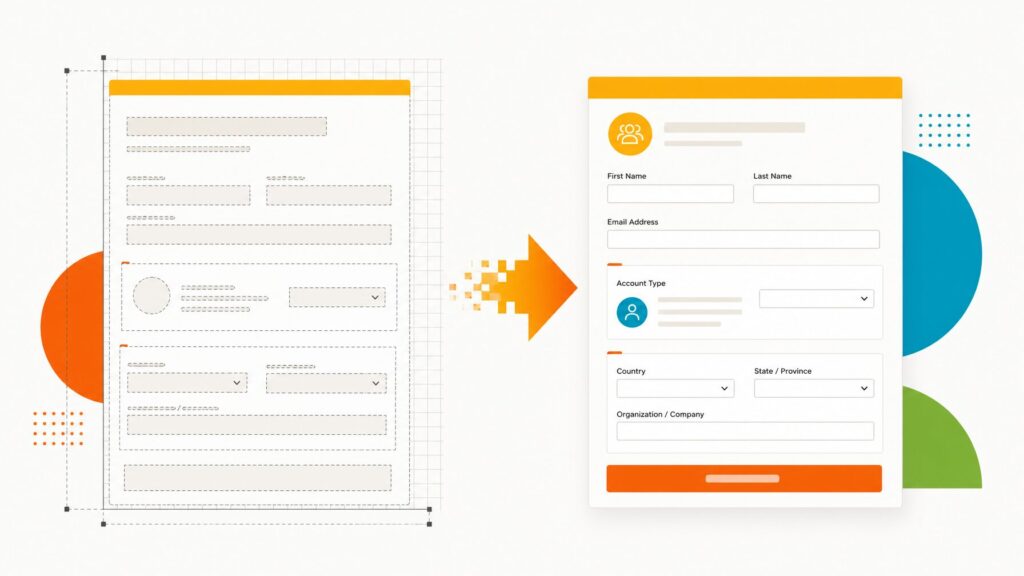
An event registration form template is a pre-built form structure with standard fields, sections, and layout already in place. Templates give you a starting point with common fields pre-configured, so you can customize rather than build from scratch.
Templates speed up setup and help ensure you don’t miss important fields.
In EventMobi, the registration form includes default fields that cover the most common data requirements for most events. You can use these as-is or customize them with additional fields, sections, and conditional logic to match your specific needs.
Templates are a starting point, not a final product. Every event is different, and a good template gives you a solid foundation while leaving room to add the fields that matter for your specific audience and event type.
When using a template, review every field and ask:
- Does this field apply to my event?
- Will I actually use this data?
- Is this field required, or optional?
- Should this field be shown to all registrants, or only to specific ticket types?
Remove any fields that do not meet these criteria before publishing the form.
Event Registration Form Design Best Practices
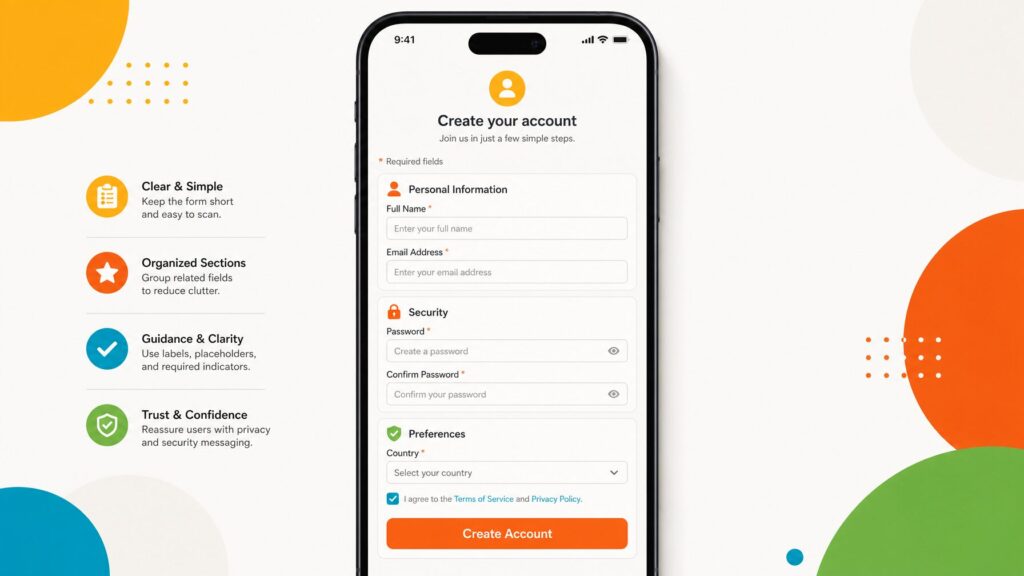
The best registration forms are short, organized into logical sections, clearly labeled, mobile-friendly, and tested before launch. These design principles directly impact your form completion rate.
Keep It Short
Research consistently shows that form length is one of the strongest predictors of completion rate. Every additional field is a reason to abandon. Aim for the minimum number of fields required to run your event effectively.
Organize Fields into Logical Sections
A form with 15 fields in a single undifferentiated list feels overwhelming. The same 15 fields, organized into three labeled sections (Personal Information, Ticket Selection, and Event Preferences), feel manageable. Use section headers to break the form into logical chunks and help registrants understand their progress.
Label Fields Clearly
Ambiguous field labels generate questions and errors. “Name” is less clear than “First Name” and “Last Name” as separate fields. “Organization” is less clear than “Company or Organization Name.” Spend time on labels.
Mark Required Fields Explicitly
Only make fields required that are genuinely required. Marking optional fields as required adds unnecessary friction. Mark required fields with a clear indicator (typically an asterisk) and explain the convention at the top of the form.
Show Ticket Options and Pricing Clearly
If your event has paid tickets, make pricing immediately visible and easy to compare. Hidden fees or unclear pricing are among the most common causes of cart abandonment in event registration. Be explicit about what each ticket type includes. For more ideas on reducing registration friction and increasing attendee sign-ups, consider reviewing your entire registration flow from the attendee’s perspective.
Mobile Friendliness Is Not Optional
A significant and growing proportion of registrants complete forms on mobile devices. Your form needs to work correctly on a phone screen: fields should be appropriately sized, dropdowns and date pickers should be mobile-friendly, and the submit button should be clearly visible without scrolling.
Test the Form before Publishing
Complete a test registration yourself, using a real email address. Verify that the confirmation email arrives, that your registrant appears correctly in your registration platform, and that the payment flow (for paid events) works end-to-end. Then ask a colleague to complete a test registration without any guidance and note every point of confusion they encounter.
Connecting Your Registration Form to the Rest of Your Event
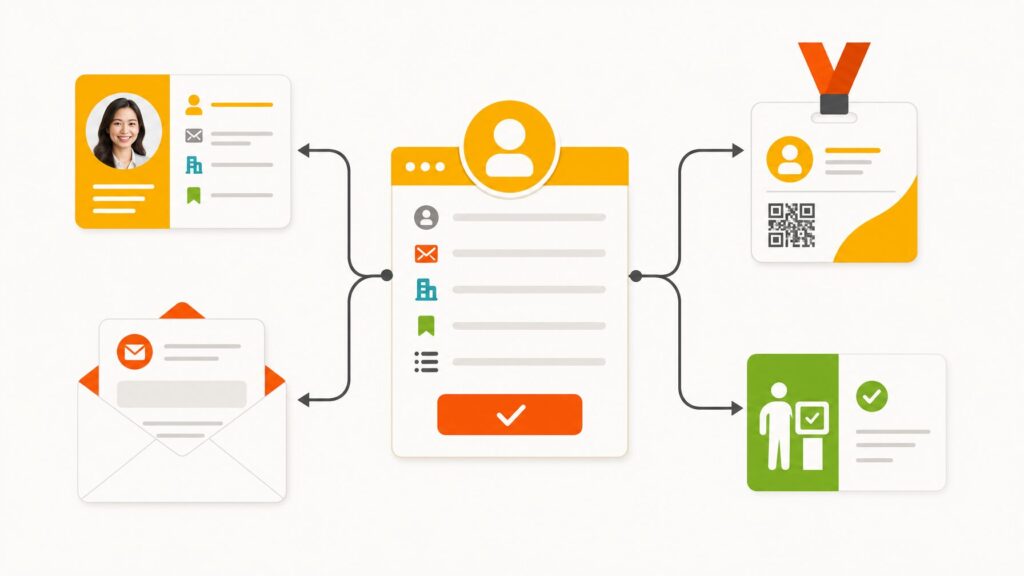
A registration form that collects data but doesn’t connect to anything only solves half the problem. When registration data flows automatically into badges, profiles, email campaigns, and check-in, you eliminate manual data entry and reduce errors across your entire event workflow.
The real value of a well-configured registration form is what happens to the data after submission.
In a connected event platform like EventMobi, data collected at registration flows automatically into:
Attendee profiles: Accessible to your team in real time, without any manual import.
Badge printing: Name, title, company, and any custom fields you collect flow directly into badge designs, without a data prep step.
Event app: Registered attendees automatically populate the event app with their profile information.
Email segmentation: The Communications Hub reads registration data directly, so you can send targeted campaigns by registration status, ticket type, or any custom field collected at registration.
Onsite check-in: The check-in team works from the same data as the registration team, in real time.
When your registration form is built inside the same platform as your event app, badge printing, and communications, there is no export, no import, and no reconciliation. Data collected once is available everywhere it is needed.
Common Event Registration Form Mistakes
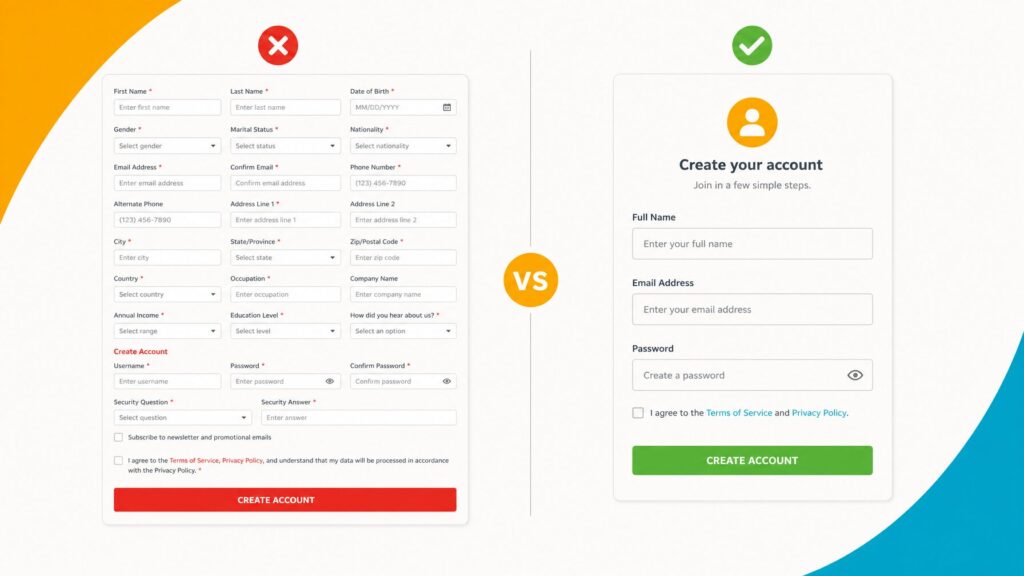
The most common registration form mistakes are collecting unnecessary data, reusing the same form for every event without customization, and not testing on mobile devices. Avoiding these mistakes can significantly improve your form completion rate.
Collecting data you do not use: Every unnecessary field reduces completion rates. Review your form before each event and remove fields whose data never made it into a report, a badge, or a decision.
Using the same form for every event: A corporate conference registration form has different data needs than a nonprofit gala or an association workshop. Start from a template and customize for each event rather than copying last year’s form unchanged.
Ignoring mobile users: Test on a phone before publishing. What works on a desktop browser often breaks on a mobile screen.
Making everything required: Required fields create hard stops. Only mark fields as required when the event genuinely cannot proceed without that data.
Not testing the payment flow: If you have paid tickets, test the entire payment flow before going live. A broken payment flow on launch day is one of the most damaging problems an event team can encounter.
Not testing the confirmation email: The confirmation email is often the first thing a registrant receives from you. Test that it arrives, that the content is accurate, and that it includes everything the registrant needs: event name, date, location, and next steps.
Frequently Asked Questions About Event Registration Forms
Getting Started
A well-configured event registration form does not require a designer, a developer, or a separate tool. It requires a clear understanding of what data you need, a platform that supports conditional logic and automatic data flow, and a commitment to testing before you go live.
EventMobi’s registration form builder includes default templates, custom field support, form conditions, and automatic data flow into badges, profiles, and email campaigns. It is the same platform as your event app and onsite check-in, so everything stays connected.

See how you can use EventMobi’s Registration platform to build attendee registration forms that convert
The post What Is an Event Registration Form? (And How to Build One That Converts) appeared first on EventMobi.