Whether to download the desktop app comes down to one thing: how often you use the tool and what you need it to do. Should I download the desktop app? Download it if you use it daily, need offline access, or it has features the browser version doesn’t. For everything else — occasional tools, simple tasks, or apps you’re still testing — the browser version is almost always enough. Most people download far more desktop apps than they need, and their computers slow down because of it.
Have you noticed that practically every AI tool you use is now nudging you to download the desktop version? Claude. Perplexity. Otter.ai. Tools I’ve been using happily in a browser tab are suddenly sending me pop-ups and emails pushing a desktop install. I’ve downloaded a few of them — and I’ll be honest, I wasn’t always sure why I was doing it beyond the fact that the prompt showed up and I clicked yes.
That moment of “wait, should I actually be doing this?” is what built this article. Because the push toward desktop apps has real momentum right now, and it’s not random. It’s largely driven by AI.
AI-powered features — the kind that run locally, access your files, integrate with your OS, or need persistent background access — don’t work the same way inside a browser. A browser is a sandboxed environment. It’s designed to limit what software can see and do on your computer, for good security reasons. AI agents that can read your documents, automate tasks across your desktop, or integrate with other apps on your computer need to get out of that sandbox. A native desktop app is how they do it. So as AI capabilities have expanded inside tools like Claude, Perplexity, and Otter.ai, the pressure to move users off the browser and onto a desktop install has increased alongside it.
That doesn’t automatically mean you should say yes every time. It means the question of whether to download the desktop app is more consequential now than it was two years ago — and worth thinking through deliberately.
Why This Decision Is More Complicated Now Than It Used to Be

Two years ago, the desktop app question was simpler. Browser = convenience. Desktop = performance. Pick based on how much you use the tool. Done.
AI changed the calculus. Software companies are building AI features that genuinely need local access to function — access to your files, your calendar, your clipboard, your OS-level integrations. Those features can’t live in a browser tab. Browsers are sandboxed environments, designed to limit what software can see and do on your machine, for good security reasons. AI agents that can read your documents, automate tasks across your desktop, or integrate with other apps on your computer need to get out of that sandbox. A native desktop app is how they do it.
So the push for desktop installs isn’t purely a retention play anymore (though it’s still partly that). It’s also a technical requirement for the AI layer these companies are building on top of their tools. Saying yes to a desktop install now often means saying yes to a deeper level of system access than the browser version ever had. That’s worth knowing before you click download.
There’s also the performance reality, which hasn’t changed. Every desktop app runs background processes whether you’re actively using it or not — consuming RAM, checking for updates, generating notifications, adding to startup time. The average knowledge worker uses over 40 SaaS apps per year. For a one-person shop managing their own marketing tools, that sprawl lands entirely on you to manage. More apps mean more notifications, more places to check, more mental bandwidth burned on context-switching. That’s not a tech problem — that’s a focus problem.
The 6-Question Framework for Deciding Whether to Download the Desktop App
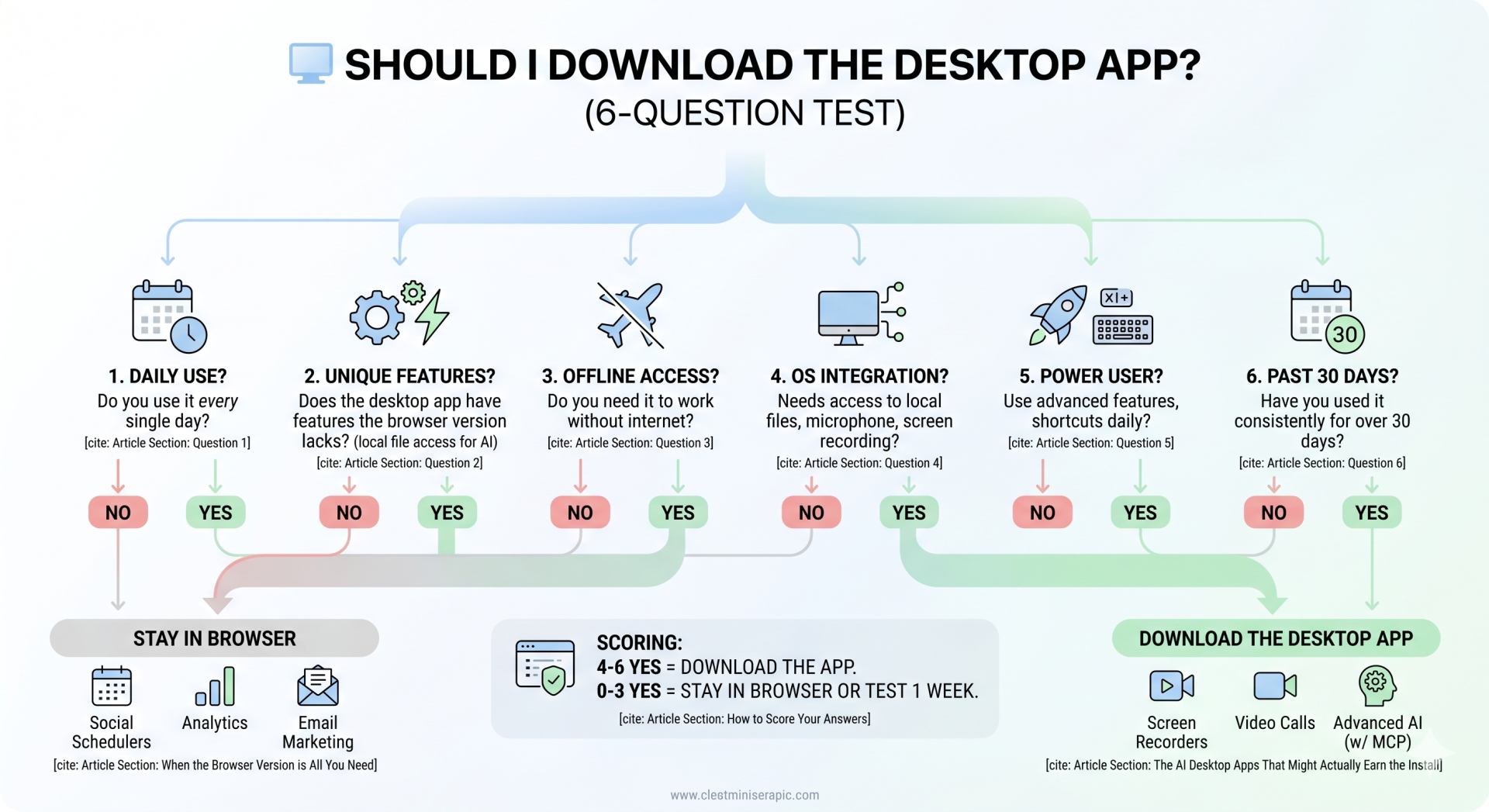
Run every tool through these six questions before you install anything. Answer yes or no. Keep a tally.
Question 1: Do you use this tool every single day?
Not “a few times a week.” Every day. If you’re opening it daily, a desktop app makes sense because you want it fast, accessible, and integrated with your workflow. If you’re using it twice a week or less, the browser tab is sufficient — and having a dedicated app just adds to your startup clutter. Nielsen Norman Group research shows that most users overestimate how frequently they use tools — which is exactly why this question has to be answered with actual data, not gut feel.
Question 2: Does the desktop version have features the browser doesn’t?
This one matters more than most people realize. Some tools are genuinely better in their desktop form. Claude’s desktop app, for example, can connect to local files and folders on your computer through MCP integrations — something the browser version can’t do. Otter.ai’s desktop app can listen to your computer’s audio output, meaning it can transcribe any meeting happening on your machine regardless of which platform you’re using. Those are real functional differences, not just UI polish.
But plenty of AI tools offer almost no advantage in desktop form for the way most solopreneurs actually use them. If you’re using Perplexity to research topics and get quick answers, the browser version does exactly the same thing as the desktop app. Before downloading, spend a week in the browser version and ask yourself what you’re actually missing.
Question 3: Do you need it to work without internet access?
If you work on planes, in spotty-WiFi environments, or you need access to your files and documents offline, the desktop app often wins. Most AI tools in browser form need a live connection to function at all — no internet, no output. A desktop app with local processing or cached data keeps working when your WiFi doesn’t. This is one of the clearest and most legitimate reasons to go desktop.
Question 4: Does it need to integrate with your operating system?
Some tools are genuinely better when they’re embedded in your OS. Claude’s desktop app, for example, can interact with other apps on your machine through MCP integrations — that requires OS-level access a browser tab can’t provide. Screen recorders, audio capture tools, and anything that needs to “see” your whole desktop also require a native install. If the tool’s core function is interacting with your OS — not just your browser — download it.
Question 5: Are you a power user or an occasional one?
Be honest. A power user opens the tool as part of their core daily workflow and pushes it toward its limits — advanced features, keyboard shortcuts, bulk actions. An occasional user opens the tool to complete a specific task and closes it. Power users get the desktop app. Occasional users stay in the browser.
I see this misalignment constantly in marketing process audits: someone has the desktop app for a scheduling tool they use once a week to queue up posts. The browser tab would work fine — and they’d save the RAM.
Question 6: Have you used this tool for more than 30 days consistently?
Don’t download the desktop app during your free trial or your first month with a tool. You don’t know yet whether it fits your workflow. Use the browser version for at least 30 days. If you’re still using it daily after that, then evaluate the desktop version. This one rule alone will cut your unnecessary installs by half.
💡 STRATEGY ALERT
Your 30-day rule is your trial period discipline. The tool gets browser access only for the first month. If you’re still opening it every day by day 31 and the desktop version offers clear benefits, that’s your signal to install. This isn’t about being cheap with your disk space — it’s about not letting “shiny new tool” energy dictate your tech stack.
How to Score Your Answers and What to Do Next
Add up your “yes” answers from the six questions above. Here’s what the score tells you:
| Your Score | What It Means | Your Decision |
|---|---|---|
| 0–1 Yes Answers | This tool is not core to your daily workflow | Stay in the browser. Bookmark it. Done. |
| 2–3 Yes Answers | You’re a regular user but not a power user | Try the desktop version for one week. If your workflow doesn’t change, uninstall it. |
| 4–5 Yes Answers | This tool earns a place in your core stack | Download the desktop app. Add it to your startup sequence. |
| 6 Yes Answers | This is a mission-critical daily tool | Download it, learn the keyboard shortcuts, and optimize the settings. Own it. |
Should You Download the Claude, Perplexity, or Otter.ai Desktop App
I’m not going to give you hypothetical scenarios here. I downloaded all three of these apps in the past year. Here’s what happened.
Claude Desktop — Still Installed, Rarely Opened
I downloaded the Claude desktop app because Anthropic made a compelling case: with the right setup, the desktop app can connect to files on your computer, integrate with other tools, and give Claude more context about your work. On paper, that’s a meaningful feature gap over the browser version.
In practice, my experience was frustrating. The desktop app doesn’t sync my Projects — the conversations and context I’ve built up in Claude.ai stay in the browser. So I’d open the desktop app and feel like I was starting from scratch. That’s a dealbreaker for how I work. I keep the app installed but I default to the browser almost every time because that’s where my projects live.
Score on the framework: Q1 yes (daily user), Q2 partial (features exist but the sync gap is a real problem), Q3 no (I don’t need offline AI), Q4 partial, Q5 no, Q6 yes. Comes out at 3 — right in the “try it for a week” zone. My week turned into “I’ll use the browser.” That’s a legitimate outcome.
Bottom line: If you use Claude primarily for writing, research, and content creation, the browser version is sufficient. The Claude desktop app earns its install only if you’re actively using MCP integrations to connect it to local files and other apps on your machine.
Otter.ai Desktop — Downloaded, Tested, Uninstalled
Otter.ai sent me an email promoting their desktop app with a clear value proposition: the desktop version can capture audio from any app on your computer, not just meetings you join through Otter directly. That means it can transcribe a Zoom call, a YouTube video, or any audio playing on your machine — automatically.
I downloaded it, tested it for about a week, and uninstalled it. Here’s why: the feature sounded more useful than it was for my workflow. I don’t transcribe enough audio in a week to justify a persistent background app with microphone access running on my laptop. The browser version handles the occasional recording I do need. If I were recording client calls every day, the calculus would change completely. But I’m not. Browser wins.
Score: Q1 no (not a daily tool for me), Q2 yes (the feature gap is real), Q3 no, Q4 no, Q5 yes (needs OS audio access), Q6 no. Three yes answers — “try it for a week” territory. I tried it. It didn’t fit. Uninstalled. No regrets.
Bottom line: Download the Otter.ai desktop app only if you’re transcribing audio every single day. For occasional meeting notes, the browser version is all you need.
Perplexity — Browser Only, No Desktop Needed
Perplexity has a desktop app — Comet. It’s basically a browser. I installed it, but it looked so much like my online version, that it was easier for me to keep a tab open and just use it there.
Score: Q1 no (a few times a week, not daily), Q2 no (browser version does everything I need), Q3 no, Q4 no, Q5 no, Q6 no. One yes answer at most. Hard pass on the desktop app. Pinned browser tab. Done.
Bottom line: For the way most small business owners use Perplexity — research, quick answers, source verification — the browser version is identical to the desktop app. Skip the install.
The pattern across all three: the framework works because it forces you to look at your actual behavior, not the feature list in the marketing email.
⚠️ REALITY CHECK
Most SaaS companies push desktop apps because it increases retention. Once you have their icon in your dock, you’re psychologically more committed to the tool — and far less likely to cancel. That’s not a reason to refuse the desktop app when you genuinely need it. But it’s worth knowing that the pressure to download is partly a business model decision on their end, not a product quality one.
The AI Desktop Apps That Might Actually Earn the Install
Not every download is a mistake. Some AI tools offer a genuine feature gap in their desktop version that’s worth the install — if your workflow matches.
Claude Desktop (if you use MCP integrations). The desktop app’s real advantage is its ability to connect to local files, apps, and data through MCP (Model Context Protocol) servers. If you’re doing advanced automation — having Claude read from your Google Drive, interact with your calendar, or pull data from other desktop apps — the desktop version is the only way to do that. For most small business owners who are using Claude for writing, research, and content creation, the browser version is sufficient. But if you’re building automations, the desktop app earns its place.
If you’re using Claude Cowork and/or Claude Code, you definitely want to download the desktop app. One more thing – you don’t save tokens by using the app.
Otter.ai Desktop (if you record meetings daily). The key feature is system audio capture — the desktop app can transcribe audio from any app on your computer automatically, without you manually starting a recording. If you’re in client calls, interviews, or recorded meetings every single day, that’s a meaningful time saver. If you record once or twice a week, the browser version handles it fine.
Screen recording and audio tools. Any tool whose core function is capturing your screen or system audio — Loom, Descript, OBS — requires a desktop install. This isn’t a preference, it’s a technical requirement. These tools literally can’t access your screen from inside a browser.
Video conferencing (if call quality matters for your business). If you’re running client calls, workshops, or paid webinars, a dedicated desktop app for video conferencing gives you better audio processing and more reliable performance than the browser version. This is one category where the performance difference is noticeable enough to matter.
When the Browser Version Is All You Need
The browser wins for tools you use occasionally, tools with no meaningful feature gap, and tools you’re still evaluating. Here are the categories where I consistently recommend browser-only:
Social media schedulers. Buffer, Later, Publer, Hootsuite — all of them work perfectly in a browser. You’re not editing video there. You’re not doing anything that requires OS integration. You’re scheduling posts. Keep them in a browser tab. Buffer’s own documentation confirms there’s no functional gap between their browser and desktop experiences for standard scheduling workflows.
Analytics dashboards. Google Analytics, Search Console, Ezoic — browser all day. These are review tools, not daily work tools for most solopreneurs. You’re not spending four hours in GA4; you’re checking specific metrics and moving on.
Email marketing platforms. Mailchimp, Zoho Campaigns, ConvertKit — browser. The desktop app versions of these (where they even exist) offer no meaningful advantage over the browser. You’re writing emails and building sequences. That’s not a resource-intensive workflow.
CRM tools. Unless your CRM has a desktop app with offline sync (some do, most don’t), the browser version is fine. If you’re looking at how to build a simple marketing process, a browser-based CRM with a bookmarked tab is all you need.
🛑 DON’T COPY BLINDLY
When someone in a Facebook group or on YouTube says “you HAVE to get the desktop app for this tool” — that’s their workflow, not yours. Their setup, their use case, their RAM. Run your own 6-question check. What works for a marketing agency with 12 people and a MacBook Pro with 32GB of RAM may completely tank your Dell laptop with 8GB. Don’t adopt someone else’s tech stack wholesale.
The Hidden Cost of Too Many Desktop Apps
Every desktop app you don’t need is costing you something. Here’s where the real damage shows up:
Startup time. Each app that launches at startup adds 5–30 seconds to your boot sequence. Ten unnecessary startup apps can add three to five minutes to the time between pressing the power button and being productive. Across a year, that’s not a small number.
RAM consumption. Most modern desktop apps use between 200MB and 800MB of RAM while running in the background. On an 8GB laptop, four unnecessary background apps consume 30–40% of your total memory before you’ve opened a browser tab. This is why your machine feels slow even when you’re “just doing email.” Crucial’s memory guide is a useful benchmark if you want to know how your current RAM stacks up against what your apps actually need.
Notification overload. Desktop apps trigger system-level notifications. More apps mean more interruptions. Research from the American Psychological Association shows that task-switching from a notification costs 20–40% of your productive time. If four apps are competing for your attention, the cognitive tax is real.
The irony is that we download apps to be more productive — and then they end up making us less productive. The marketing burnout problem isn’t just about strategy overwhelm. It’s also about tool overwhelm. The two are related.
💡 STRATEGY ALERT
How to Decide Which Apps Belong in Your Core Tool Stack
The desktop app decision is really a tech stack decision. And tech stack decisions are really process decisions. Before you decide what to download, you need to know what your core daily workflow actually is — not what you aspire it to be.
Map out what tools you open in a typical work day. Not your ideal day. Your actual day. If you track it honestly for a week, most small business owners find they use 4–6 tools daily and another 10–15 occasionally. That core group of 4–6? Those are the desktop app candidates. Everything else gets a browser tab or a bookmarked link.
This is the same principle behind the simple marketing process framework — you don’t need more tools, you need the right tools used consistently. The same applies to how you install and manage software.
The AI tools space is making this more complicated, not less. AI agents and automation tools increasingly come with desktop apps that want persistent access to your system. Before you say yes to any of them, run the framework. Daily use? Feature gap? OS integration need? If none of those apply, the web version does the job.
Frequently Asked Questions about Desktop Apps vs Browser
Should I download the desktop app for tools I pay for?
Paying for a tool doesn’t automatically mean the desktop app is the right choice. The price you pay is for access to the software’s features — not for a specific version of it. Run the 6-question framework regardless of what you’re paying. If the browser version does everything you need, use it. Save the desktop install for tools that genuinely earn it through daily use or feature advantages.
Does downloading the desktop app make a tool faster?
Sometimes, but not always. Desktop apps can be faster at loading and at specific tasks like processing large files or capturing system audio because they run natively on your hardware rather than inside a browser engine. But if the tool’s core function is displaying information from the internet — research, writing assistance, dashboards — the browser version is effectively the same speed. The performance difference matters most for tools doing resource-intensive work: audio capture, video processing, or anything that needs persistent background access.
Is it safe to download desktop apps from SaaS companies?
Generally yes, for established, reputable software companies. Download from the company’s official website or from trusted app stores (Mac App Store, Microsoft Store). Avoid downloading from third-party sites that host software installers — these are a common vector for malware. If a tool has a browser version you can use instead, starting there while you evaluate the company’s credibility is a reasonable approach.
What’s the difference between a desktop app and a browser extension?
A desktop app installs on your operating system and runs outside the browser. A browser extension installs inside your browser and only runs when the browser is open. For many marketing tools — grammar checkers, screenshot tools, social media helpers — a browser extension is actually the better choice than a full desktop app. Extensions are lighter, easier to manage, and easier to uninstall. When evaluating a tool, check whether a browser extension exists before defaulting to a full desktop install.
How many desktop apps should a solopreneur have installed?
There’s no magic number, but a good working range is 5–10 core desktop apps for a solopreneur. These typically include a video conferencing tool, a screen recorder if you do client work or content creation, a password manager, and 1–3 AI or productivity tools that genuinely pass the 6-question framework. Everything beyond that deserves scrutiny. If you have 20+ desktop apps installed, audit them. Half are probably candidates for uninstall.