• About Us
  • Disclaimer
  • Contact Us
  • Privacy Policy
Monday, March 9, 2026
mGrowTech
No Result
View All Result
  • Technology And Software
    • Account Based Marketing
    • Channel Marketing
    • Marketing Automation
      • Al, Analytics and Automation
      • Ad Management
  • Digital Marketing
    • Social Media Management
    • Google Marketing
  • Direct Marketing
    • Brand Management
    • Marketing Attribution and Consulting
  • Mobile Marketing
  • Event Management
  • PR Solutions
  • Technology And Software
    • Account Based Marketing
    • Channel Marketing
    • Marketing Automation
      • Al, Analytics and Automation
      • Ad Management
  • Digital Marketing
    • Social Media Management
    • Google Marketing
  • Direct Marketing
    • Brand Management
    • Marketing Attribution and Consulting
  • Mobile Marketing
  • Event Management
  • PR Solutions
No Result
View All Result
mGrowTech
No Result
View All Result
Home Technology And Software

How to Disable Weather Widget in Windows 11?

Josh by Josh
July 21, 2025
in Technology And Software
0
How to Disable Weather Widget in Windows 11?


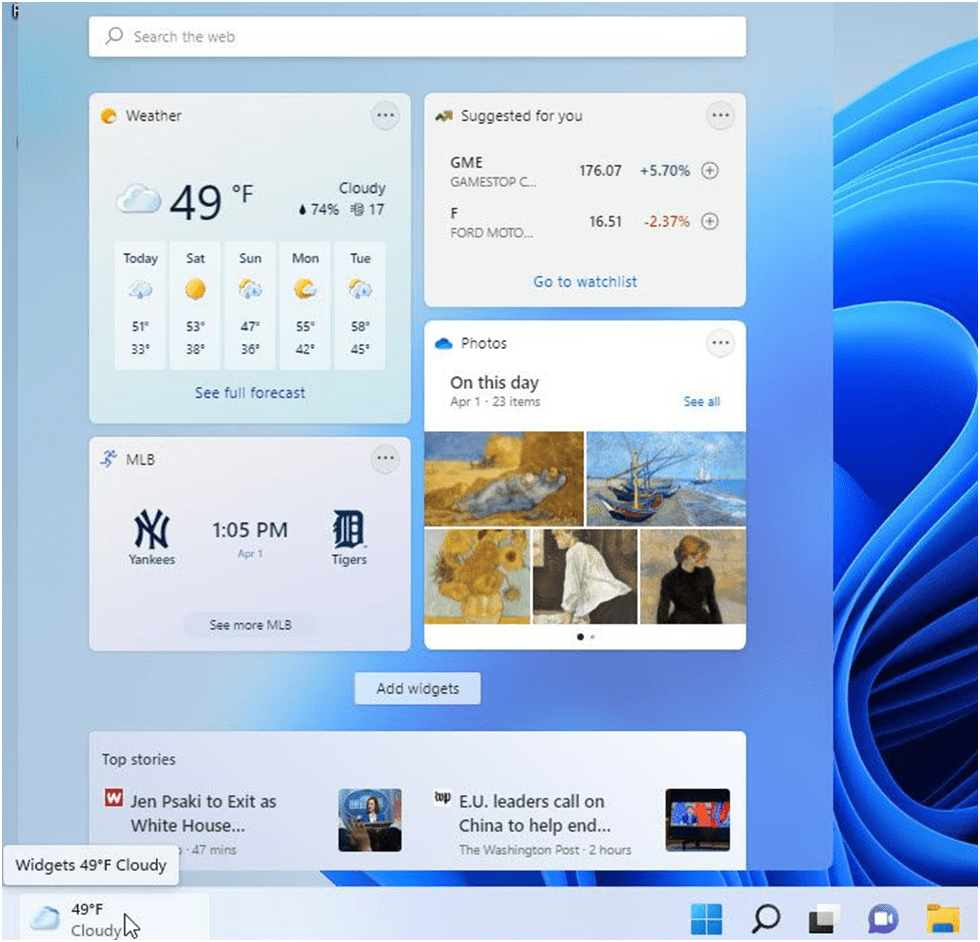
The article explains the procedure for deactivating the weather widget within the Windows 11 taskbar and the process of enabling or disabling the widget buttons located on the left side of bar. The “Widgets” icon in Windows 11 displays weather information, sports updates, currency exchange rates, and breaking news alerts. When you move your cursor over the icon, the Widgets dashboard appears. It resembles the “News and Interests” widget found in Windows 11.

The appearance of the Widgets icon merely requires hovering, potentially leading to workflow disruptions, particularly for users who have relocated the Start button to the left corner of the taskbar. Fortunately, there exists the option to enable or disable the weather widget in Windows 11.

Also Read: 3 Methods to Upgrading to Windows 11: A Step-by-Step Guide

In instances where the weather widget contributes to an overly cluttered taskbar, users possess various avenues to deactivate it, as outlined in the forthcoming sections. The deactivation procedure can be executed in three ways including through the taskbar settings, the Group Policy Editor, or the Registry Editor. Each of these methods is explained below, covering the entire process of removing the weather widget from the computer interface.

How to Disable Weather Widget in Windows 11?

Remove the Widgets Icon from the Taskbar

There are several techniques designed to deactivate and remove it.

Turn off Features from Widgets Settings

The procedure for deactivating the Widgets weather icon from the Windows Taskbar is outlined in the ensuing steps:

Initiate the Windows Settings by clicking on the Windows button.

Initiate the Windows Settings by clicking on the Windows button.

Proceed to access the Personalization settings.

Proceed to access the Personalization settings.

Within the Personalization settings, navigate to the Taskbar section located on the right-hand side.

Within the Personalization settings, navigate to the Taskbar section located on the right-hand side.

Under the “Taskbar items” category, the Widgets toggle switch can be disabled to deactivate the feature.

Under the "Taskbar items" category, the Widgets toggle switch can be disabled to deactivate the feature.

Conversely, activating the Widgets toggle switch would restore the widget functionality. Once the aforementioned steps are successfully executed, the weather, sports, financial, and news-oriented icon located on the left side of the Taskbar shall be removed. However, users can still access widgets through the keyboard shortcut Windows key + W.

Also Read: Windows 11 24H2: A Guide to New Features and Rollout

Remove the Weather Widget with the Registry Editor

For those who seek to permanently remove the weather widget and preclude its activation on their computer, the Registry Editor can be employed. It should be noted that tampering with registry entries carries inherent risks, and it is advisable to create a restore point before proceeding. The ensuing instructions delineate the process of removing the weather widget via the Registry Editor:

Press the key combination Win + R to launch the Run dialog box. Subsequently, input “regedit” and confirm with the “OK” button to open the Registry Editor.

Remove the Weather Widget with the Registry Editor

Within the Registry Editor interface, navigate to the following location: HKEY_LOCAL_MACHINE\SOFTWARE\Policies\Microsoft\

HKEY_LOCAL_MACHINE\SOFTWARE\Policies\Microsoft\

Right-click on “Microsoft,” create a new key named “Dsh,” and subsequently generate a DWORD (32-bit) Value within “Dsh,” naming it “AllowNewsAndInterests.”

Right-click on "Microsoft," create a new key named "Dsh," and subsequently generate a DWORD (32-bit) Value within "Dsh," naming it "AllowNewsAndInterests."
Right-click on "Microsoft," create a new key named "Dsh," and subsequently generate a DWORD (32-bit) Value within "Dsh," naming it

Modify the newly created “AllowNewsAndInterests” key

Modify the newly created "AllowNewsAndInterests" key

Set its Value data field to “0” before confirming the changes.

Set its Value data field to "0" before confirming the changes.
Set its Value data field to "0" before confirm

Following the modification, exit the Registry Editor and proceed to restart the computer. Post-reboot, the weather widget shall no longer be visible.

Disable Weather Widget with Group Policy Editor

Another viable approach involves utilizing the Group Policy Editor to disable the weather widget. This method is particularly applicable for users operating Windows 11 pro or higher, enabling the configuration and modification of Group Policy settings for multiple users. The ensuing steps expound upon the employment of the Group Policy Editor to disable the Widgets icon within the Taskbar:

Invoke the Run command and enter “gpedit.msc” to launch the Local Group Policy Editor.

READ ALSO

Dutch intelligence services warn of Russian hackers targeting Signal and WhatsApp

Our Favorite Wireless Headphones Are $60 Off

Disable Weather Widget with Group Policy Editor

Navigate through the pathway: Computer Configuration / Administrative Templates / Windows components / Widgets.

Navigate through the pathway: Computer Configuration / Administrative Templates / Windows components / Widgets.

Double-click on the “Allow widgets” policy listed within the right-hand section.

Double-click on the "Allow widgets" policy listed within the right-hand section.

Opt for the “disabled” option, followed by applying the changes using the “Apply” and “OK” buttons.

Double-click on the "Allow widgets" policy listed within the right-hand section.

Upon completion of the above steps, the widgets will be effectively removed from the Windows 11 Taskbar. Users retain the flexibility to revert the adjustments and reinstate User Account Control by following the same steps, albeit selecting the “Not Configured” option within the settings.

Conclusion

This article has explained how to disable the weather widget in Windows 11. There are three methods to do this: through the taskbar settings, the Group Policy Editor, or the Registry Editor. The article has also explained the risks associated with modifying registry entries and how to create a restore point.

In conclusion, users who find the weather widget to be distracting or unnecessary can disable it using one of the methods described in this article.

Once you have disabled the weather widget, it will no longer appear on the taskbar. You can still access widgets by pressing the Windows key + W.

Please note that modifying registry entries can be risky. If you are not comfortable making changes to the registry, you can use the taskbar settings or the Group Policy Editor to disable the weather widget.



Source_link

Related Posts

Dutch intelligence services warn of Russian hackers targeting Signal and WhatsApp
Technology And Software

Dutch intelligence services warn of Russian hackers targeting Signal and WhatsApp

March 9, 2026
Our Favorite Wireless Headphones Are $60 Off
Technology And Software

Our Favorite Wireless Headphones Are $60 Off

March 9, 2026
The 2027 Chevy Bolt is the McRib of the automotive world
Technology And Software

The 2027 Chevy Bolt is the McRib of the automotive world

March 9, 2026
Dynamic UI for dynamic AI: Inside the emerging A2UI model
Technology And Software

Dynamic UI for dynamic AI: Inside the emerging A2UI model

March 9, 2026
Anthropic vs. OpenAI vs. the Pentagon: the AI safety fight shaping our future
Technology And Software

Anthropic vs. OpenAI vs. the Pentagon: the AI safety fight shaping our future

March 9, 2026
NetEase is reportedly pulling funding for Yakuza creator’s studio
Technology And Software

NetEase is reportedly pulling funding for Yakuza creator’s studio

March 8, 2026
Next Post
Grow a Garden Hinomai Wiki

Grow a Garden Hinomai Wiki

POPULAR NEWS

Trump ends trade talks with Canada over a digital services tax

Trump ends trade talks with Canada over a digital services tax

June 28, 2025
Communication Effectiveness Skills For Business Leaders

Communication Effectiveness Skills For Business Leaders

June 10, 2025
15 Trending Songs on TikTok in 2025 (+ How to Use Them)

15 Trending Songs on TikTok in 2025 (+ How to Use Them)

June 18, 2025
App Development Cost in Singapore: Pricing Breakdown & Insights

App Development Cost in Singapore: Pricing Breakdown & Insights

June 22, 2025
Google announced the next step in its nuclear energy plans 

Google announced the next step in its nuclear energy plans 

August 20, 2025

EDITOR'S PICK

The European startup market’s data doesn’t match its energy — yet

The European startup market’s data doesn’t match its energy — yet

December 24, 2025
NVIDIA AI Releases Nemotron-Elastic-12B: A Single AI Model that Gives You 6B/9B/12B Variants without Extra Training Cost

NVIDIA AI Releases Nemotron-Elastic-12B: A Single AI Model that Gives You 6B/9B/12B Variants without Extra Training Cost

November 24, 2025
PR Strategies For Defense Tech Companies During Geopolitical Tensions

PR Strategies For Defense Tech Companies During Geopolitical Tensions

August 19, 2025
Instagram tests new layout that puts the spotlight on Reels and DMs

Instagram tests new layout that puts the spotlight on Reels and DMs

October 11, 2025

About

We bring you the best Premium WordPress Themes that perfect for news, magazine, personal blog, etc. Check our landing page for details.

Follow us

Categories

  • Account Based Marketing
  • Ad Management
  • Al, Analytics and Automation
  • Brand Management
  • Channel Marketing
  • Digital Marketing
  • Direct Marketing
  • Event Management
  • Google Marketing
  • Marketing Attribution and Consulting
  • Marketing Automation
  • Mobile Marketing
  • PR Solutions
  • Social Media Management
  • Technology And Software
  • Uncategorized

Recent Posts

  • The Scoop: NYT interview with Nike’s Elliott Hill shows art of CEO profile
  • Binance AI Agents WOTD Answers
  • Dutch intelligence services warn of Russian hackers targeting Signal and WhatsApp
  • VirtuaLover Image Generator Pricing & Features Overview
  • About Us
  • Disclaimer
  • Contact Us
  • Privacy Policy
No Result
View All Result
  • Technology And Software
    • Account Based Marketing
    • Channel Marketing
    • Marketing Automation
      • Al, Analytics and Automation
      • Ad Management
  • Digital Marketing
    • Social Media Management
    • Google Marketing
  • Direct Marketing
    • Brand Management
    • Marketing Attribution and Consulting
  • Mobile Marketing
  • Event Management
  • PR Solutions