
I tested the best free work management software for small businesses and narrowed the list down to eight standout platforms. These are Asana, ClickUp, Float.com, monday AI Work Platform, Quickbase, Slack, Smartsheet, and Wrike.
Small teams rarely start looking for work management software because they want to spend on another tool. They start looking when keeping track of work becomes harder than the work itself. Project updates get buried in chat threads, deadlines live in multiple places, and suddenly everyone is spending more time chasing information than moving projects forward.
For many small businesses, paying for software isn’t the first step. The priority is finding a solution they can implement quickly, test with real projects, and evaluate before making a financial commitment. That’s why I focused this guide on work management platforms that offer free plans, freemium models, or free trials.
To build this list, I analyzed the top products in G2’s free work management software category, reviewing their free offerings, feature limitations, collaboration capabilities, project tracking functionality, and upgrade paths. In this guide, I’ll break down what each platform includes at no cost, where the restrictions begin to matter, which types of teams benefit most from each tool, and when upgrading becomes a worthwhile investment.
What are the best free work management software for small businesses in 2026?
-
Asana: Best for structured task management in very small teams
For solo operators and two-person teams that want a clean, organized way to manage projects and responsibilities.
-
ClickUp: Best for small teams that want a long-term free workspace
Offers enough functionality and flexibility for growing teams to manage work without immediate upgrade pressure.
-
Float.com: Best for agency and consulting teams managing team capacity
Designed for service-based businesses that need visibility into workloads, scheduling, and resource allocation.
- monday AI Work Platform: Best for visual project tracking in very small teams
For teams that prefer managing work through boards, status updates, and visual workflows rather than spreadsheets. - Quickbase: Best for operations-heavy teams evaluating custom workflow applications
A strong fit for businesses looking to replace manual processes with highly customizable workflows and automation. - Slack: Best for communication-centric teams coordinating work across conversations
Ideal for teams that manage day-to-day work through channels, messaging, and real-time collaboration. - Smartsheet: Best for spreadsheet-first teams evaluating structured project management
Combines the familiarity of spreadsheets with project tracking, reporting, and collaboration capabilities. - Wrike: Best for cross-functional teams that need structured project management
Works well for teams managing projects across departments and looking for more process visibility and control.
*Tools are listed alphabetically. These tools offer free trials, free forever options, or freemium models.
Comparison of the best free work management software for small businesses
I found that free plans can vary significantly from one tool to another. This comparison highlights the key differences at a glance.
| Tool | G2 rating | What the free plan covers | Paid plan starts at |
| Asana | 4.4/5 |
|
$10.99/user/month |
| ClickUp | 4.6/5 |
|
$7/user/month |
| Float.com | 4.3/5 |
|
$7/user/month |
| monday AI Work Platform | 4.7/5 |
|
$9/seat/month |
| Quickbase | 4.5/5 |
|
$35/user/month |
| Slack | 4.5/5 |
|
$7.25/user/month |
| Smartsheet | 4.4/5 |
|
$9/user/month |
| Wrike | 4.2/5 |
|
$10/user/month |
*All pricing details are based on publicly available data at the time of publication and are subject to change.
Keeping teams aligned has become more important as workloads, projects, and collaboration needs continue to grow. According to Gallup’s 2026 State of the Global Workplace report, global employee engagement fell to 20% in 2025, contributing to an estimated $10 trillion in lost productivity worldwide. Gallup also found a strong relationship between employee engagement and team productivity.
While work management software can’t solve every workplace challenge, having a central place to track projects, assign ownership, and keep work visible can help reduce the confusion and coordination gaps that often slow teams down. That’s one reason many small businesses are turning to free work management tools before investing in a paid platform.
How did I find and evaluate these free work management tools for small businesses?
I started with the top free products in G2’s work management software category and focused on tools that offer a free plan, freemium model, or free trial. For each product, I reviewed official pricing pages, plan details, and product documentation to verify what the free offering actually includes and where the limitations begin.
I evaluated these tools from a small business perspective, focusing on factors like user limits, task and project restrictions, collaboration features, integrations, automations, and overall usability. I also reviewed G2 feedback from small business users to understand how these tools perform in real-world environments and whether their free offerings provide enough value for day-to-day work before an upgrade becomes necessary.
This analysis is based on publicly available product information and G2 reviews available in 2026. Some reviews may have been edited for clarity.
The screenshots featured in this article may be a mix of those taken from the vendor’s G2 page or from publicly available materials.
What I look for in free work management software for small businesses
When testing free work management software, I focused less on advanced features and more on whether a small team could realistically use the platform before needing to upgrade.
- Practical free-plan limits: I looked at restrictions around users, projects, tasks, boards, and storage to understand whether the free plan supports real work or just serves as a trial environment.
- Team collaboration: Small businesses need everyone working from the same place. I prioritized tools that allow teams to assign tasks, share updates, and collaborate without significant paywall restrictions.
- Project visibility: I looked for tools that make it easy to track work through views like lists, boards, calendars, or timelines so teams can stay aligned on priorities and deadlines.
- Workflow flexibility: Every business works differently. I considered whether teams could adapt the tool to their processes instead of being forced into a rigid workflow.
- Automation and integrations: Even limited automation and integration access can save time for lean teams, so I evaluated how much functionality is available before upgrading.
- Upgrade value: Some free plans are designed for long-term use, while others are mainly evaluation tools. I considered whether the free offering provides enough value for teams to make an informed buying decision.
To be included on this list, a tool must:
- Provide a single data repository for project information and related data
- Allow internal and external users to work and collaborate on projects
- Manage roles and access rights for project managers and other users
- Deliver standard workflows that can be customized per department
- Plan, schedule, and monitor projects and tasks across the organization
- Include features for collaboration, communication, and data sharing
*This data was pulled from G2 in 2026. Some reviews may have been edited for clarity.
1. Asana: Best for structured task management in very small teams
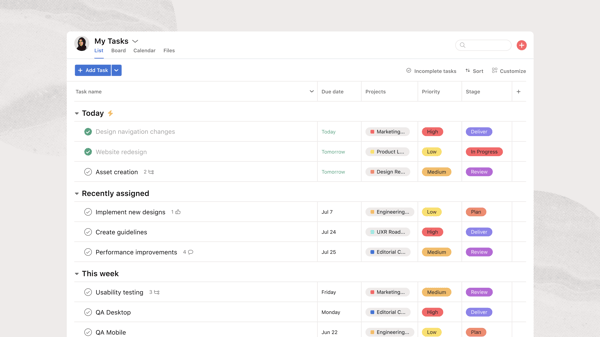
Asana was one of the easiest tools for me to get started with during testing. The interface feels organized without being cluttered, and most of the core actions, creating projects, assigning work, setting due dates, and tracking progress, are easy to find. G2 Data reinforces that first impression, with Asana scoring 90% for ease of use among small-business reviewers.
Source: Asana
As I tested Asana from a small-business perspective, I paid close attention to how it handled work once multiple projects were running at the same time. I found it particularly useful for keeping ownership, deadlines, and priorities visible without adding unnecessary process around them. That experience mirrors what I saw in G2 reviews, where small-business users consistently highlighted Asana’s ability to improve collaboration, keep projects organized, and make progress easier to follow.
What does Asana’s free plan include?
- Free forever for up to 2 users
- Unlimited tasks, projects, messages, activity logs, and file storage up to 100MB per file
- List, board, and calendar views
- Status updates and mobile apps
- 100+ free integrations with tools like Slack, Microsoft Teams, and Google Workspace
- No timeline view, automations, custom fields, advanced reporting, or AI features
When should you upgrade your Asana free plan?
For most small businesses, the upgrade conversation starts when a third team member needs access. Beyond the user limit, I would also consider upgrading when campaign planning becomes more complex, and you need Timeline views, workflow automations, or custom fields to organize work. Asana’s Starter plan begins at $10.99 per user/month (billed annually) and unlocks those capabilities.
Where Asana genuinely stands out:
- Getting started is remarkably straightforward. During testing, I was able to create projects, assign responsibilities, and build repeatable workflows without spending much time on setup. That ease of adoption is reflected in G2 reviews from small business users, many of whom highlighted organization, prioritization, and intuitive navigation as key strengths.
- Asana makes it easy to stay on top of work as projects evolve. I found it particularly useful for keeping responsibilities, deadlines, and project progress visible across multiple workstreams.
What G2 users like about Asana:
“Asana is a really good project management tool that helps teams stay on the same page. It makes it easy for project managers and team leaders to check progress in real time, and you can track your team’s bandwidth and productivity without much effort. The collaboration features work well for both internal teams and clients, which keeps communication smooth and reduces back-and-forth across emails. Overall, it brings clarity to who is doing what, by when, and how things are progressing.”
– Asana review, Maulik P.
Is Asana right for your small business?
Best for: Solo operators and two-person teams that want a structured, easy-to-adopt project management tool.
Not ideal for: Growing teams that need a free plan supporting more than two users or businesses that rely heavily on automations and advanced planning views.
What I dislike about Asana:
- The two-user limit significantly changes how useful the free plan is for small businesses. It still works well for freelancers, founders, and small partnerships, but teams that expect to collaborate across several people will likely reach the limit quickly. That said, it’s enough for very small teams to understand whether Asana fits the way they work before upgrading.
- Some of Asana’s most valuable planning features sit behind paid plans. Businesses that depend on timelines, advanced reporting, or workflow automation may find themselves evaluating the paid tiers sooner than expected. Until then, it provides enough functionality to build and manage everyday projects with confidence.
What G2 users dislike about Asana:
“The Personal plan provides basic task management, but several features are limited or unavailable. For example, features like timeline view, advanced reporting, automation, and custom workflows are locked behind the paid plans. These limitations can be frustrating when managing more complex tasks or projects.”
– Asana review, Tarun K.
2. ClickUp: Best for small teams that want a long-term free workspace
ClickUp was one of the few tools I tested where the free plan felt capable enough to support real work rather than simply introduce the platform. I could organize tasks, document processes, and manage multiple projects without immediately feeling limited. That wasn’t just my experience. G2 reviewers also rated ClickUp highly for task prioritization (93%), highlighting how well it helps teams organize and prioritize work.

Source: ClickUp
I tested ClickUp from the perspective of a growing small business managing multiple projects at once. I built project workflows, collaborated on documentation, and tracked progress across different initiatives to see how far the free plan could realistically go. What stood out to me was that I rarely felt pressured to upgrade while working through everyday tasks, and G2 reviewers echoed that sentiment by frequently highlighting ClickUp’s ability to replace multiple tools with a single workspace for managing work.
What does ClickUp’s free plan include?
- Free forever plan
- Unlimited tasks and users
- Collaborative docs
- 3 whiteboards
- Kanban boards
- Sprint management
- Calendar view
- 60MB storage
- In-app video recording
When should you upgrade your ClickUp free plan?
For most small businesses, storage is likely to be the first limitation they encounter. If your team regularly shares design files, recorded walkthroughs, presentations, or other large assets, the 60MB storage cap can become restrictive fairly quickly. I would also consider upgrading when your workflows rely heavily on automations or advanced reporting. ClickUp’s Unlimited plan starts at $7 per user/month (billed annually) and removes many of the restrictions that growing teams are most likely to encounter.
Where ClickUp genuinely stands out:
- The free plan supports unlimited users, which is uncommon among the tools I evaluated. G2 small business reviewers frequently mentioned that this made it easier to bring their entire team onto the platform without having to budget for software immediately.
- ClickUp does a good job of consolidating work into a single workspace. Across G2 reviews, small business users consistently highlighted the ability to manage tasks, documents, communication, and planning in one place, rather than juggling multiple tools.
What G2 users like about ClickUp:
“The best thing I’ve found about ClickUp over the past year is how much it helps with project management for our team. I can easily update tasks and assign team members to the things they need to do, which keeps everything organized and clear. And the fact that I can do this without a subscription, using only the free tier, is a big plus.”
– ClickUp review, Paradela, J.
Is ClickUp right for your small business?
Best for: Small businesses that want a free work management platform they can continue using as their team grows.
Not ideal for: Teams that primarily work with large files or want a very simple task management experience with minimal setup and customization.
What I dislike about ClickUp:
- The same flexibility that makes ClickUp appealing can also make it feel overwhelming at first. Several small-business reviewers mentioned needing time to learn the platform, especially when setting up custom workflows. Teams willing to invest that time are likely to get more value from the platform than those looking for a plug-and-play solution.
- ClickUp’s free plan gives small teams access to a broad set of work management features, but some users reported occasional slow loading times and sluggishness when working across projects and views. It wasn’t a dealbreaker in my evaluation, but it’s something growing teams may notice as their workspace becomes more active.
What G2 users dislike about ClickUp:
“The biggest drawback for me is the learning curve. Because ClickUp offers so many features, views, and customization options, it can feel overwhelming when you’re first getting started. Some settings and advanced features take time to discover and understand, which can slow down onboarding for new users.”
– ClickUp review, Hridhaan.
Struggling to balance workloads across projects and people? Explore G2’s guide to the best marketing resource management software to see how leading tools help teams allocate resources, manage capacity, and keep campaigns on track.
3. Float.com: Best for agency and consulting teams managing team capacity
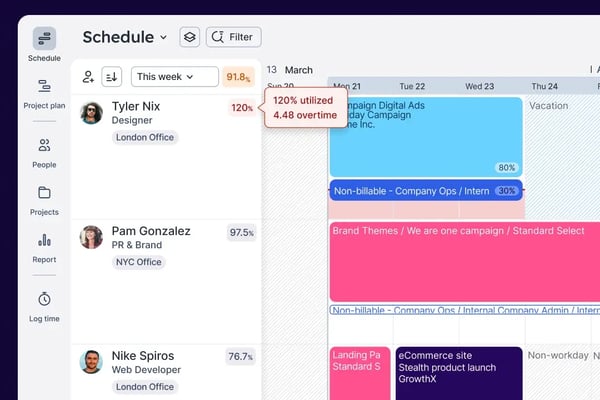
Not every work management tool is built around tasks. As I evaluated Float.com, I realized it was designed around people instead. Rather than asking what needs to get done next, it helps answer who’s available to do the work and whether anyone is overloaded. Its highest-rated G2 features tell a similar story, with scheduling (89%) and resource allocation (87%) standing out.
Source: Float.com
To test Float.com, I approached it from the perspective of a small agency juggling multiple client projects at once. What stood out to me was how quickly I could understand team workloads without digging through reports or spreadsheets. The scheduling interface is highly visual, and I found it easy to spot availability gaps, reassign work, and understand project coverage. G2 small-business reviewers echoed that experience, frequently mentioning visibility, ease of use, and team scheduling as some of Float.com’s biggest strengths.
What does Float.com’s free plan include?
- 30-day free trial of either the Starter or Pro plan
- Full access to the selected plan during the trial period
- Resource scheduling and capacity planning tools
- Project planning and time tracking features
- Google Calendar and Outlook integrations
- Unlimited teammates during the trial
- No credit card required to start
- No permanent free plan
When should you upgrade your Float.com free plan?
Since Float.com offers a free trial rather than a free-forever plan, the decision comes at the end of the 30-day evaluation period. During testing, I found that the right plan largely depends on how deeply your business relies on resource planning. The Starter plan starts at $7 per user/month (billed annually) and is suitable for teams that primarily need scheduling and capacity visibility.
If you also need features like time tracking, utilization reporting, and more advanced resource management insights, the Pro plan starts at $12 per user/month (billed annually). For agencies and consulting businesses, the upgrade usually makes sense once resource allocation becomes a regular part of project planning rather than an occasional exercise.
Where Float.com genuinely stands out:
- Team capacity planning is the strongest I’ve seen in this category. During testing, I could quickly see who was available, who was overloaded, and where work could be redistributed. Small-business reviewers consistently highlighted workload visibility and scheduling clarity as major advantages.
- The interface is approachable from day one. Multiple G2 small-business reviewers mentioned how easy Float.com was to learn, with several describing the setup process as straightforward and the drag-and-drop scheduling experience as intuitive.
What G2 users like about Float.com:
“I use Float.com in the office to manage daily tasks. I like its UX/UI design and useful tools like automatic calculation of allocated hours and time off management. The interface is simple and straightforward; there’s no need to enter formulas to do calculations like on Excel. I find it practical and intuitive. Also, setting up Float.com was very easy.”
– Float.com review, Andrea G.
Is Float.com right for your small business?
Best for: Agencies, consulting firms, studios, and service-based businesses that need visibility into team workloads and resource allocation.
Not ideal for: Small businesses looking for a permanent free work management platform or teams primarily focused on task management rather than capacity planning.
What I dislike about Float.com:
- Float.com keeps resource scheduling simple, but making changes across larger schedules can take a little getting used to. A few G2 reviewers mentioned spending extra time learning where certain scheduling options live, though they also noted that the workflow becomes much more intuitive after the initial setup.
- Float.com’s specialization is both a strength and a limitation. If understanding team capacity is a priority, the platform provides significant value. Teams looking for broader project management capabilities may find its focus narrower than some of the other tools on this list, but for resource planning, that focused approach is exactly what makes it effective.
What G2 users dislike about Float.com:
“One small thing I noticed is that when I was adding my first project and time blocks, I had to click around a bit to find the right options. It is not confusing, but the first setup takes a little time. Apart from that, the planning view worked well for my clinic and content work, and I did not face any real problems in normal use.”
– Float.com review, Ishan S.
4. monday AI Work Platform: Best for visual project tracking in very small teams
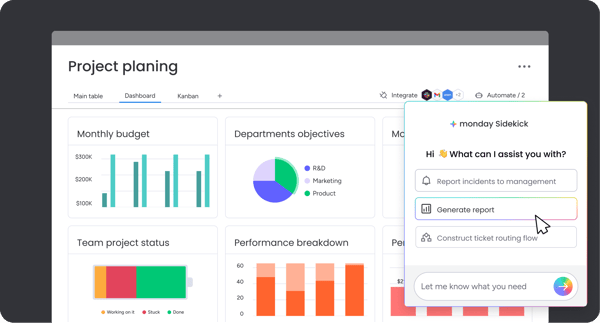
monday AI Work Platform earned a 4.7/5 rating on G2, and after testing it, I could see why. I found myself spending less time looking for project updates than with most of the other tools I evaluated. Its board-based workspace gives you an immediate snapshot of what’s in progress, what’s falling behind, and who owns each task, making it easy to understand the state of a project at a glance.
Source: monday AI Work Platform
I tested monday AI Work Platform with the kinds of projects many small businesses manage every day, including marketing campaigns, recurring operational work, and cross-functional initiatives. The platform made it easy to organize information and keep projects visible as they evolved. What I found, and what many G2 small-business reviewers echoed, is that monday AI Work Platform works particularly well for teams that prefer seeing their work visually rather than managing it through spreadsheets or task lists.
What does monday AI Work Platform’s free plan include?
- Free forever for up to 2 seats
- Up to 3 boards and 3 docs
- More than 200 templates
- iOS and Android mobile apps
- Unlimited messages and updates
- 1 week activity log
- Customizable notifications
- Shareable forms
- Kanban view
- No views like timeline, calendar, map, and chart
When should you upgrade your monday AI Work Platform free plan?
The most common upgrade trigger is team growth. If you need to add a third team member or manage more than three active boards, you’ll quickly outgrow the free plan. I would also consider upgrading if your team relies on automations, integrations, timeline views, or dashboard reporting, since those features are reserved for paid plans. monday AI Work Platform’s plan starts at $9 per seat/month (billed annually) with a three-seat minimum, while many growing teams may find more value in the Standard plan at $12 per seat/month, which unlocks automations, integrations, and additional project views.
Where monday AI Work Platform genuinely stands out:
- The visual experience is one of the easiest to adopt in this category. During testing, I was able to build workflows and organize projects with very little setup. Small-business reviewers consistently mentioned how intuitive the platform feels, even for users with limited project management experience.
- The flexibility of the board structure allows teams to adapt the platform to different workflows. Across G2 reviews, small-business users frequently highlighted customization, workflow organization, and cross-team visibility as reasons they continue using monday Work Management.
What G2 users like about monday AI Work Platform:
“What I like best about monday AI Work Platform is how intuitive and flexible it is. The platform makes it easy to visualize tasks, track progress, and collaborate with the team in real time. I especially appreciate the customizable workflows and dashboards, because they allow me to adapt the system to different projects without losing clarity. It helps keep everyone aligned, reduces miscommunication, and ultimately makes project management feel less overwhelming and more efficient. This also help us to let whoever got tagged send an auto email as a reminder to the person”
– monday AI Work Platform review, Jogi O.
Is monday AI Work Platform right for your small business?
Best for: Solopreneurs, freelancers, and two-person teams that want a highly visual and easy-to-adopt workspace.
Not ideal for: Small businesses with three or more active collaborators or teams looking for a long-term free solution with automations and integrations included.
What I dislike about monday AI Work Platform:
- monday AI Work Platform gives teams plenty of flexibility, but that also means there are more settings and customization options to navigate. Small-business reviewers noted that it takes a little time to get dashboards, automations, and workflows configured.
- monday AI Work Platform offers a lot of customization, which is a strength, but some small-business reviewers noted that getting the most out of dashboards, automations, and advanced configurations requires additional learning. Teams with straightforward needs may not encounter this, and businesses willing to invest a little time upfront can build workflows that closely match the way they already work.
What G2 users dislike about monday AI Work Platform:
“The pricing model for new automations and updates feels outdated and overly restrictive for scaling operations. Additionally, the ‘create a project’ automation routinely triggers duplicate item copies. This directly disrupts our workflow, requires manual cleanup, and negatively skews our project count metrics, making accurate data tracking a real challenge.”
– monday AI Work Platform review, Nikki A.
Not sure whether a free tool will meet your needs long term? Compare the best project management software on G2 to see how top platforms differ in planning, collaboration, reporting, and scalability as teams grow.
5. Quickbase: Best for operations-heavy teams evaluating custom workflow applications
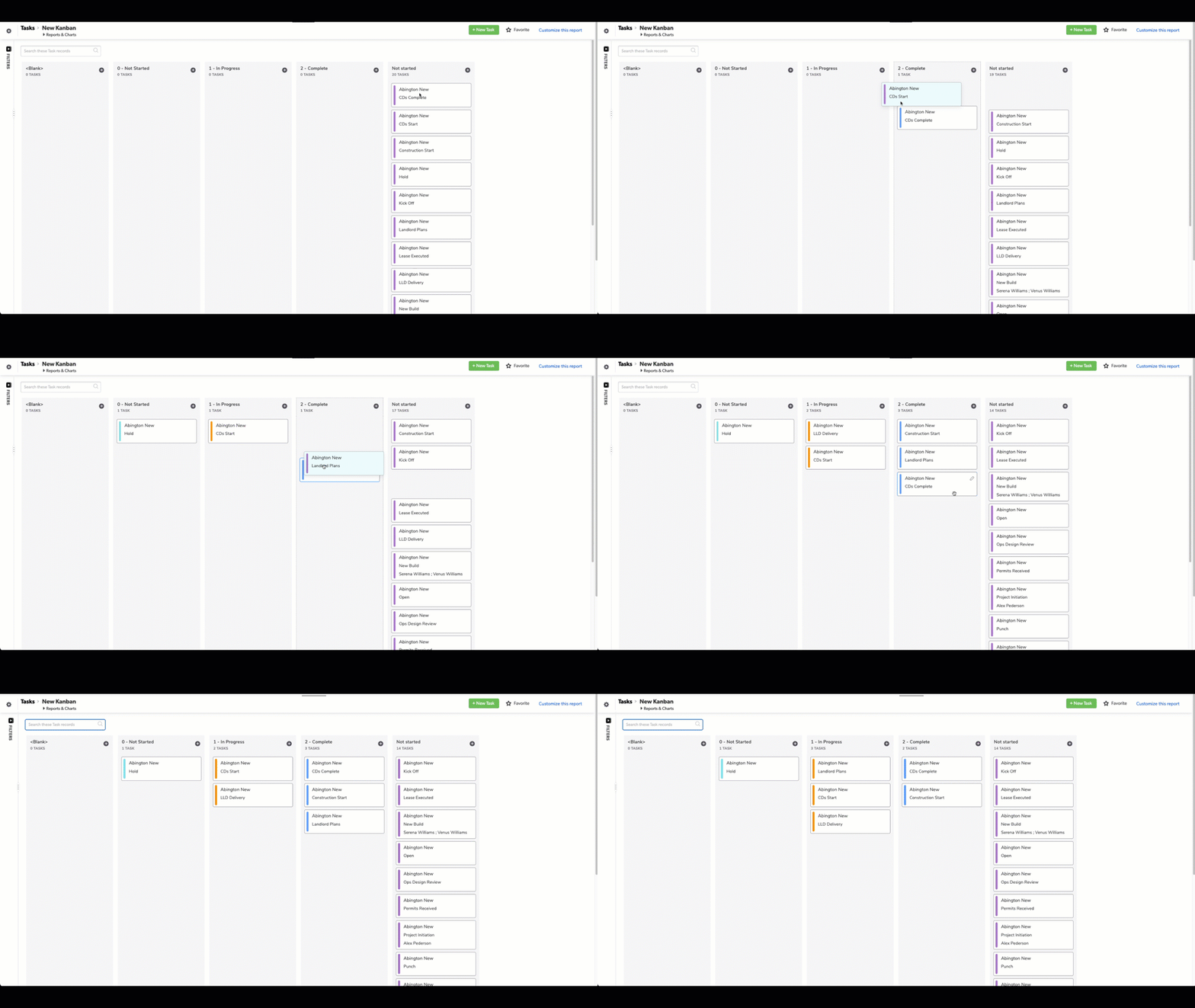
Most of the tools I evaluated help teams organize projects, but Quickbase is built to organize the processes behind them. Rather than adapting your work to fit the software, it gives you the flexibility to build applications around your business needs. The G2 feature ratings point in the same direction, with natural language interaction (95%), autonomous task execution (94%), and multi-step planning (93%) leading the way.
Source: Quickbase
I approached Quickbase from the perspective of a small business trying to replace spreadsheets, manual processes, and disconnected tools with a more structured workflow. What impressed me most was how much repetitive work the platform could help eliminate through automation. As I explored pipelines, notifications, and connected workflows, it became easier to see how different business processes could work together instead of being managed separately. That aligns with what I found in G2 reviews, where small-business users frequently highlighted automation, streamlined processes, and reduced manual work as some of Quickbase’s biggest strengths.
What does Quickbase’s free plan include?
- 30-day free trial
- Access to Quickbase’s application-building platform
- Workflow automation capabilities
- Reporting and dashboard functionality
- Integrations and connected workflows
- No permanent free plan
When should you upgrade your Quickbase free plan?
Quickbase doesn’t offer a free-forever plan, so the decision comes at the end of the 30-day trial. I would only consider upgrading once you’ve confirmed that the platform can replace a meaningful amount of manual work, spreadsheet tracking, or disconnected systems within your business. Quickbase’s Team plan starts at $35 per user/month (billed annually), making it a significantly larger investment than most of the work management tools on this list. For that reason, it makes the most sense for businesses with operational complexity rather than teams simply looking for task management software.
Where Quickbase genuinely stands out:
- Quickbase offers a level of customization that most work management tools don’t attempt. Small-business G2 reviewers repeatedly mentioned how easily they could adapt the platform to support unique workflows rather than changing their processes to fit the software.
- Automation is a recurring theme across reviews. Several small-business users described using Quickbase to streamline repetitive work, reduce manual processes, and connect different parts of their operations without requiring extensive development resources.
What G2 users like about Quickbase:
“Quickbase has been super user-friendly. I enjoy building the pipelines and utilizing the subscriptions for email notifications. I’ve built about 6 pipelines, and it’s really helped to streamline our processes by automating the boring, mundane jobs. Using the subscriptions has helped to reduce contact time from reps to customers, which increases our ability to touch more customers.”
– Quickbase review, Cory H.
Is Quickbase right for your small business?
Best for: Operations-focused small businesses that need highly customizable workflows and want to evaluate whether a no-code platform can replace spreadsheets and manual processes.
Not ideal for: Teams looking for a free-forever work management tool or businesses that primarily need project and task management rather than custom workflow applications.
What I dislike about Quickbase:
- The platform’s flexibility is a major advantage, but it also means there’s more to learn upfront than with traditional project management tools. Smaller teams may need time to get comfortable. Once configured, though, that flexibility makes it easier to build workflows that fit the way your business already operates.
- Quickbase is built for businesses looking to streamline operations across teams, which is reflected in its pricing. If you’re replacing spreadsheets and manual processes, the investment may make sense, but it can feel like more platform than you need for basic task management. For businesses managing more complex operations, however, that additional depth can become a long-term advantage.
What G2 users dislike about Quickbase:
“Because we’re a small company with only a few users, I do wish there were plans available with lower user limits, though I understand they need to cover their costs and turn a profit. The learning curve was pretty steep for me; there were plenty of days I went home frustrated because I knew what I wanted to do was possible, but I just couldn’t figure out how to do it.”
– Quickbase review, Cassie K.
6. Slack: Best for communication-centric teams coordinating work across conversations
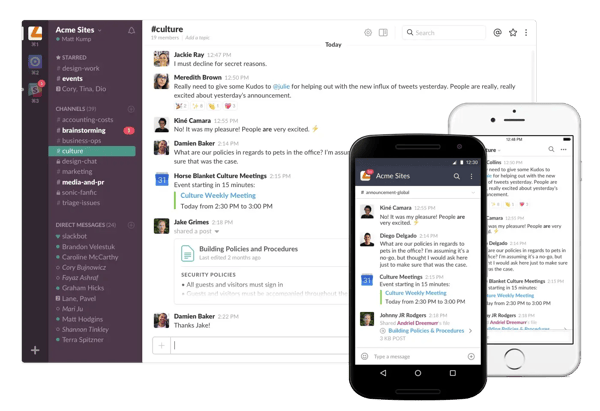
Slack worked best for me as the connective layer around day-to-day work. It gave project updates, quick decisions, file discussions, and check-ins a shared place to live, which made coordination feel lighter than relying on long email threads. That strength also shows up in its G2 feature ratings, with communication channels rated at 95%, one of Slack’s strongest scores.
Source: Slack
To evaluate Slack, I also paid attention to how quickly a small team could adopt it without much setup. That’s where the tool held up well: creating channels, inviting teammates, sharing files, and starting 1:1 huddles all felt straightforward. G2 reviewers frequently pointed to the same strength, and Slack’s 95% ease-of-setup score reflects how quickly teams can get started and keep work moving.
What does Slack’s free plan include?
- 1:1 audio and video meetings
- Unlimited channels
- 90-day message and file history
- 10 app integrations
- 10 integrations
- 1 workspace
- Data encryption and two-factor authentication
- No advanced security and compliance
When should you upgrade your Slack free plan?
For most small businesses, the biggest upgrade trigger is the 90-day message history limit. As projects become more complex, older conversations often become just as valuable as current ones. I would also consider upgrading if your team depends on multiple business applications or needs group audio and video meetings. Slack’s Pro plan starts at $7.25 per user/month (billed annually) and removes the history restriction while expanding integrations and collaboration capabilities.
Where Slack genuinely stands out:
- Slack makes communication easy to organize. During testing, I found it much easier to follow project discussions in dedicated channels than trying to piece together information from email threads. Small-business reviewers frequently mentioned improved collaboration and faster communication as key benefits.
- Slack is quick for small teams to adopt. Creating channels, inviting teammates, sharing files, and starting 1:1 huddles felt straightforward during testing. That matches the G2 feedback I reviewed, where users often highlighted Slack’s ease of setup and low onboarding friction.
What G2 users like about Slack:
“Slack is a highly collaborative platform that has become central to how our team works together. It is easy to use, with an intuitive interface that requires very little onboarding. Since adopting Slack, our productivity has noticeably increased because conversations are organized into channels and threads, keeping discussions focused.”
– Slack review, Maulik P.
Is Slack right for your small business?
Best for: Teams that manage work primarily through communication and want a central place for conversations, updates, and collaboration.
Not ideal for: Businesses looking for a dedicated project management platform with advanced task planning, dependencies, and project tracking built in.
What I dislike about Slack:
- Slack does a great job of keeping conversations organized, which is why many teams use it as their operational hub. As projects become more complex, though, some teams may find themselves pairing it with a dedicated work management tool for deeper project planning and tracking. Used together, Slack can still remain the place where project updates, decisions, and follow-ups stay visible.
- Slack’s workflow features work well for lightweight processes, but they aren’t as robust as dedicated work management platforms. Small-business reviewers noted that more complex workflows can require additional setup or integrations, though the flexibility allows teams to build a workspace that fits the tools they already use.
What G2 users dislike about Slack:
“One limitation I noticed in Slack is the restricted chat history in the free version. Sometimes we need to refer to discussions or shared files from older projects, but older conversations are not always available. Apart from that, the overall experience has been very smooth for daily collaboration and communication.”
– Slack review, Sandeep V.
Still managing projects and workflows in spreadsheets? Check out G2’s roundup of the best spreadsheet software to discover modern options for organizing data, collaborating with teammates, and streamlining everyday work.
7. Smartsheet: Best for spreadsheet-first teams evaluating structured project management
Moving away from spreadsheets isn’t always easy, especially when your team has spent years building its processes around them. Smartsheet bridges that gap by adding project management capabilities to a spreadsheet-style workspace instead of asking teams to start from scratch. That balance is reflected in G2 Data as well, where remote work received one of Smartsheet’s highest feature ratings at 90%, showing how well it supports teams working together on shared projects.

Source: Smartsheet
I evaluated Smartsheet to see whether it could offer more structure without losing the familiarity of a spreadsheet. I was able to track tasks, monitor progress, and build dashboards while working in a format that already felt familiar. G2 reviewers shared a similar perspective, frequently highlighting collaboration, project visibility, and the ability to keep teams aligned without a steep transition from spreadsheets.
What does Smartsheet’s free plan include?
- 30-day free trial
- Choice of Pro or Business plan trial
- Access to project tracking, reporting, dashboards, and collaboration features during the trial
- Gantt, Grid, Card, and Calendar views
- Workflow automation capabilities
- No permanent free plan for new users
When should you upgrade your Smartsheet free plan?
Because Smartsheet offers a free trial rather than a free-forever plan, the decision comes at the end of the 30-day evaluation period. I would consider upgrading if your team relies heavily on spreadsheets today but needs stronger project tracking, reporting, and collaboration capabilities. Smartsheet’s Pro plan starts at $9 per user/month (billed annually) and is generally sufficient for smaller teams, while businesses needing more advanced controls and scalability may want to explore the Business plan.
Where Smartsheet genuinely stands out:
- Smartsheet keeps project context attached to the work itself. During testing, I could add comments, attachments, owners, due dates, and updates directly into the sheet, which made it easier to manage details without spreading information across separate documents or email threads. Small-business reviewers frequently highlighted this ability to centralize project information as a major strength.
- Smartsheet balances project management with collaboration. Across reviews, small-business users frequently mentioned status tracking, update visibility, dashboards, and shared workflows as valuable for keeping teams aligned.
What G2 users like about Smartsheet:
“What I like most about Smartsheet is how it simplifies project and task management. The interface feels familiar, like a spreadsheet, so it’s easy to organize work, track progress, and collaborate with team members without a steep learning curve. I also appreciate that it keeps everything in one place, which improves visibility and saves time in day-to-day work.”
– Smartsheet review, Muhammad O.
Is Smartsheet right for your small business?
Best for: Small businesses that already manage work in spreadsheets and want a more structured way to track projects and collaborate.
Not ideal for: Teams looking for a permanent free plan or businesses that prefer a highly visual, board-first project management experience.
What I dislike about Smartsheet:
- The spreadsheet-first design is one of Smartsheet’s biggest strengths, but it can also make the platform feel less intuitive for teams that prefer managing work visually through boards and drag-and-drop workflows. For businesses already comfortable with spreadsheets, though, that familiar experience makes the transition to structured project management much easier.
- Smartsheet offers powerful reporting, automation, and collaboration capabilities, but some advanced features — like formulas and cross-sheet workflows — take time to master. Teams with simpler needs may not use them right away, while growing businesses can take advantage of that depth as their processes evolve.
What G2 users dislike about Smartsheet:
“While Smartsheet is highly powerful, some features still feel limited or lacking compared to other modern platforms, particularly in terms of flexibility and customization. Advanced setups can also have a learning curve, especially for formulas, automations, and cross-sheet workflows. Large sheets may occasionally experience performance slowdowns if not optimized properly, and certain enterprise-level capabilities can become costly for smaller teams.”
– Smartsheet review, Jasmin A.
8. Wrike: Best for cross-functional teams that need structured project management
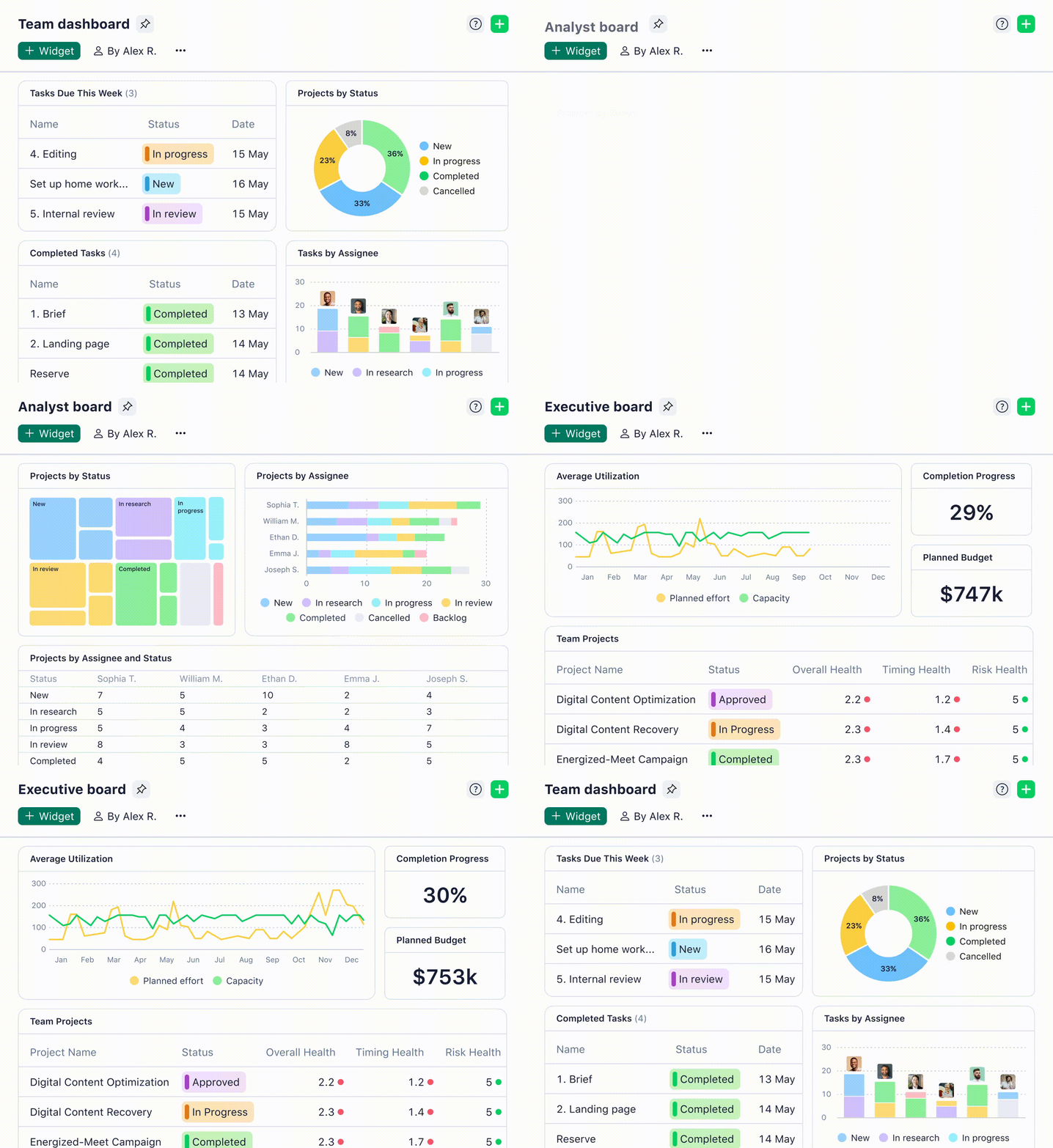
Wrike felt more structured than many of the other tools I evaluated. While some platforms focus on simplicity and others emphasize flexibility, Wrike leans into project organization. As I tested it, I found myself thinking less about where information should live and more about how work moved through a process. The platform encourages teams to build structure around projects, which can be helpful when multiple people are working across different initiatives. That cross-team use case also comes through in the G2 feature data, where collaboration is rated at 90%, one of Wrike’s highest feature scores.
Source: Wrike
I evaluated Wrike from the perspective of a small business coordinating work across departments rather than within a single team. What stood out to me was the way tasks, projects, and workflows connect together. The platform provides multiple ways to view work, making it easier to track progress and understand priorities. Small-business G2 reviewers frequently mentioned visibility, organization, and workflow management as reasons they continue using Wrike, particularly when managing work that involves several stakeholders.
What does Wrike’s free plan include?
- Free forever plan
- Board and Table views
- Project and task management
- AI-powered work management assistance
- Mobile and desktop apps
- 2GB storage per account
- No resource management or capacity planning capabilities
- 8 language support
When should you upgrade your Wrike free plan?
I would consider upgrading when your team needs more advanced planning and workflow controls. As projects become more complex, features such as Gantt charts, custom fields, automations, and more advanced reporting can make a noticeable difference. Wrike’s Team plan starts at $10 per user/month (billed annually) and is designed for teams that need more visibility and process control as they grow.
Where Wrike genuinely stands out:
- Wrike does a good job of bringing structure to cross-functional work. During testing, I found it easier to organize projects involving multiple contributors because tasks, folders, and workflows all connect within a single workspace. Small-business G2 reviewers frequently highlighted organization and project visibility as key strengths.
- Wrike’s free plan gives teams a practical way to evaluate a more structured workflow. Board and Table views, project and task management, AI-powered work management assistance, and mobile and desktop apps give small teams enough functionality to test whether Wrike fits their process before moving into more advanced planning features.
What G2 users like about Wrike:
“What I like most about Wrike is the visibility it gives me across projects, tasks, and my team’s workload, all in one place. The dashboards, reports, and task updates help me stay organized, follow progress more quickly, and keep team coordination running smoothly.”
– Wrike review, Dresler Z.
Is Wrike right for your small business?
Best for: Cross-functional teams that need more structure, visibility, and workflow organization than a basic task management tool provides.
Not ideal for: Teams looking for the simplest possible setup or businesses that only need lightweight task tracking.
What I dislike about Wrike:
- Wrike does a good job of bringing structure to projects, but some small-business users found day-to-day task management less intuitive than expected. Teams managing complex workflows will likely appreciate the added organization once they become familiar with the platform.
- The free plan provides a solid foundation for project organization, but many of Wrike’s advanced planning and workflow capabilities sit in paid tiers. For smaller teams evaluating the platform, though, the free plan still offers enough functionality to get started with confidence.
What G2 users dislike about Wrike:
“The platform has a lot of functionality, which can make the initial setup and onboarding feel a bit overwhelming. Some advanced features require time to configure properly, and the interface can occasionally feel busy when managing large projects.”
– Wrike review, Maria S.
Who should use free work management software for small businesses?
I found free work management software most useful for small businesses that need more structure without adding another subscription right away. It is a practical fit if your team is:
- Managing project across spreadsheets, email, and chat
- Struggling to keep tasks, owners, and deadlines visible
- Testing a new workflow before committing to a paid plan
- Working with a small team that can stay within free-plan limits
A free plan gives you one place to organize work and see whether the platform actually improves coordination before you start paying for it.
When does free stop being enough?
The first upgrade trigger is usually team size or usage limits.
- Asana and monday Work Management limit their free plans to two users
- ClickUp allows unlimited users, but storage becomes the main constraint
- Slack’s 90-day message history becomes more noticeable as conversations and projects accumulate
The second trigger is workflow complexity. Free plans can handle basic task tracking, but growing teams often need:
- Automations
- Timeline and workload views
- Custom fields
- Advanced reporting
- Resource planning
- More storage and integrations
That is often when teams move from Asana Free to Starter at $10.99 per user per month, ClickUp Free Forever to Unlimited at $7 per user per month, or monday Work Management Free to Standard at $12 per seat per month.
For Smartsheet, Float.com, and Quickbase, the decision usually comes at the end of the 30-day trial, once you know whether the platform solves a real operational problem rather than simply giving you another dashboard to check.
Frequently asked questions about free work management software for small businesses
Have more questions? Find more answers below.
Q1. What is the best free project management tool, specifically geared toward status?
If project visibility and status tracking are your priorities, ClickUp is one of the strongest options I evaluated. Its free plan includes unlimited tasks, multiple project views, and enough flexibility to track work across teams. monday Work Management is also worth considering if you prefer a more visual approach to monitoring project progress, though its free plan is limited to two users.
Q2. What is the most affordable work management software for SMBs?
Among the tools on this list, ClickUp has the lowest paid entry point, with its Unlimited plan starting at $7 per user/month (billed annually). Float.com’s Starter plan also starts at $7 per user/month, but it’s designed primarily for resource planning rather than general work management.
Q3. Which vendor offers AI-powered work prioritization features?
Wrike includes AI-powered work management capabilities in its free offering. Other vendors, including Asana, monday Work Management, and ClickUp, reserve most AI functionality for paid plans.
Q4. Which vendor provides real-time work progress dashboards?
ClickUp, monday Work Management, Smartsheet, and Wrike all provide dashboard and reporting capabilities for tracking work progress. However, access to advanced dashboards varies by plan, with some functionality reserved for paid tiers.
Q5. Which work management platform offers the most comprehensive task and project tracking?
Based on my evaluation, ClickUp offers the broadest combination of task management, project tracking, documentation, collaboration, and workflow customization within its free plan. It’s one of the few tools on this list that can support a growing team without immediately running into user limits.
Q6. Can I use free work management software for a growing team?
Yes, but some tools are better suited to growth than others. ClickUp, Slack, and Wrike place fewer restrictions on users than Asana and monday Work Management, making them more practical for teams that expect to add collaborators over time.
Q7. What software is best for managing client work?
That depends on the type of client work you’re managing. Float.com is a strong option for agencies and consulting firms that need resource scheduling and capacity planning, while ClickUp and monday Work Management are better suited for managing client deliverables, project timelines, and team collaboration.
Q8. What is the best free work management tool for cross-functional teams?
Wrike is one of the strongest options I evaluated for cross-functional teams. Its structured approach to project management, multiple work views, and workflow organization make it well-suited for coordinating work across departments. ClickUp is also worth considering for teams that need more flexibility and fewer user restrictions.
Q9. What platform integrates work management with collaboration tools?
ClickUp stood out for bringing tasks, documents, whiteboards, and collaboration into a single workspace. Slack also integrates with a wide range of business tools and works well for teams that coordinate work primarily through conversations and channels.
Q10. What platform provides detailed analytics on work efficiency?
Smartsheet offers some of the strongest reporting and dashboard capabilities among the tools I evaluated. Teams that need visibility into project performance, progress, and operational metrics may find its reporting features particularly useful, especially on paid plans.
Q11. Which solution supports agile and waterfall project methodologies?
ClickUp is one of the most flexible options for teams using different project management approaches. Its combination of Kanban boards, sprint management, task tracking, and planning tools allows teams to adapt the platform to both agile and more traditional project workflows.
Q12. Which tool supports multi-department work management?
Quickbase is designed for businesses that need workflows spanning multiple teams and departments. Its ability to build custom applications and automate processes makes it a strong fit for organizations managing operations across different functions.
Find the process before you find the platform
After evaluating these tools, one thing became clear to me: the best free work management software isn’t necessarily the one with the most features. It’s the one that fits the way your team already works.
If you’re looking for a long-term free solution that can grow with your team, ClickUp gives you the most room to work before limits become a concern. If you prefer a more structured approach, Asana and Wrike are worth considering. For visual project tracking, monday Work Management stands out, while Float.com and Quickbase are better suited for businesses evaluating more specialized capabilities. And if most of your work happens through conversations, Slack remains one of the most practical free collaboration tools available.
My advice is simple: don’t choose a platform based on what you might need a year from now. Choose one that solves the coordination challenges your team is dealing with today. Most of the tools on this list offer enough free access to test them with real projects, real deadlines, and real team members. You’ll learn more from a week of actual use than from any feature comparison table.
Looking beyond project tracking? Explore the best free collaboration software to keep communication, files, and work moving together in one place.