[ad_1]
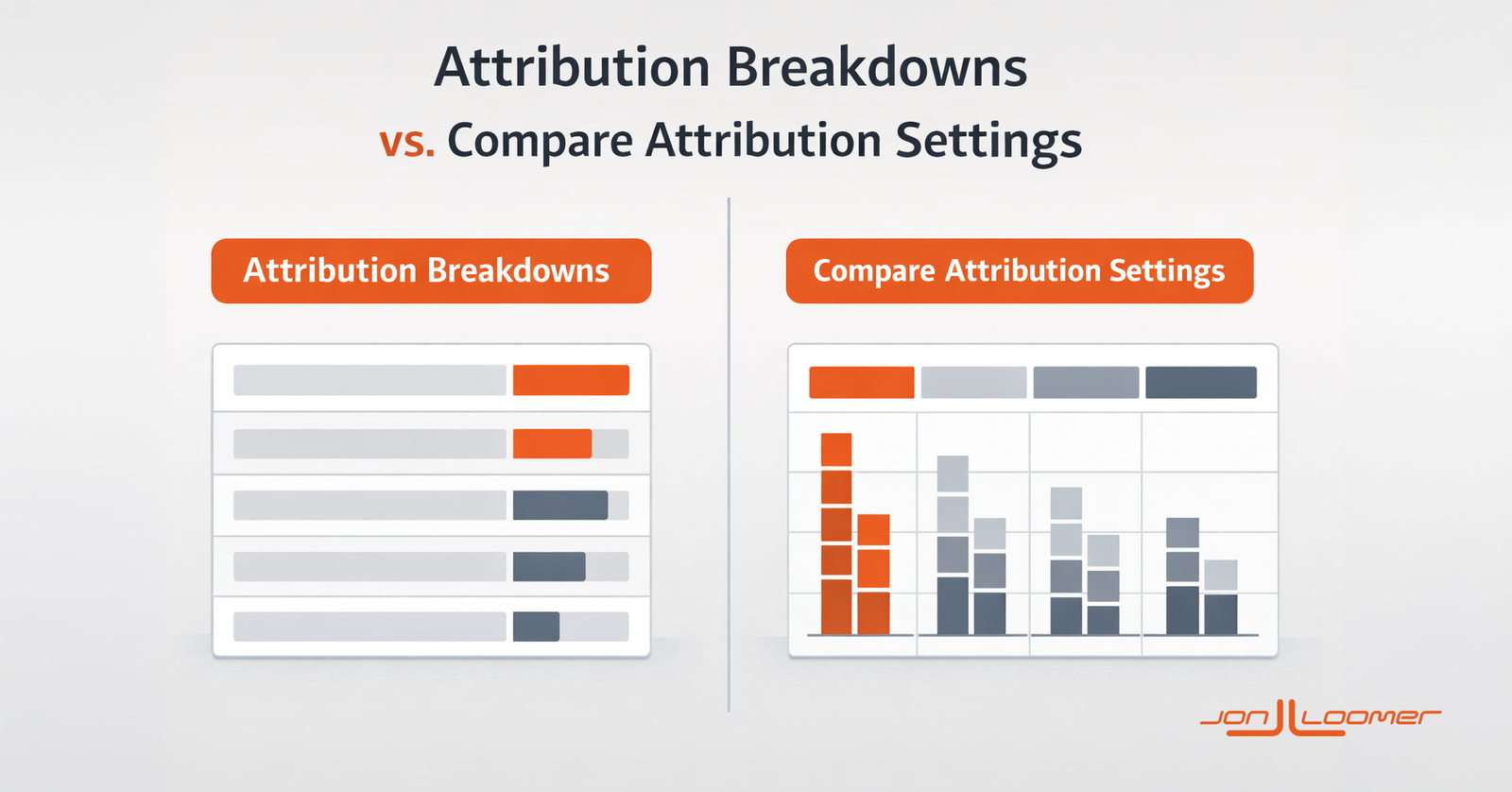
Now that Meta launched a new Attribution Breakdown category, advertisers are figuring out how to use it. And since there’s plenty of overlap with the Compare Attribution Settings feature, there’s understandable confusion.
Advertisers can now break down results by Attribution Settings or Conversion Count.

What makes the Attribution Breakdowns different from Compare Attribution Settings? When would you use one over the other?
Let’s take a closer look…
Breakdown by Attribution Settings
One of the new Attribution Breakdown options is by Attribution Settings.
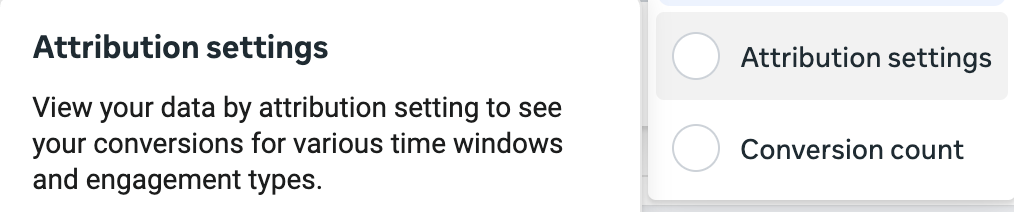
Here’s how Meta describes it:
View your data by attribution setting to see your conversions for various time windows and engagement types.
When you use this breakdown, Meta will segment your conversion results by generating separate rows for the following attribution settings:
- 1-Day Click
- 2-7 Day Click
- 1-Day Engaged View
- 1-Day View
These same rows will appear regardless of the attribution setting used in the ad set.
Here’s an example…
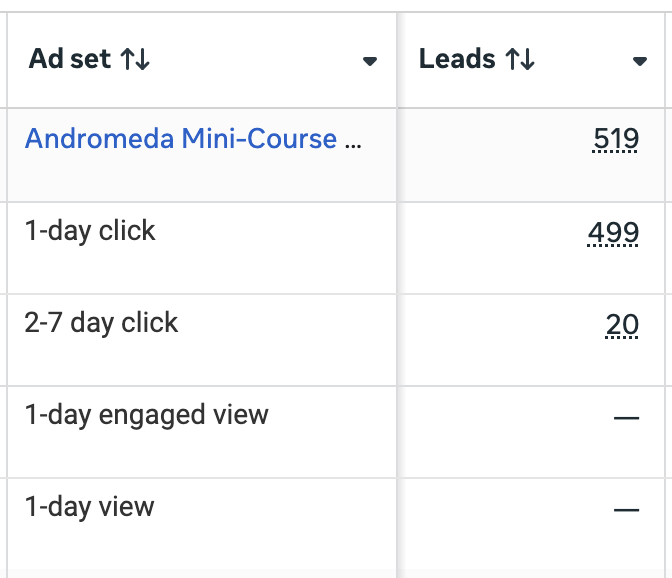
You will only get data for conversion results where attribution settings apply (not amount spent, impressions, reach, clicks, and other non-conversion metrics).
An important point is that the data in the rows generated reflect the attribution setting you used to define delivery in your ad set. In the example above, I only used 7-Day Click.

The fact that there’s no data within the rows for 1-Day View and 1-Day Engaged-View doesn’t mean that such conversions didn’t happen. Uncovering those results isn’t the point of this feature. It’s breaking down what you actually see in your results.
One of the primary benefits of this breakdown is that it provides a clean breakout of results without requiring math.
Compare Attribution Settings
You could otherwise use the Compare Attribution Settings feature and select each setting individually.

When you do, it will generate separate columns for each attribution setting.

The main thing to understand about this feature is that it doesn’t matter what attribution setting you use in the ad set. Compare Attribution Settings will reveal results that happened under each attribution setting — whether they’re displayed by default or not.
In the example above, 7-Day Click was used in the ad set, so that’s what drives the default reporting. But another 22 1-Day View conversions could have been reported. Note that these 1-Day View results weren’t listed when using the Breakdown by Attribution Settings.
Additionally, you’ll recall that the Breakdown by Attribution Settings provides a clean reporting by 1-Day Click and 2-7 Day Click. When using Compare Attribution Settings, there is a column for 1-Day Click (499) and 7-Day Click (519). Math is required to understand that 20 conversions happened during the days of 2 to 7.
Possibly the most important distinction between these features is that the breakdown segments your reported results while Compare Attribution Settings can uncover results that weren’t reported by default. For example, 28-Day Click cannot be used for delivery optimization. But you can use Compare Attribution Settings to see how many conversions happened outside of the 7-Day Click window.
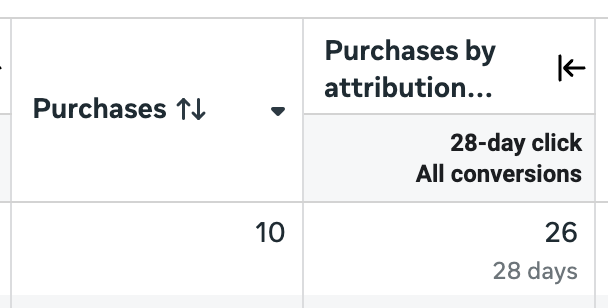
It’s a great way to uncover the hidden value of a campaign.
Breakdown by Conversion Count
The second Attribution Breakdown option is by Conversion Count.
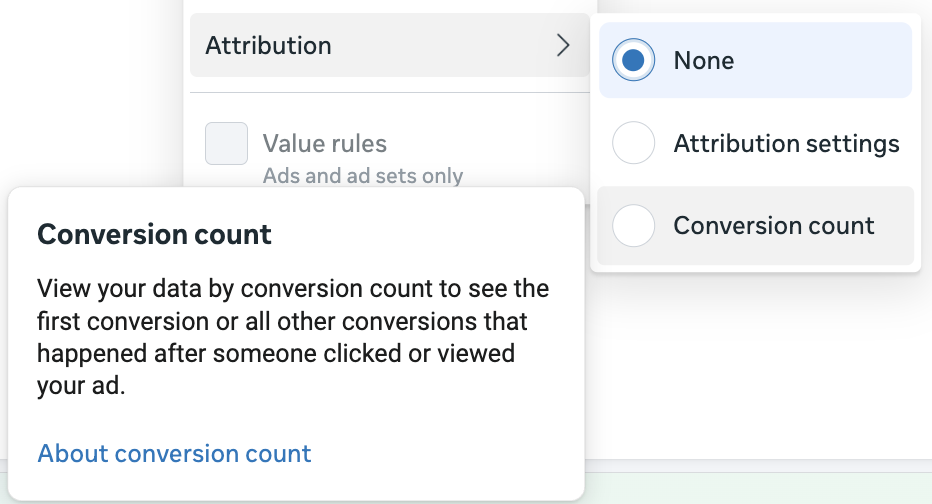
Here’s how Meta describes it:
View your data by conversion count to see the first conversion or all other conversions that happened after someone clicked or viewed your ad.
Conversion Count was a new option in 2025 that allows advertisers to separate the first conversion from all other conversions reported. For example, someone might click your ad and immediately complete a purchase, then return to your website and make another purchase six days later. Assuming both actions happened within the attribution window, both would be reported under the default “All Conversions.” But only the first would be reported using First Conversion.
By default, Conversion Count is set to All Conversions in the ad set. But advertisers can choose to optimize for First Conversion, which will also impact the default reporting.

NOTE: When using the First Conversion setting in the ad set, default reporting should be First Conversion. But due to a bug, Meta was still displaying All Conversions through January of 2026.
I’m going to assume that about 99.9% of all ad sets are optimized using the default All Conversions, which will mean all conversions are reported by default. Using this breakdown, Meta will generate separate rows for First Conversion and All Other Conversions.
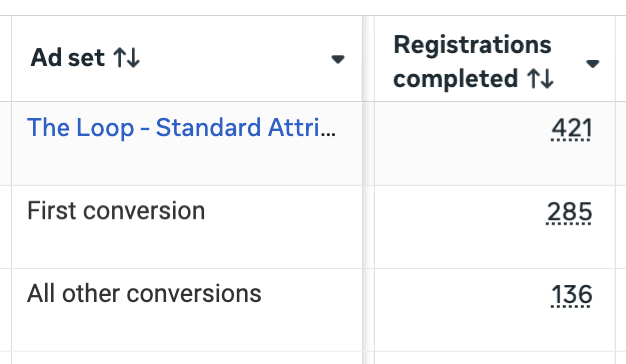
In the example above, Meta reported 421 registrations by default. But only 285 qualified as First Conversions.
This happened by design. I was promoting The Loop, my weekly email subscription. After completing the form, the confirmation page included cross-promotion and an embedded form for Cornerstone Advertising Tips. The result was that some (approximately 136) of the subscribers to The Loop also subscribed to Cornerstone Advertising Tips.
While All Conversions might reflect the total impact of a campaign, First Conversion provides important context regarding what actually happened.
Remember that breakdowns will only reflect data that appears in default reporting. It does not uncover data. So if you optimize for First Conversion in the ad set, all of the conversions reported will be First Conversion. Using the breakdown wouldn’t uncover additional conversions (once Meta fixes the First Conversion reporting bug, of course).
Compare Attribution Settings
First Conversion was initially a reporting option only. You can use Compare Attribution Settings and choose to add columns for First Conversions, All Conversions, or both.
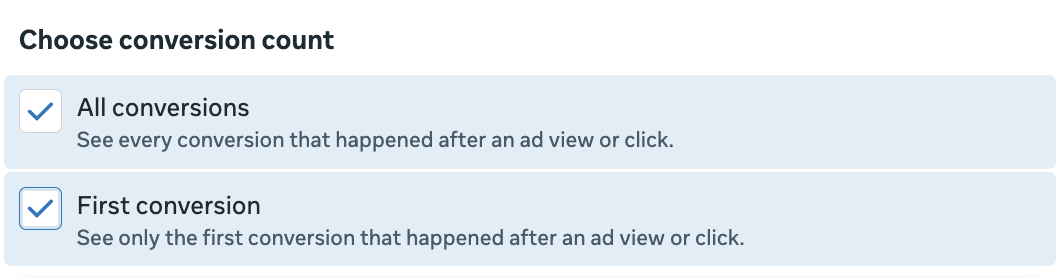
These settings are used in connection with your other selections of attribution settings (1-Day Click, 7-Day Click, 28-Day Click, 1-Day View, and 1-Day Engaged-View). And when you do, columns will be added for those conversion counts.

Once again, it doesn’t matter what the attribution setting was in your ad set. This will give you a full report of what actually happened.
In the example above, 6,251 registrations were reported. But you can view how many total registrations fall under each of the click attribution settings for both First and All Conversions.
Here are a couple of scenarios where this matters when using Compare Attribution Settings…
1. When Ad Set Conversion Count is All Conversions: Get a better sense of how many of the conversions were first conversions. This also could be seen using the Breakdown by Conversion Count.
2. When Ad Set Conversion Count is First Conversion: Uncover how many more conversions happened after the initial conversion. This information would not have been seen when using the Breakdown option.
Unique Differences
Here’s a general summary of the differences between the Attribution Breakdown options and Compare Attribution Settings…
Attribution Breakdown:
Allows you to break down your reported results into separate rows to get better insight into how reported conversions are distributed by attribution setting and conversion count. It’s the cleanest and easiest way to segment reported results without requiring math.
Compare Attribution Settings:
Allows you to segment results into separate columns without the constraints of your ad set attribution settings. This can uncover other conversions that happened beyond your settings. It’s also several extra clicks and messier, requiring math to understand the breakouts by attribution setting.
While there is some overlap between the two, use cases can be summarized simply like this: Use Breakdowns to break down existing results and use Compare Attribution Settings to uncover hidden conversions.
Your Turn
Have you started using the new Breakdown by Attribution options? What do you think?
Let me know in the comments below!
[ad_2]
Source_link