Are you and your business still drowning in paperwork? Actual physical paperwork in 2025?
Locked PDFs, scanned contracts, and image-based files slow teams down and make collaboration harder than it needs to be. While there are plenty of advanced OCR tools on the market that can help with this, you don’t always need an expensive, feature-heavy solution to get real value.
After reviewing G2 data and evaluating 10+ tools, I’ve curated a list of the best free OCR software options that help teams scan, edit, and digitize documents, without adding to the software budget.
This guide is ideal for businesses and teams seeking to streamline document workflows, minimize manual effort, and transition away from paper-based processes without committing to a paid OCR platform.
8 best free OCR software in 2026: My picks
-
Base64.ai: Best for automated document data extraction
For AI-powered data capture and structured output from documents -
Docparser: Best for converting PDFs into structured data
For extracting text, tables, and invoices with custom rules -
Docsumo: Best for document automation and data capture
For invoice processing, receipts, and workflow automation -
DocuClipper: Best for easy PDF and image data extraction
For quick OCR conversion and simple data export -
Ephesoft: Best for enterprise document capture
For intelligent OCR, workflow automation, and scalable solutions -
FineReader PDF for Windows and Mac: Best for professional PDF and OCR
For precise text recognition, editing, and document comparison -
Nanonets: Best for AI-driven OCR for forms and invoices
For custom models, automation, and structured output
-
Rossum: Best for invoice and document data extraction
For automated invoice processing and business workflow integration
*The software list is arranged alphabetically. These tools offer free trials, free forever options, or freemium models.
Comparison of the best free OCR software
To determine which OCR tool best suits your document workflows, review our comparison table and assess your specific parameters.
| Best free OCR software | G2 Rating | Free plan | Paid plan |
| Base64.ai | 4.7/5 ⭐ | Free trial available. | Available on request. |
| Docuparser | 4.6/5 ⭐ | Free trial available. | Starting at $39/mo |
| Docsumo | 4.8/5 ⭐ | Free trial available. | Available on request. |
| Docuclipper | 4.8/5 ⭐ | Free plan available. | |
| Ephesoft | 4.5/5 ⭐ | Free trial available. | Custom |
| FineReader PDF for Windows and Mac | 4.5/5 ⭐ | Free trial available. | Custom |
| Nanonets | 4.8/5 ⭐ | Free trial + $200 credits | Available on request. Pay-as-you-go model. |
| Rossum | 4.5/5 ⭐ | Free plan available. | Available on request. |
*All pricing details mentioned in the article are based on publicly available data at the time of publication and are subject to change.
8 best free OCR software I recommend
As businesses and individuals digitize paper documents, automate data entry, and extract actionable insights from text in images and PDFs, the optical character recognition (OCR) market is expected to be worth around $13.12 billion in 2026.
And from what I’ve seen, “best” doesn’t always mean “paid.” Several free OCR software platforms I’ve evaluated offer robust text extraction capabilities — many free and open-source tools can convert scanned images, PDFs, and photos into editable, searchable text without incurring any costs.
How did I find and evaluate these free OCR software?
To build this list, I began with G2 data, shortlisting top-rated tools based on their G2 scores and consistent performance in the free OCR tools category.
From there, I reviewed product specs and recent, verified user feedback to confirm that these products deliver real value and to understand where each one stands out.
The goal was simple: to see whether these tools are as good as they claim, what each one is best for, and whether there’s a free version or free trial you can try with minimal risk. And because this is a free-focused list, I paid extra attention to what you can actually do without paying — such as whether the free tier includes core features, how long the free trial lasts, and what limitations might prompt you to upgrade.
The screenshots featured in this article may be a mix of those taken from the vendor’s G2 page or from publicly available materials.
The product list below contains real user reviews from the best free OCR software category page. It’s important to note that in the context of this list, vendors offering a free trial are also considered free.
To qualify for inclusion in this category, software must:
- Process digital images of various file types
- Capture data from scanned PDFs and convert them into Word documents
- Identify and parse non-editable plain text and convert it into editable text
- Organize digital files either on-premise or in the cloud
- Offer engine compatibility across Mac, iPhone, Linux, Android, and Microsoft Windows
This data was pulled from G2 in 2025. Some reviews may have been edited for clarity and accuracy.
1. Base64.ai: Automated document data extraction
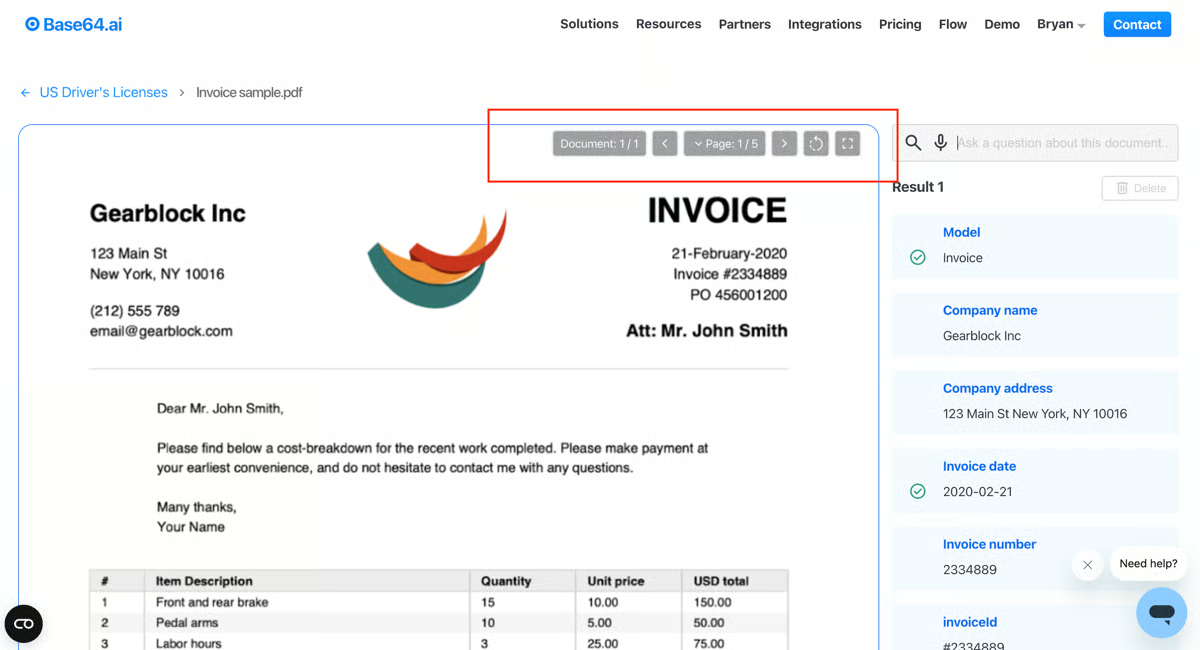
Base64.ai is an ML-powered data extraction and automation tool that generates editable reports and tables from large documents. Base64.ai intelligently captures data and labels it internally to create newer documents. This streamlines business workflows and accelerates transactional processing between clients and vendors. Base 64.ai also verifies and validates text before transferring it into a different format. It ensures that the value and authenticity of the text are maintained.
Pros and cons of Base64.ai: My take
| Base64.ai Pros | |
| Support for bill generation and invoice processing |
Frequent server downtime and app maintenance |
| Data encoding and encryption |
Weak customer verification from poor misinterpretation |
| Segregation of amounts into dedicated invoice categories |
Doesn’t support “direct printing” |
What G2 users like about Base64.ai:
“The advanced AI models have enhanced effective adaptation to new document formats and data extraction from different forms. It enables my team to make informed decisions based on reliable insights obtained from extracted data. I have been able to adopt many projects within the set timelines due to the accurate data that I obtain from different data sources.”
– Base64.ai Review, Ruth C.
What G2 users dislike about Base64.ai:
“There are downtime incidents that have disrupted data workflows, affecting the entire data pipeline.”
– Base64.ai Review, Andrew S.
2. Docparser: Best for converting PDFs into structured data
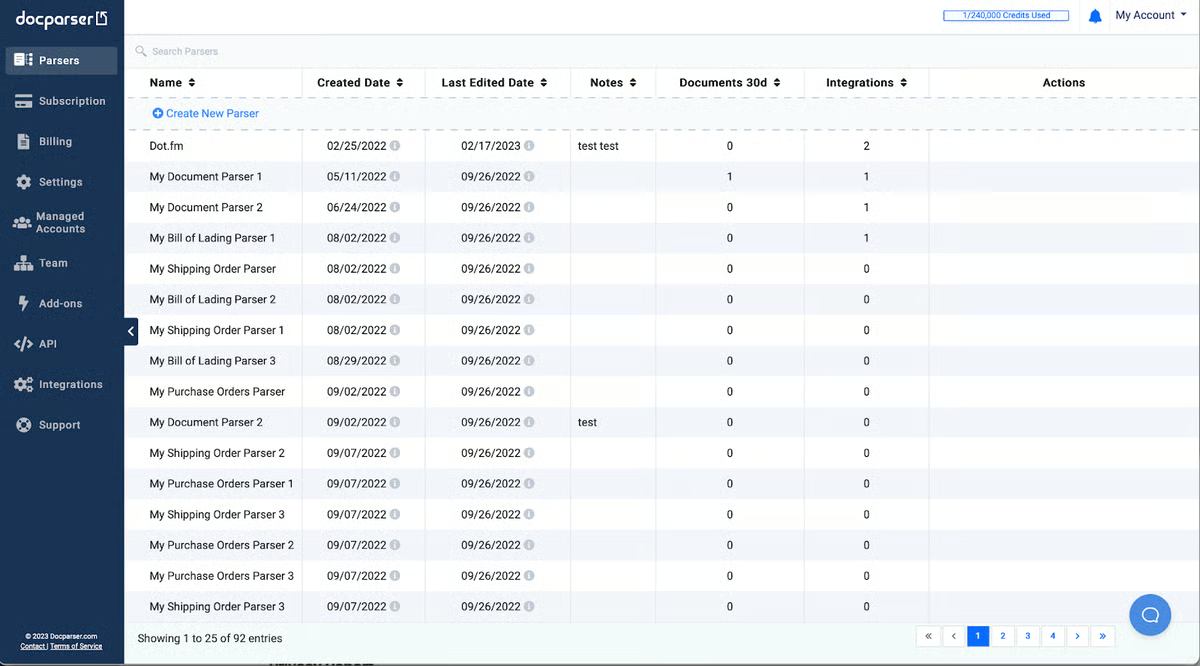
Docparser is a cloud-based document data extraction tool that helps businesses automatically pull structured data from PDFs, Word files, images, and other document formats. It utilizes Zonal OCR, pattern recognition, and customizable parsing rules, allowing users to define exactly what information to extract (e.g., invoice numbers, dates, totals). According to G2 data, 69% of Docparser users are small businesses, highlighting its accessibility and effectiveness for teams that need reliable data extraction without complex setup.
Pros and cons of Docuparser: My take
| Docuparser Pros | |
| Intuitive interface and straightforward workflow. | Not strong with unstructured data extraction. |
| Reliable for extracting structured data from PDFs and documents. | Complex parsing rules require extra effort to configure |
| Visual rule editor lets you tailor extraction without coding. | Document size and page limits can restrict a large batch |
What G2 users like about Docuparser:
“Docparser is incredibly easy to use, offering accurate data extraction, customizable parsing rules, and seamless integration with other tools.”
– Docuparser Review, Marc D.
What G2 users dislike about Docuparser:
“Uploading large numbers of documents at once was an initial issue when we went to download the data. With the help of the Docparser team, we found a work around and now we are not having any issues.”
– Docuparser Review, Grant M.
3. Docsumo: Best for document automation and data capture
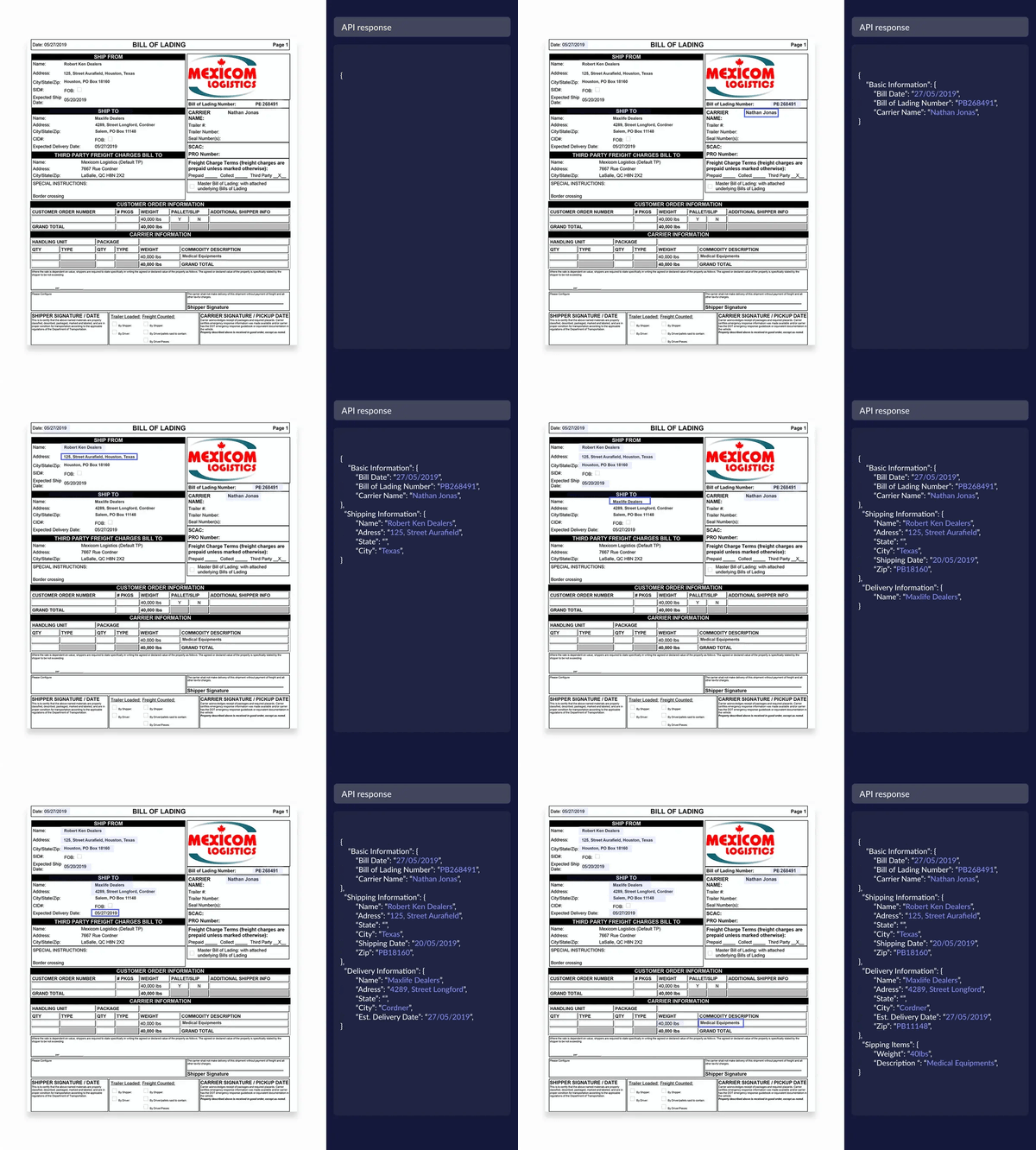
Docsumo is an AI-powered document processing and intelligent data extraction platform that combines OCR with machine learning to automatically capture and validate data from unstructured documents like invoices, bank statements, contracts, bills, and more. It offers more advanced capabilities than simple rule-based tools by using pre-trained AI/ML models that can be customized with as few as ~10 sample documents.
Pros and cons of Docsumo: My perspective
| TextIn Docsumo | TextIn Docsumo |
| Content and invoice recognition |
Improper data gathering for business card integration |
| Deepfake recognition and plagiarism detection |
Inability to exclude page watermarks |
| Built-in grammar assistance tools |
What G2 users like about Docsumo:
“Docsumo has significantly enhanced our operational efficiency by enabling automation across creditor workflows. My ongoing collaboration with Vishal has been exceptional. He consistently demonstrates a proactive approach to problem-solving and is quick to implement improvements. His responsiveness and technical expertise have been invaluable. I look forward to continuing our partnership and building on this success.”
– Docsumo Review, Danielle T.
What G2 users dislike about Docsumo:
“So, for the most part, we didn’t have any drawbacks from using Docsumo, as the few minor issues we had when working with it were solved in less than 24 hours.”
– Docsumo Review, Fabiano R.
4. DocuClipper: Best for easy PDF and image data extraction
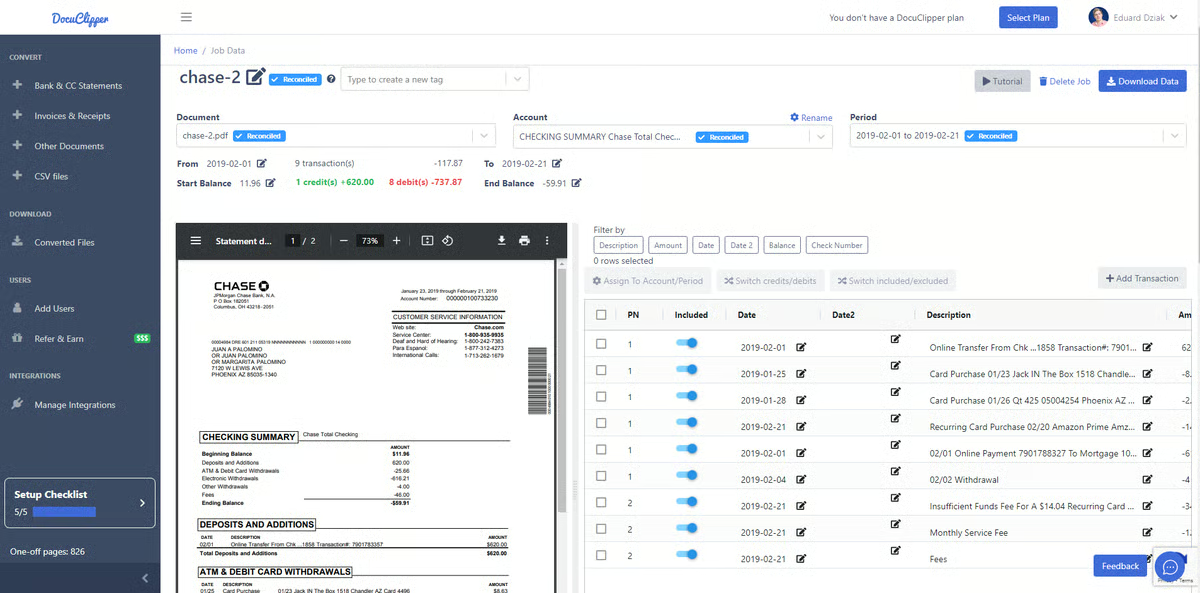
DocuClipper summarizes text from PDF files and inserts it into WORD documents. It supports multiple file formats, including .png, .jpg, and other image files, and reads inline text. DocuClipper ranks as the 5th easiest to use OCR software according to G2 Data. It offers OCR tutorials for beginners to learn more. DocuClipper can also scan and capture multi-page invoices and physical text files containing critical banking or credit card data.
Pros and cons of DocuClipper: My review
| DocuClipper Pros | |
| Receipt parsing and .csv or .qbc support |
Inability to separate data files |
| Captures document details accurately |
Limited features for small businesses |
| Data encryption for sensitive information |
What G2 users like about DocuClipper:
“I used DocuClipper for converting my clients’ bank statements and credit card statements to QuickBooks Online format files. It was very smooth and accurate, unlike other software that I have used for similar purposes. Overall, it is a very intuitive, user-friendly software. It is highly recommended that you are working with PDF statements. I haven’t explored it fully, but so far, it’s great.”
– DocuClipper Review, Javeria Z.
What G2 users dislike about DocuClipper:
“It would be great to have a pay-as-you-go plan for smaller businesses that don’t need it continuously but still need it for occasional projects. I don’t need it enough to warrant the cost of the annual plan. I needed DocuClipper for one project and had to pay the monthly fee and then cancel the subscription. I don’t need the program much, but when I do, it comes in very handy and saves me a ton of time.”
– DocuClipper Review, Stephanie K.
5. Ephesoft: Best for enterprise document capture
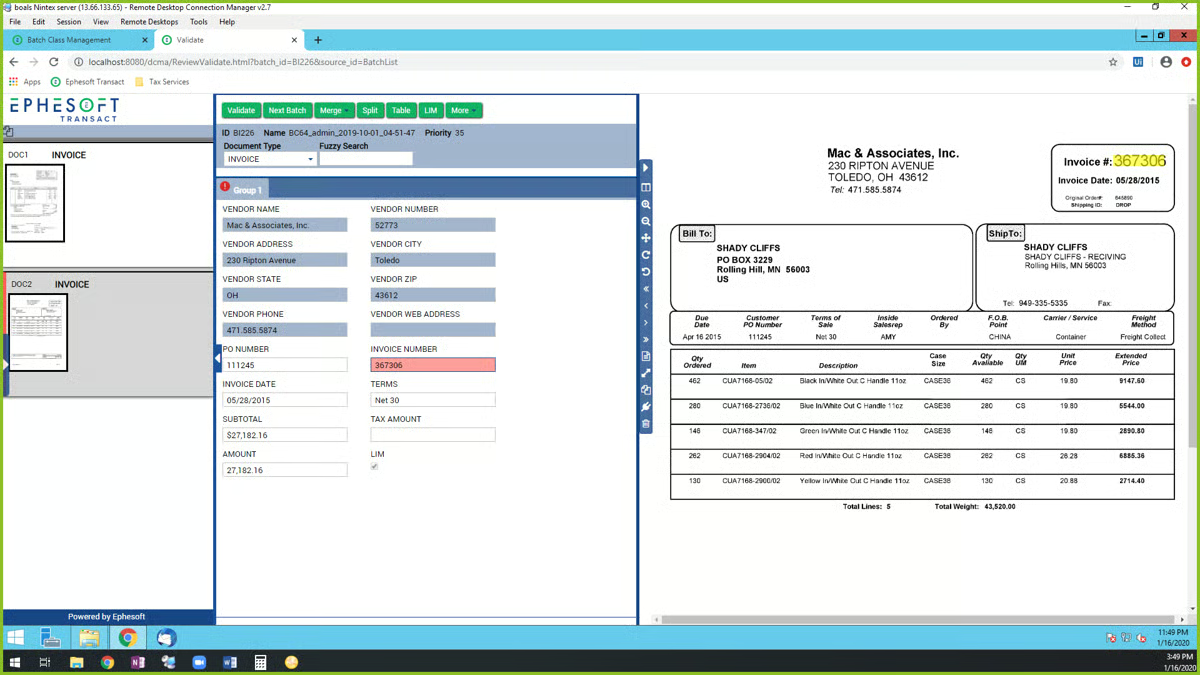
Ephesoft offers database automation and management services for businesses using artificial intelligence (AI). The end-to-end file automation promotes team collaboration, project management, and team-wide document accessibility. Ephesoft works on soft copies of PDF files and extracts important data from the text. It also has several add-ons like form indentation, text alignment, and citation support.
Pros and cons of Ephesoft: My perspective
| Ephesoft Pros | |
| AI-driven document processing |
Frustrating user interface and navigation |
| Natural language processing (NLP) algorithms for contextual understanding |
Limited document verification support |
| Data customization from import files |
Cluttered data validation workflows |
What G2 users like about Ephesoft:
“We appreciate several qualities of Ephesoft. In particular, the software is an excellent and user-friendly way to help us organize and interpret data that was less useful in its previous format. The platform also saves time and money by automatically identifying all file types and processing methods, which reduces the need for human intervention. We’re also fans of how adaptable the interface is; we’ve made several modifications to make it work better for our needs. All this makes Ephesoft a valuable asset to our team because it can be adopted quickly without requiring specialist knowledge or experience.”
– Ephesoft Review, Stephanie W.
What G2 users dislike about Ephesoft:
“It’s slower than other online classification and extraction tools. Also, several features that Ephesoft advertises are discouraged by its professional services and support staff. Finally, it takes substantial effort to maximize the solution’s potential, and the time required to update can quickly add up.”
– Ephesoft Review, Shanil K.
6. FineReader PDF for Windows and Mac: Best for professional PDF and OCR
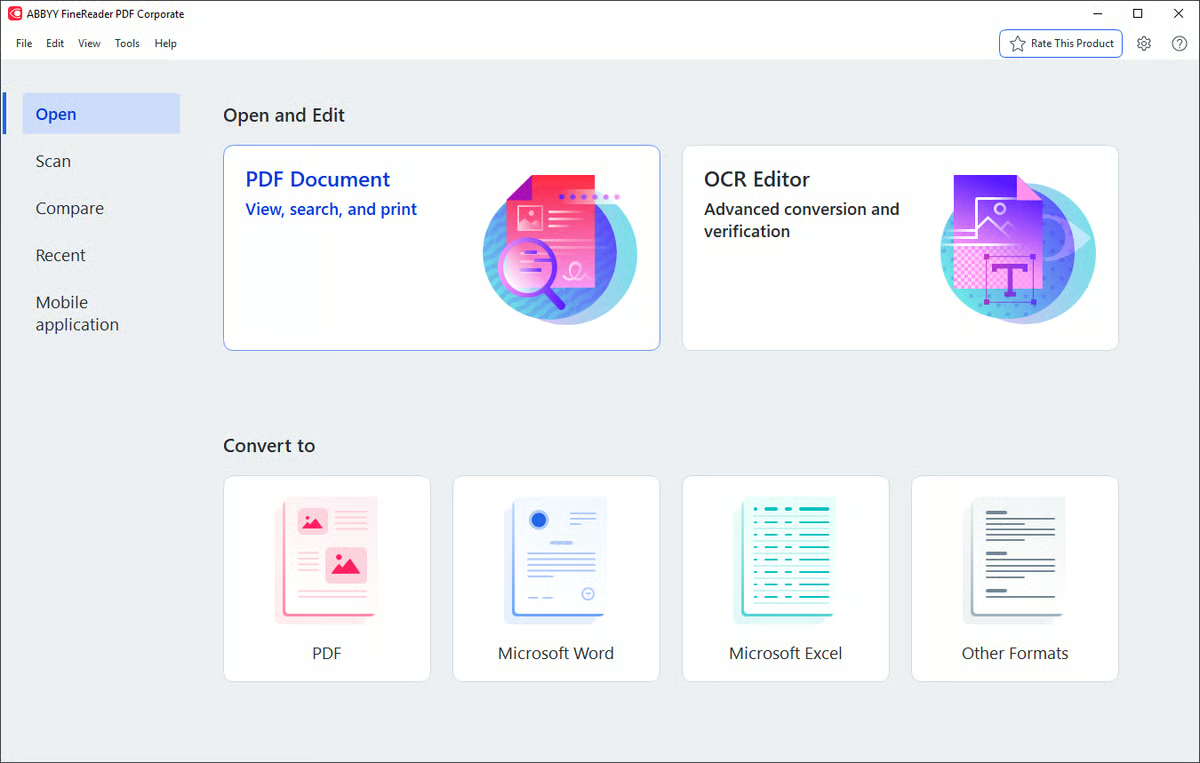
FineReader PDF for Windows and Mac converts PDFs into file formats such as .doc, .docx, .rtf, or .txt, allowing you to upload, parse, edit, and retrieve text. It also offers online OCR to process large volumes of documents. According to G2 data, 74% of small businesses use FineReader PDF, indicating the tool’s widespread trust and accessibility for handling everyday document digitization without complex setup or enterprise-level overhead.
Pros and cons of FineReader PDF for Windows and Mac: My take
| FineReader PDF for Windows and Mac Pros |
FineReader PDF for Windows and Mac Cons |
| Real-time document collaboration |
Non-intuitive table structure editing |
| AI-powered scanner for mobile |
Can’t put page numbers on PDF files |
| Built-in grammar assistance tools |
Doesn’t support “direct printing” |
What G2 users like about FineReader PDF for Windows and Mac:
“I found FineReader’s free version to be a one-stop all-in-one tool when using PDF. To start with, I like the clean interface and how easy it is to use. It is my go-to tool whenever I need to add a digital signature to PDF documents. I also appreciate the ability to categorize my documents, as this helps me organize my confidential information. As an IT professional, I have had previous experience using the ABBYY FineReader OCR solution in projects, and seeing its seamless integration into the tool feels like a game-changer for me. I just love the OCR analysis part of the tool.”
– FineReader PDF for Windows and Mac Review, Sreyas V.
What G2 users dislike about FineReader PDF for Windows and Mac:
“In some cases, using Abbyy’s PDF to Live PDF conversion may have a bad effect on the document print quality (resolution) and its file size.”
– FineReader for Windows and Mac Review, Yohai C.
7. Nanonets: Best for AI-driven OCR for forms and invoices
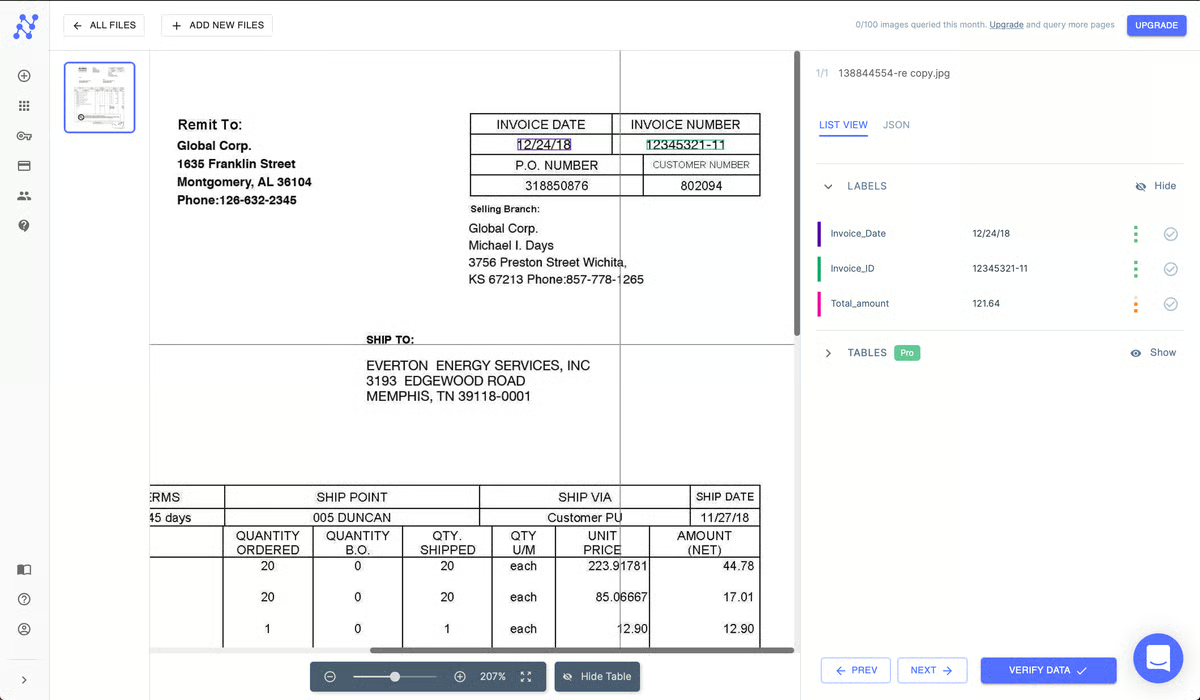
Nanonets help scan, upload, edit, re-scan, and re-save documents in an organized repository.
It offers AI automation to autocorrect document text and highlight inconsistencies in content. Nanonets also features an intuitive mobile app that enables you to scan, save, and edit PDF documents with ease directly from your mobile device. Its large storage capacity and numerous document editing and formatting features make it compatible across platforms.
Nanonets’ intelligent AI automation provides services to 34% of Fortune 500 companies.
Pros and cons of Nanonets: My review
| Nanonets Pros | |
| Built-in document scanning |
Poor interface and OCR capabilities |
| Round-the-clock customer service support |
Weak text accessibility within documents |
| High-speed data extraction and restoration |
Cluttered user experience |
What G2 users like about Nanonets:
“Thanks to Nanonets we were able to digitally process complex invoices and confirmation orders. The AI’s self-learning capabilities were the most remarkable feature for us – with the model improving consistently as more data was provided.”
– Nanonets Review, Nadim A.
What G2 users dislike about Nanonets:
“The model training at first can be a bit tedious and hard to visualize properly, especially for large and complex files, such as financial statements from suppliers from multiple countries. But once everything is set up, it is well worth the training time.”
– Nanonets Review, Charles E.
8. Rossum: Best for invoice and document data extraction
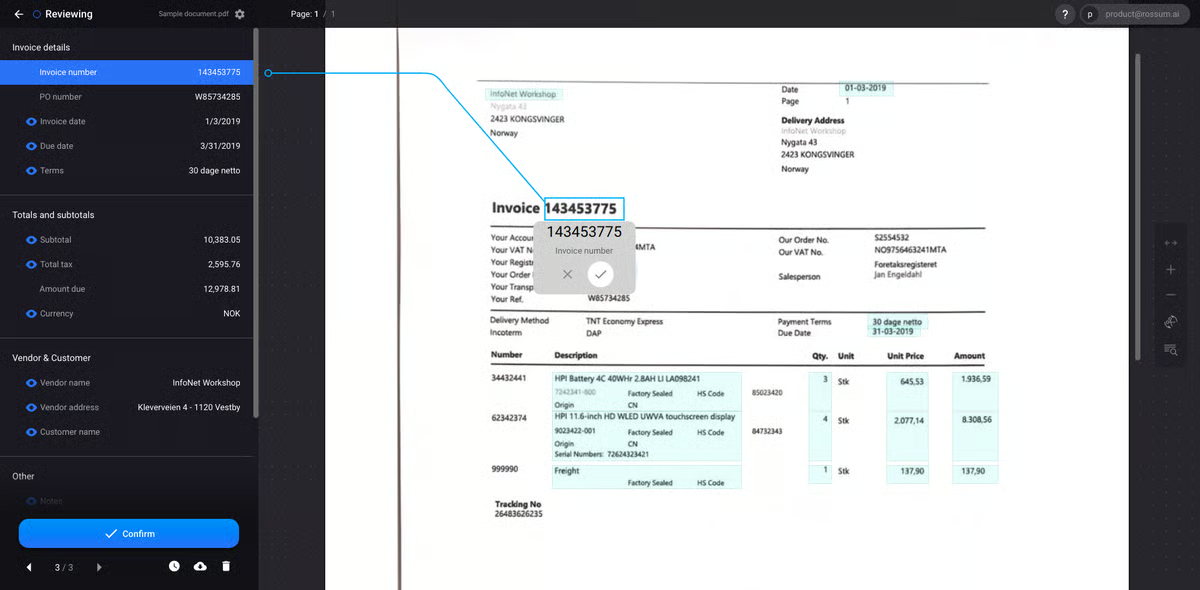
Rossum’s (formerly Elis) AI-assisted data extraction tool captures invoices. This platform can help accounting and bookkeeping professionals refine their workflows. Users can import PDFs or scans of invoices, and Rossum automatically extracts the relevant data into a structured format without the need for templates. Data can then be conveniently validated within the interface and exported for further processing using one of the tool’s software integrations, like NetSuite or QuickBooks Desktop Pro.
Pros and cons of Rossum: My perspective
| Rossum Pros | |
| Invoice data extraction |
Unclear application programming interface (API) documentation |
| Easy app setup and installation |
Limited document verification support |
| Easy data troubleshooting support |
Complex data handling for large PDF documents |
What G2 users like about Rossum:
“The best thing about Rossum is the saved keystrokes. I mean, that’s the whole point of this. From a developer perspective, Rossum’s fairly open approach to allow for modification of the UI and how data is processed through Rossum was the true selling point. My company has very specific needs, and the ability to scale the UI up or down on the fly is incredible and easy.”
– Rossum Review, Connor S.
What G2 users dislike about Rossum:
“Rossum can be improved by learning how to read Excel documents, and sometimes the repeated behaviors we teach Rossum are ignored. Rossum is also limited to reading “straight” lines of data. If there were a way to tilt the grid to read orders that are misaligned, that would be appreciated.”
– Rossum Review, Steven S.

Free OCR software: Frequently asked questions (FAQs)
Q. Does free OCR software support multiple languages?
Most free OCR tools support common languages, such as English, Spanish, and French. Multilingual recognition and less common languages are often limited or locked behind paid plans.
Q. Can free OCR software convert scanned PDFs into editable files?
Yes, free OCR software can convert scanned PDFs into editable formats such as Word or text files. However, formatting accuracy and page layout retention may be inconsistent.
Q. Are there file size or page limits with free OCR software?
Yes, many free OCR tools have limitations on file size, page count, or the number of documents processed per day. These restrictions are removed or expanded in paid versions.
Q. Does free OCR software work offline?
Some free OCR tools offer offline functionality through desktop apps, but many browser-based tools require an internet connection for processing.
Q. Can free OCR software extract tables and structured data?
Basic text extraction is common, but accurate extraction of tables, forms, or invoices is typically limited in free versions.
Q. How fast is free OCR software?
Processing speed depends on the document size, image quality, and the system’s resources. Free tools may process documents more slowly during peak usage.
Q. Is free OCR software suitable for business use?
Free OCR software works well for light or occasional use. For high-volume processing, automation, or compliance needs, paid OCR software is more reliable.
Say goodbye to chaos caused by paper stacks
If you’ve made it this far, the takeaway is simple: you don’t need an expensive OCR tool to start moving away from paper-heavy workflows. The free OCR software on this list can help you convert hard copies into usable digital files.
Whether you’re working with vendors, customers, or new partners, your records don’t have to live in scattered paper stacks. Start with a free OCR tool that fits your document volume and workflow needs, and scale up only when your requirements grow.
Explore the best PDF editors to quickly convert, edit, and modify PDFs once your documents are digitized.
This article was originally published in 2024. It has been updated with new information.