
Here’s a question: How can you boost the performance of your Instagram posts and reels in one minute or less? The answer lies in your Instagram Stories.
I do this for every post I share on Instagram, and it never fails to help my content gain traction.
That’s because reposting my feed posts to my Instagram stories helps my most engaged followers (read: my mom) see my Instagram content, which might not have popped up on their feeds yet. It all has to do with the way the Instagram algorithm for stories works — which, yes, is different from the feed algorithm.
Your Instagram Stories tray will always feature the stories of Instagram users you watch and engage with most often — and vice versa. Your biggest fans will likely always see your stories front and center, before they even begin to scroll their feeds.
So, sharing all your new content to your Instagram Stories makes sure the folks most likely to engage with it see it. They’re the group of followers most likely to tap over to your new posts, flick through the carousel, watch the entire Instagram reel, and hopefully, double-tap or comment.
And the more engagement your feed post receives, the better it will perform.
Really, it’s a no-brainer.
Another bonus: it’s so, so simple to do. And, if you’re really organized, you can schedule an Instagram Story in advance, too. 👀
Here’s exactly how to share an Instagram post to your Instagram Stories.
How to share a feed post to your Instagram Story
Here’s how to add a post to your story in just a few taps on the Instagram app. Note that this will work for your own content, as well as someone else’s (as long as an Instagram reel, carousel, or photo is public, you can share it to your Instagram stories):
- On the Instagram app, find the post you want to share (your own or someone else’s — as long as it’s from a public account). Tap the paper airplane icon underneath the post (the same one you’d use to send it in a DM).
- Select ‘Add to story.’
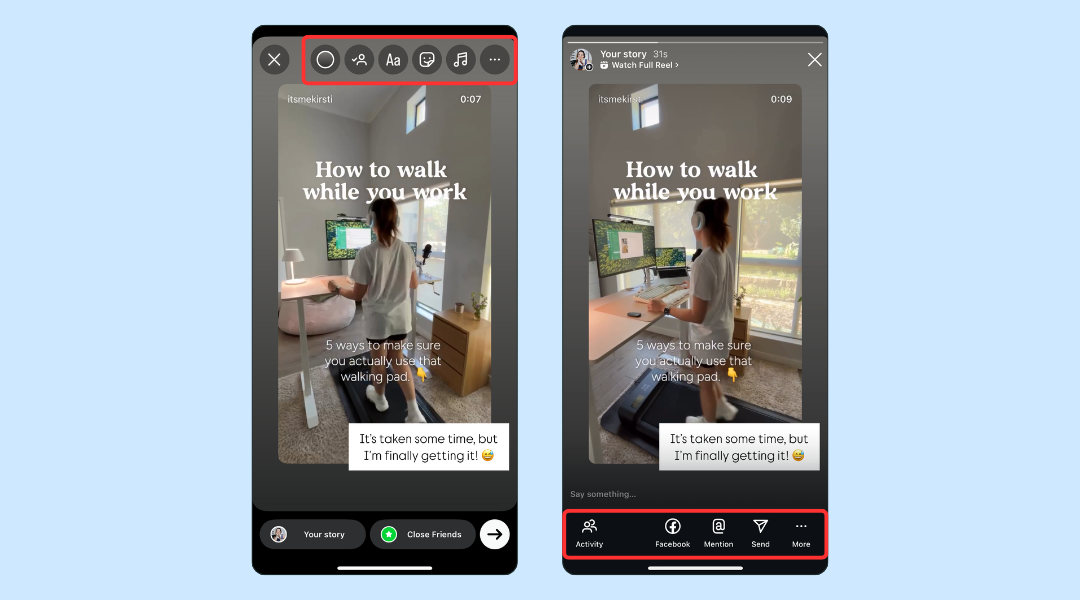
- Instagram will pull the Instagram post into a stories draft, where you can move it around, resize it, rotate it, and customize it with text, GIFs, stickers, or drawings — whatever fits your vibe. When you’re ready, tap the ‘Your Story’ button.
All done!
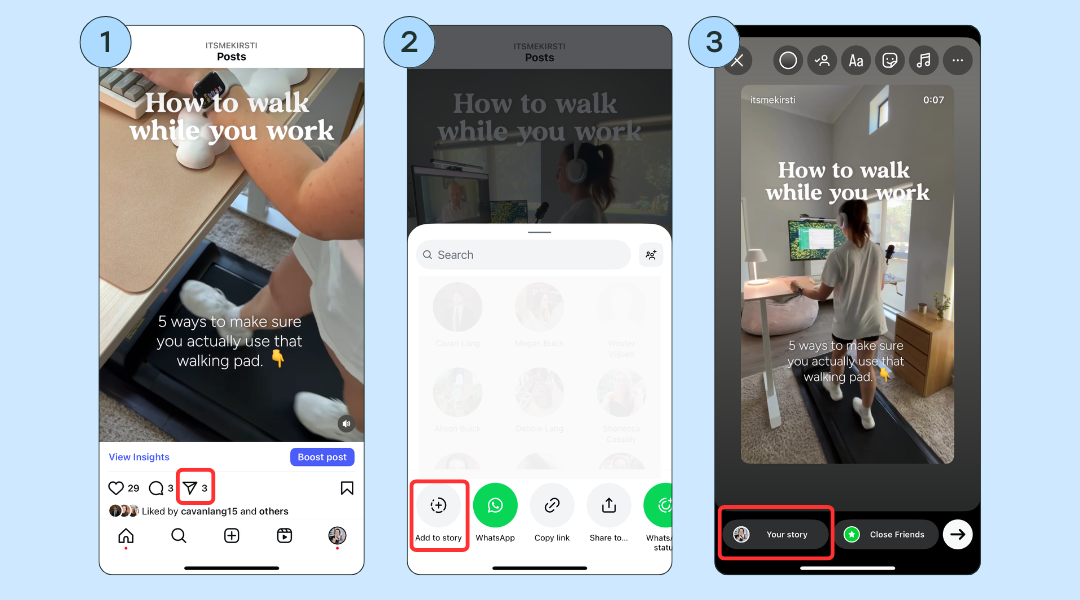
✨ When you share a feed post to stories on the Instagram app, it automatically includes the original account’s username and links back to the post itself. If someone taps it, they’ll head straight to the feed post. How handy is that?
Note: You won’t be able to share your stories on Instagram’s website (sometimes referred to as Instagram desktop version). The feature is only available on the Instagram app.
A pro tip for sharing your post to Instagram stories: if you have time, add some fun context, GIFs, or stickers before you hit publish. I always like to add some commentary with text, just so folks who see the post in my stories get a little something extra (no matter how small!). More on this below.
📌
If you have a public account and want to prevent others from sharing your posts to their stories, you can toggle this setting off under Settings → Privacy → Story.
Schedule your Instagram Stories along with your post
Now, when I’m really organized, I like to schedule a little ‘promo’ story whenever I schedule Instagram content. That way, all of the work is done ahead of time, and my new Instagram post immediately finds its way to my most engaged followers.
Doing this with Buffer is really easy — and available on the free plan, too.
Here’s how:
Step 1: Schedule your post
- If you’re not already signed up to Buffer, you can do that here. It’ll take you less than two minutes to create your account, and you’ll be prompted to connect a channel (Instagram, in this case, straight away).
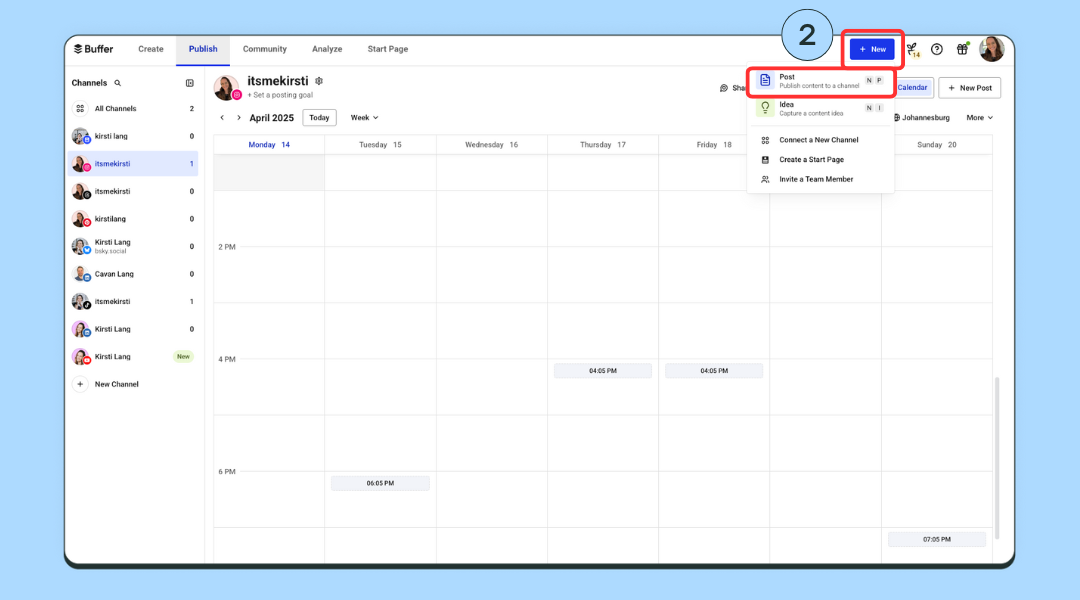
- From there, click on the ‘+ New’ button on the top right, and choose ‘Post.’ (You can also tap directly in your calendar or queue — there are several ways to start a new post in Buffer.)
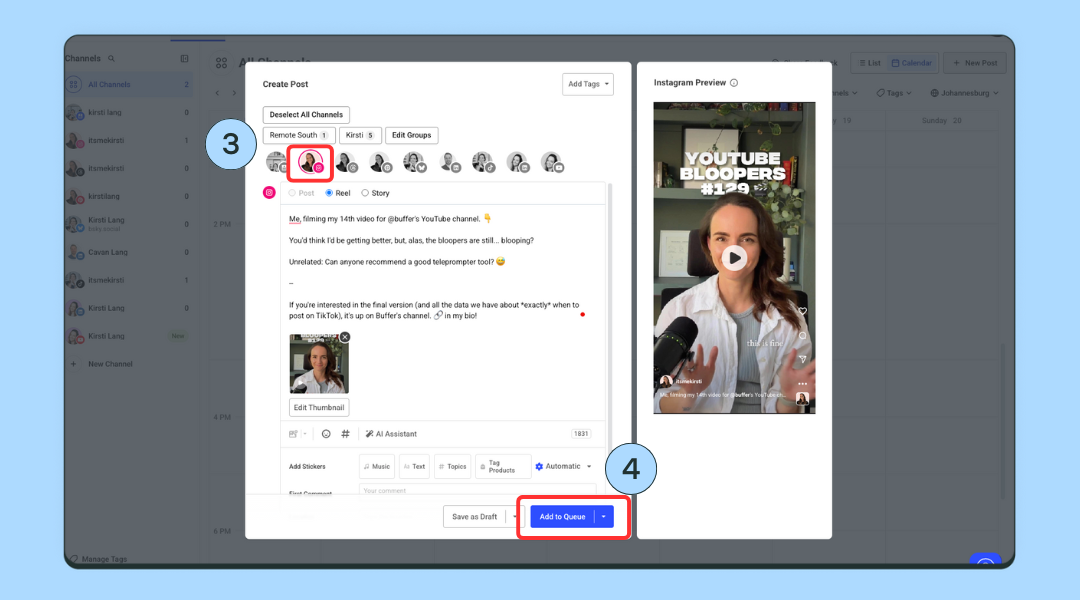
- Choose Instagram (and any other channels you might like to crosspost to), upload your video or photo/s, and add your caption.
- When you’re happy with your post, hit ‘Add to queue’ (or choose a specific time). Voila, your post is scheduled!
Step 2: Schedule your story
- Click on the ‘+ New’ button on the top right, and choose ‘Post.’
- Choose Instagram, Click on ‘Story’ right at the top of the window.
- Upload your video or photo/s, and add your caption. (I always like to share the thumbnail here instead if I created one for Instagram Reels, for example.)
- Add any text you’d like to appear, or note music, links, and other tags you’d like to add. I always like to add a link to my Instagram profile (don’t worry — if you choose ‘Notify me’ posting, you can edit the font and placement before posting!).
- If you opted for notification posting, you’ll get a notification on your phone when the time comes to post — be sure you have the Buffer app installed on your phone to get this.
- From there, all you need to do is follow the prompts, and you’ll be taken right to the Instagram app, where you can edit and add your text, music, location, link, and more.
- When you’re ready, post your story as normal.
When you’re happy with your post, hit ‘Add to queue’ (or choose a specific time). Voila, your post is scheduled!
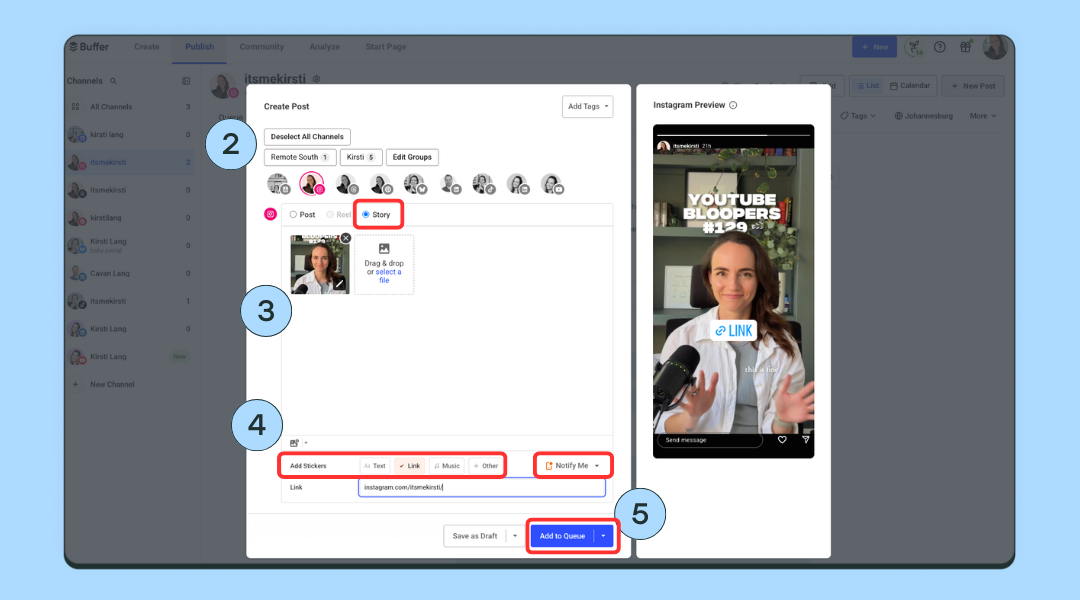
Note that since the feed post won’t be ‘live’ when you schedule your post, your followers won’t be able to tap on the post in the story and be taken straight to your content. That’s why adding your Instagram profile link to the ‘link’ sticker is really handy here.
Tips for making reposted content more engaging
As I touched on above, sharing a feed post to stories is a great first step — and even that simple action may well help boost your reach and engagement.
Still, if you want to get the most out of this nifty little tactic, you might want to spend some time getting a little more creative. Here are a few easy ways to do just that:
1. Add a caption or context
It’s always best not to assume your followers will know what they’re looking at. A quick line explaining what or why you’re sharing a post goes a long way. Bonus points if you can add a little intrigue or spotlight the value you’re sharing in the post.
Here are some ideas:
- “ICYMI: This post covers all the tips about [insert niche here] that I wish I’d known sooner.”
- “This reel about [niche] took me about 20 takes to film! 😆 Worth every second.”
2. Use stickers to spark interaction
Instagram’s built-in stickers make it easy to start a conversation or get feedback. Plus, the easy action of reasoning to a poll or answering a question can help boost the engagement and reach of your story — in turn, hosting the engagement and reach of your feed post. Some ideas:
- Poll sticker (“Have you tried this?” “Which would you have chosen?”
- Question box (“Any questions about this?” / “Want me to cover this in more detail?”)
If you’re comfortable on camera, record a quick video talking about your post or adding a behind-the-scenes detail. It’s a low-lift way to really help build a connection with your followers and show up more authentically.
For example: “This tip came from a real conversation I had with a client last week…”
Be sure to finish with something like, “I’ll add the post to my next story so you can tap over!”
Why you can’t share a post to your story on Instagram
Are the above options not working for you? If you’re trying to share someone else’s post to your stories and you don’t see the option when you tap the paper airplane icon, there may be several reasons for this.
Here they are (and what you might be able to do.)
1. The account is private
Only posts from public Instagram accounts can be shared to stories. If the post was shared by a private Instagram account, you won’t see the option to add it to your story — even if you follow them.
2. The account has sharing disabled
Even public accounts can turn off the ability for people to share their posts to stories. It’s a privacy setting that’s easy to toggle on or off.
If you want to double-check yours:
- Go to your Instagram Settings
- Tap Privacy > Story
- Scroll to Sharing
- Toggle Allow Resharing to Stories on or off
If this setting is turned off on someone else’s Instagram account, you won’t be able to share their feed post to your story.
3. You might need to update the Instagram app
Sometimes Instagram’s newer features (or small glitches) are resolved with a quick app update. If sharing used to work and suddenly doesn’t, try:
- Updating the Instagram app from your device’s app store
- Logging out and back in
4. You’re trying to share on the Instagram website
As I mentioned above, the ability to share posts to your stories is only available in the Instagram app, not on Instagram.com in your browser.
This one is easy enough to fix, however — just save the link of the post, if necessary, and hop over to the app version to share.
Sharing your posts to stories is a win-win
Sharing your Instagram Reels, carousels, and photos to your stories is a simple tactic with loads of benefits.
It helps drive more views, likes, and comments on your latest post — and it gives you a chance to add extra context, personality, or commentary around your post.
If you’re focused on growing your following on Instagram, I’d highly recommend making this step part of your posting routine!