My favorite Meta Ads Manager feature is Compare Attribution Settings. It helps solve problems, expose misleading results, and uncover impact that isn’t available with the default reporting.
The problem is that not nearly enough advertisers actually use this feature. I open nearly every one-on-one session I conduct by digging into this data. This feature is a regular part of my daily routine, and I encourage you to make it part of yours.
If you’re not familiar with it, click on the Columns dropdown menu in Ads Manager. Near the bottom, you’ll find “Compare Attribution Settings.”
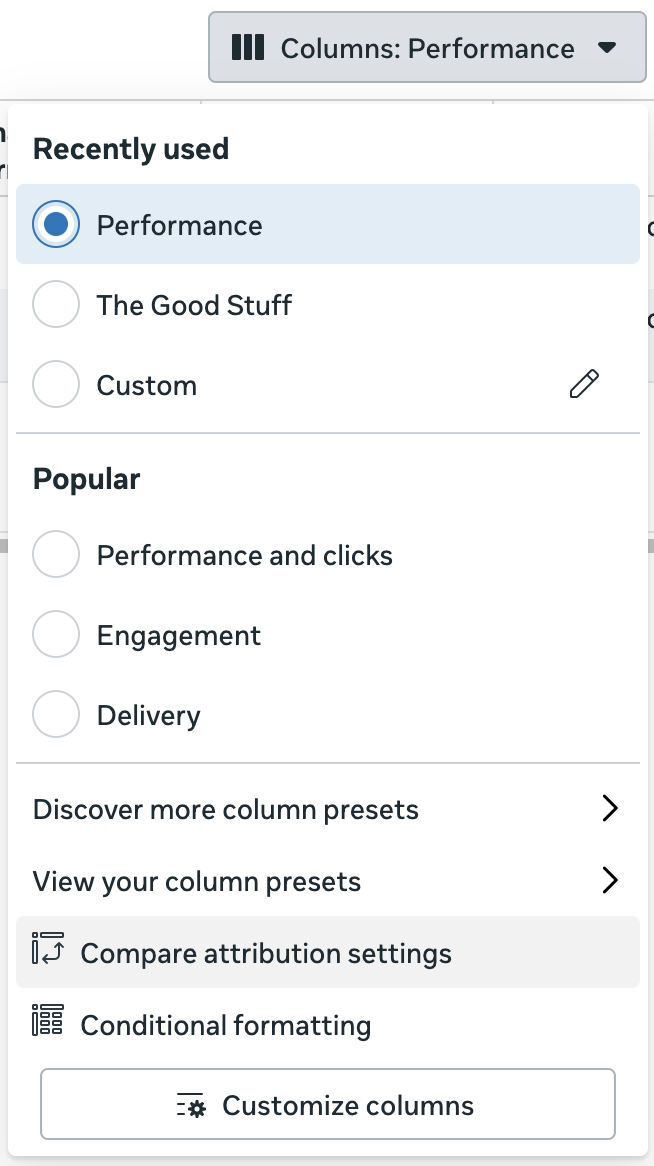
When selected, you’ll get a menu like this…
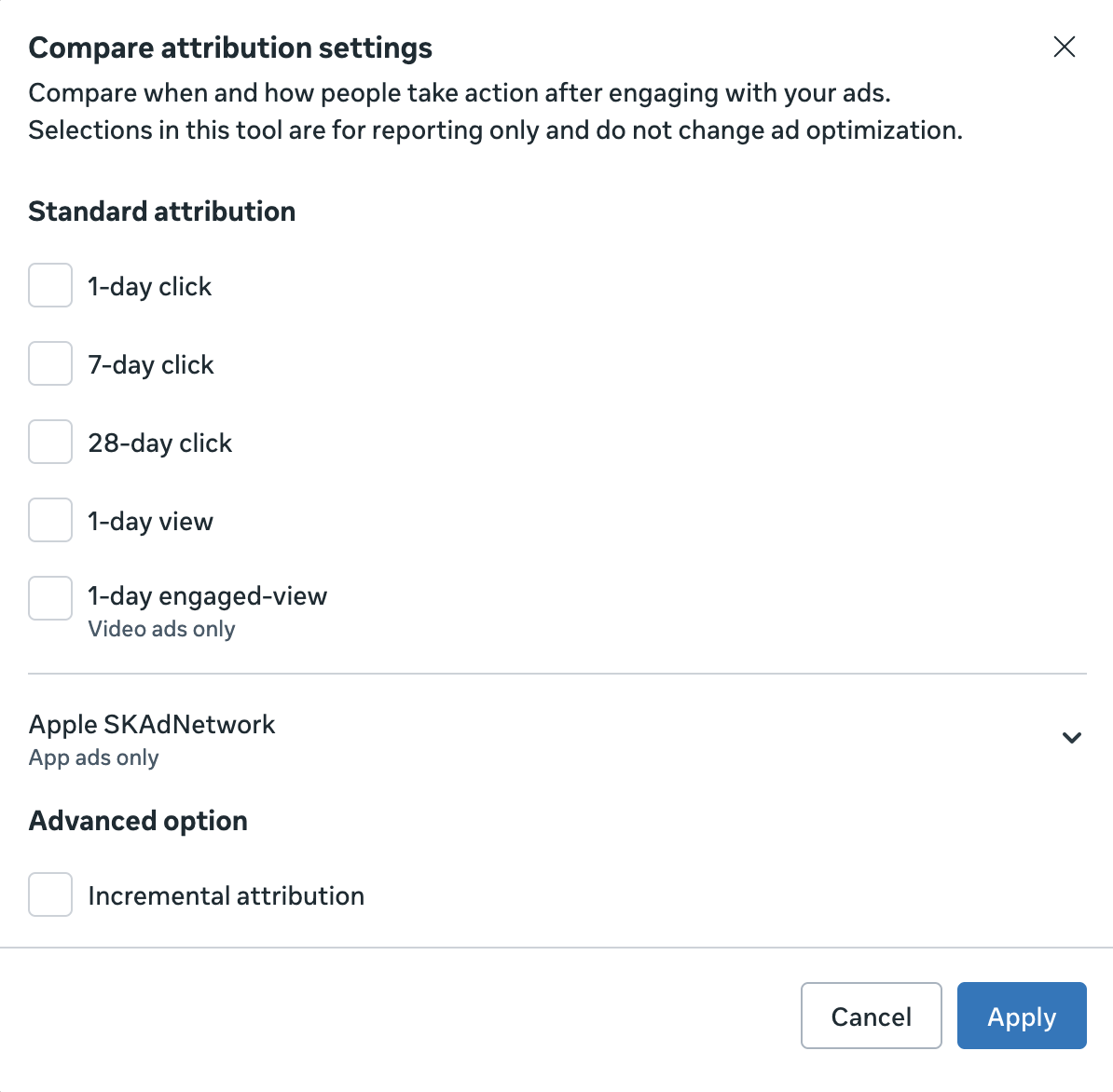
This is a collection of all the various attribution settings (First and All Conversions will appear after clicking one of these). By checking any of these boxes, you will add a column to your report.
The default columns will report conversions based on the attribution setting that was defined in your ad set. If you didn’t make any changes, it will be 7-day click and 1-day view. But adding these columns can provide illuminating information.
Here are my favorite ways to use this feature…
1. 1-Day View and Remarketing
Whenever I’m speaking with an advertiser who has a separate ad set for remarketing and they’re getting results that seem too good to be true, I instruct them to compare attribution settings. I may ask them to add columns for 7-day click and 1-day click, but the most important thing is to have a column for 1-day view.
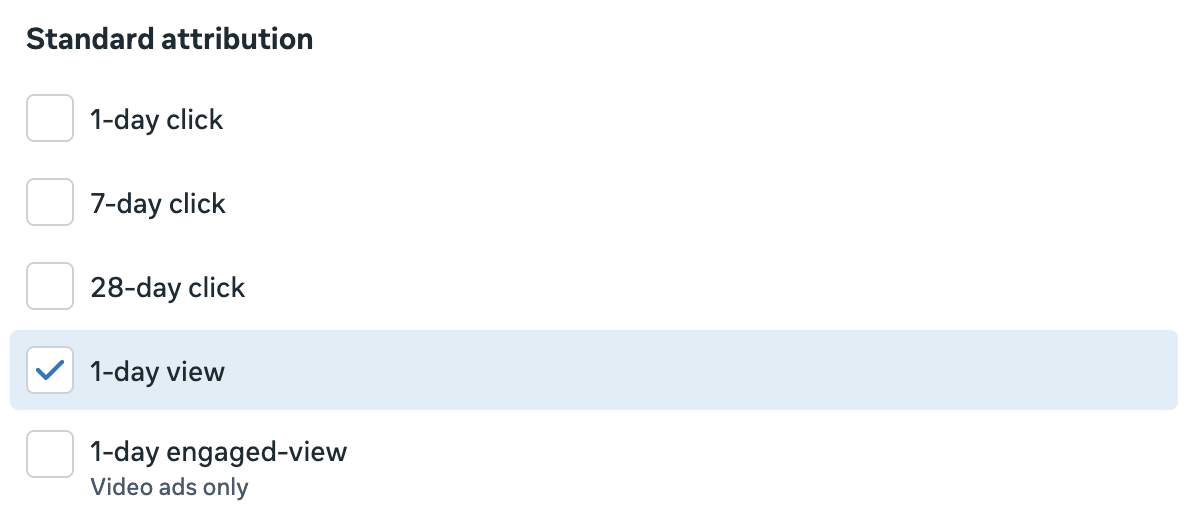
I don’t have a lot of results to pull from as examples since I don’t personally do a lot of remarketing these days, but here’s one…
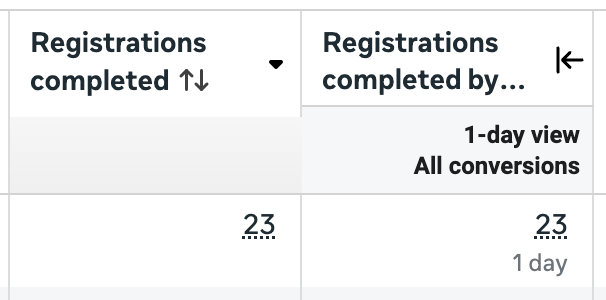
Every single reported registration was the result of a view-through conversion. That means that not even one person clicked the ad before converting within seven days. All 23 registrations happened within a day of viewing (but not clicking) the ad.
The disparity isn’t always this ridiculous, but my point is this: Click conversions more accurately reflect the impact of your ads than view-through. And when you’re remarketing, this is even more true.
Since the ad delivery algorithm is literal and Meta is going to do everything it can to get you more results, you can bet that it will take advantage of potential view-through conversions when remarketing. You’ll get a ton of them.
If ads are displayed to people who are otherwise getting emails from you or already visiting your website, they don’t need to click them. They don’t even need to actually see them. If they convert within a day, view-through conversions will be reported.
I have lots of problems with remarketing, and the misleading results due to view-through conversions is high on that list. Removing view-through results won’t completely solve those problems, but it will at least eliminate some of the most glaring fluff in your reporting.
And seeing this is often eye-opening for those who rely heavily on remarketing.
2. 1-Day and 7-Day Click Spread
How long is the decision process after clicking on your ads? You can start answering this question by creating separate columns for 1-day and 7-day click.
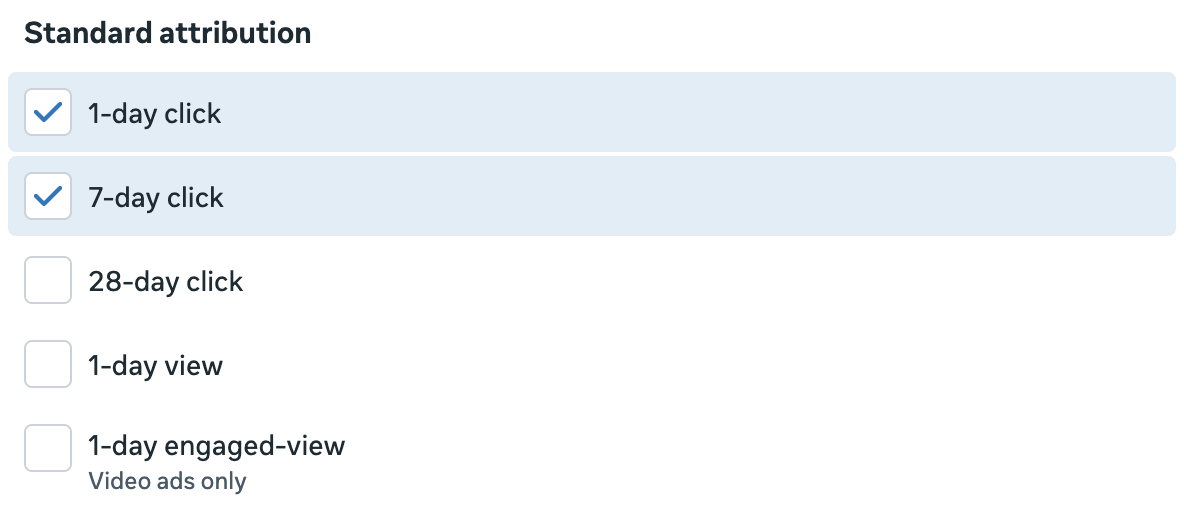
This will give you three columns for each conversion metric (including Results, if you are optimizing for conversions):
- Default reporting
- 1-day click
- 7-day click
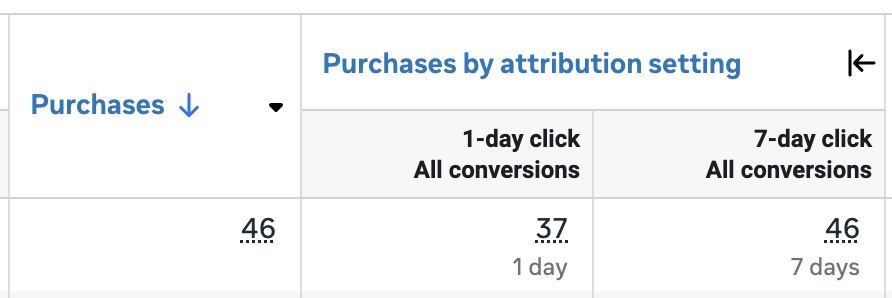
In the example above, 37 of the 46 purchases happened within a day of clicking the ad while 9 (46 minus 37) converted between days 2 and 7. In this example, a large majority of customers converted within a day. If it were flipped, that may be because of a higher dollar product that takes more time for consideration.
You will also see a greater concentration of 7-day click when using remarketing. Someone clicks your ad, doesn’t convert, and is then sent a reminder via email (or some other platform) within the next few days. Your ad still gets credit because of that initial click.
Once again, 1-day click is most reflective of the impact of your ad. Do not toss out the 7-day click results by any means, but those are more likely to have had help (and you should provide that help when you can!).
3. 28-Day Click and Post-Lead Purchases
Do your ads lead to more purchases (or some other conversion) than you think? One way to uncover this is with 28-day click.
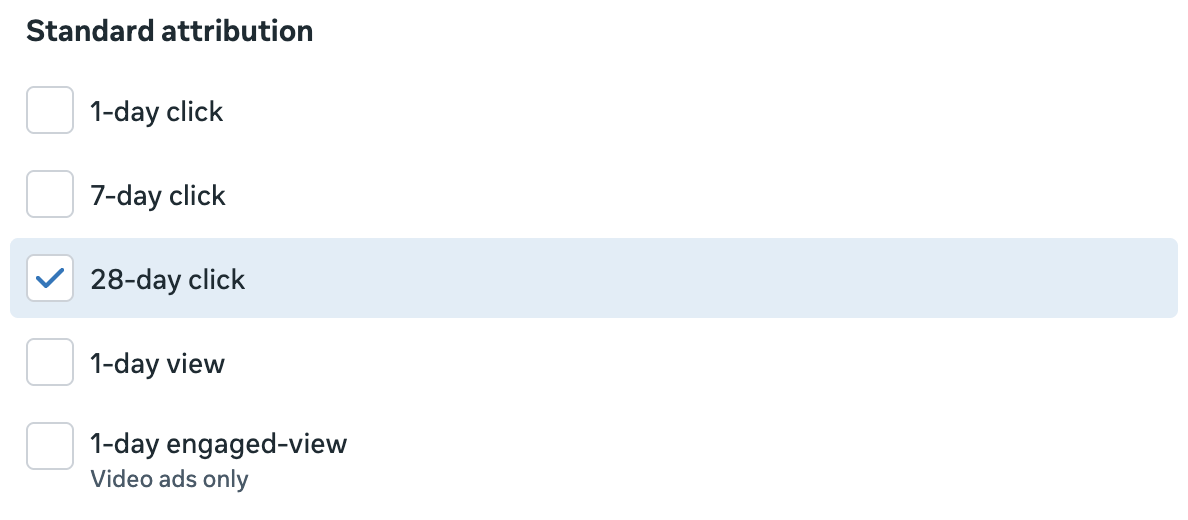
To reiterate, 28-day click is not as valuable as 1-day click. But this larger window helps highlight what people do beyond the default 7-day click window.
And that’s especially useful when running ads that are intended for lead generation. Are you able to turn leads into paying customers within 28 days of clicking — which is likely the window since joining your list?
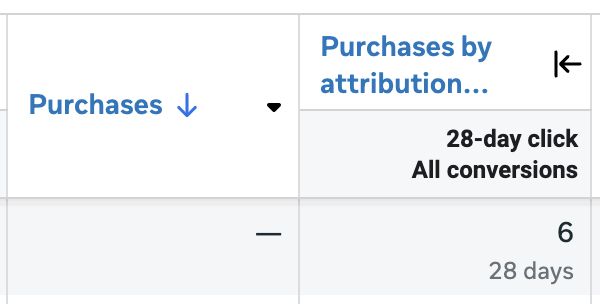
In the example above, no purchases were reported by default. But when the window was expanded to 28 days, six purchases appeared. This is useful information to know.
I’ve had people come to me who were concerned that their lead generation ads weren’t worthwhile. But once they used this comparison, they were able to see that they were actually making money on those leads.
4. First Conversion and Unique Customers
Once you select any of the attribution windows, you’ll have the option of selecting First Conversion, All Conversions, or both.
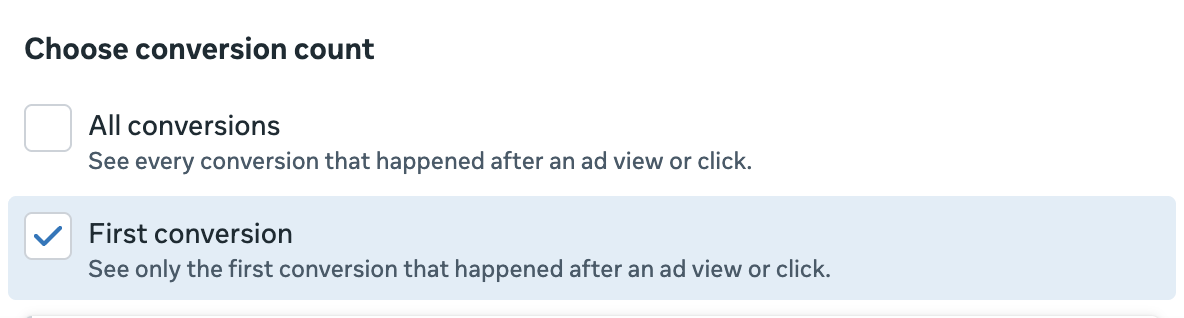
This highlights one of the most common misunderstandings related to conversion reporting. By default (unless you used the First Conversion option in your ad set), Meta is going to report all conversions that someone made within the attribution window. One person could perform multiple, separate conversion events.
Let’s assume a standard 7-day click and 1-day view situation. Someone clicks on your ad and goes to your website. They make a purchase. Two days later, they return and make another purchase. By default, both purchases will be reported. It doesn’t need to be the same product or the product you were promoting.
That’s where First Conversion can help solve this potential reporting problem. When you add a column for First Conversion, it will reflect only the first conversion someone made within the attribution window. So in the example above, it would only be 1 conversion, not 2.
Granted, it’s helpful to know if someone made multiple purchases after engaging with your ad. You want to know that. But First Conversion is especially useful for providing a number that’s closer to “unique customers.”
Let me provide an example using lead generation and the Complete Registration event to illustrate this. When someone subscribes to Cornerstone Advertising Tips, the confirmation page includes a cross-promotion for The Loop. The result is that I get a decent number of people subscribing to both.
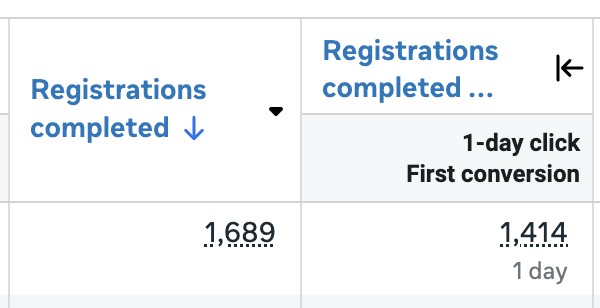
So in the example above, we can reasonably assume that my ads led to 1,414 subscribers, but some of those people subscribed to something else as well (usually The Loop).
Get Clarity on Conversion Reporting
These are my four favorite ways to use the Compare Attribution Settings feature, but there are certainly more. The main thing is that you should make it a regular part of your toolbox so that you prioritize searching out context for your results. What’s reported by default doesn’t tell the entire story.
How many of those conversions were view-through? How many were 1-day or 7-day click? How many were First Conversion versus All? Were any conversions hidden beyond your attribution setting?
The most curious and experienced advertisers answer these questions daily, and it helps inform their actions.
Your Turn
Do you have a favorite use of the Compare Attribution Settings feature that I haven’t listed here?
Let me know in the comments below!